
Guide section
Privacy & security
End-to-end encryption
Scramble your financial data before it uploads so the server cannot read it.
End-to-end encryption (E2EE) means amounts, notes, and similar fields are locked on your phone before they are sent to the cloud. Expense Trail’s servers store scrambled data they cannot read without your keys.
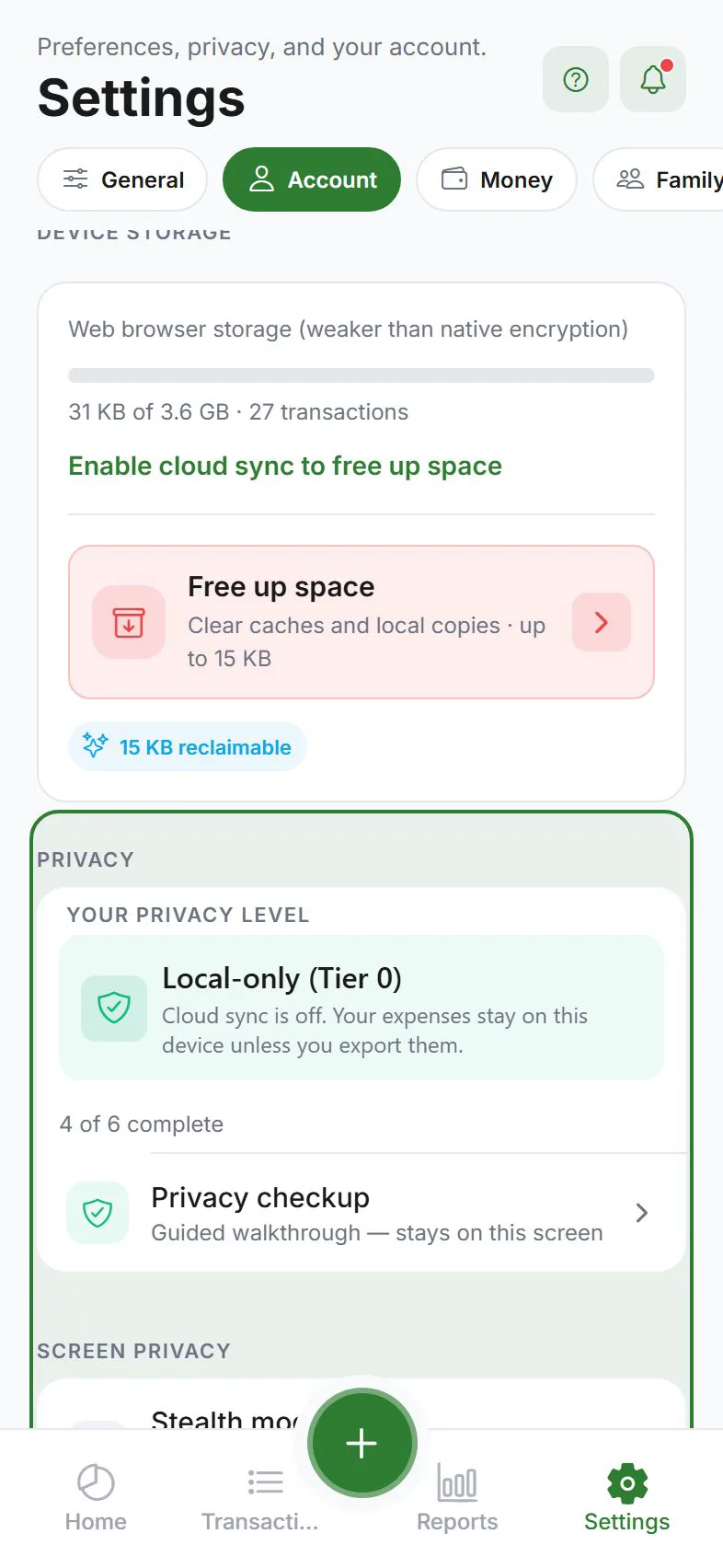
Requirements
- Sign in
- Turn Cloud sync on
- Complete setup in Settings → Account → Privacy
Enable encryption
- Open Settings → Account → Privacy
- Find the Encryption section
- Turn on End-to-end encryption
- Write down your 12-word recovery phrase — store it like an important password
- Confirm you saved it — the app uploads key escrow (phrase-wrapped master key) to your account
After enable, this device is unlocked. Other devices stay locked until you enter the same phrase — see E2EE unlock & key escrow.
If you lose the recovery phrase and all your devices, encrypted cloud data cannot be recovered. There is no “reset password” for E2EE.
What is encrypted
Sensitive fields — amounts, notes, and related financial details — are encrypted on your device before upload. The server holds ciphertext, not readable entries.
Some features that need readable server data may be limited while E2EE is on (for example, certain server-side report or push summaries).
For reminders and alerts, the server may send a generic cloud ping (Open Expense Trail to check your reminders) while your device evaluates amounts after unlock. See Alerts & push settings and All notifications.
| Area | While E2EE is on |
|---|---|
| Expenses, wallets, goals (cloud) | Encrypted; readable only when device is unlocked |
| Categories & tags (local settings) | Usually still editable on device |
| Reports needing server plaintext | May be empty or partial until unlocked |
| Server IOU split sync | Not available — local splits only |
| Wishlist cloud rows | Encrypted like other financial data |
IOU split sync: With encryption enabled, split expenses that rely on server-side split records are not available. You can still track splits locally on your device.
New phone or fresh install
- Install Expense Trail and sign in
- Turn on cloud sync
- If the unlock banner appears, enter your recovery phrase (or complete phrase setup if status is no escrow)
- Wait for sync; pull to refresh Transactions
Details: E2EE unlock & key escrow.
Different account on the same install
Signing out does not remove your master key or recovery phrase setup — you need them when you return to the same account.
Signing in as a different user on this device clears local encryption and household key material (and backup provider tokens) so the previous user’s keys cannot decrypt the next user’s data. Set up E2EE again under Settings → Account → Privacy for the new account, and keep that account’s recovery phrase safe.
See Account & sync.
Household encryption
In a household, members share key bundles so everyone can decrypt shared expenses. If a partner sees scrambled or missing shared amounts:
- Both complete privacy setup
- Confirm the invite was accepted
- Re-save shared expenses if needed
Turn off encryption
Disabling E2EE may require uploading decrypted data — follow in-app warnings carefully. Export a backup before major privacy changes.
Recovery phrase storage tips
| Do | Don't |
|---|---|
| Password manager secure note | Email or text message |
| Paper in a safe place | Screenshot in photo roll |
| Share with trusted partner for estate planning | Post-it on monitor |
Related guides
Was this guide helpful?