
Guide section
Getting started
Account & cloud sync
Sign in, sync across devices, and understand what stays on your phone vs in the cloud.
Expense Trail works fully without an account. Your entries live on your device from day one. Sign in only when you want backup, multiple devices, household sharing, savings goals in the cloud, or push notifications.
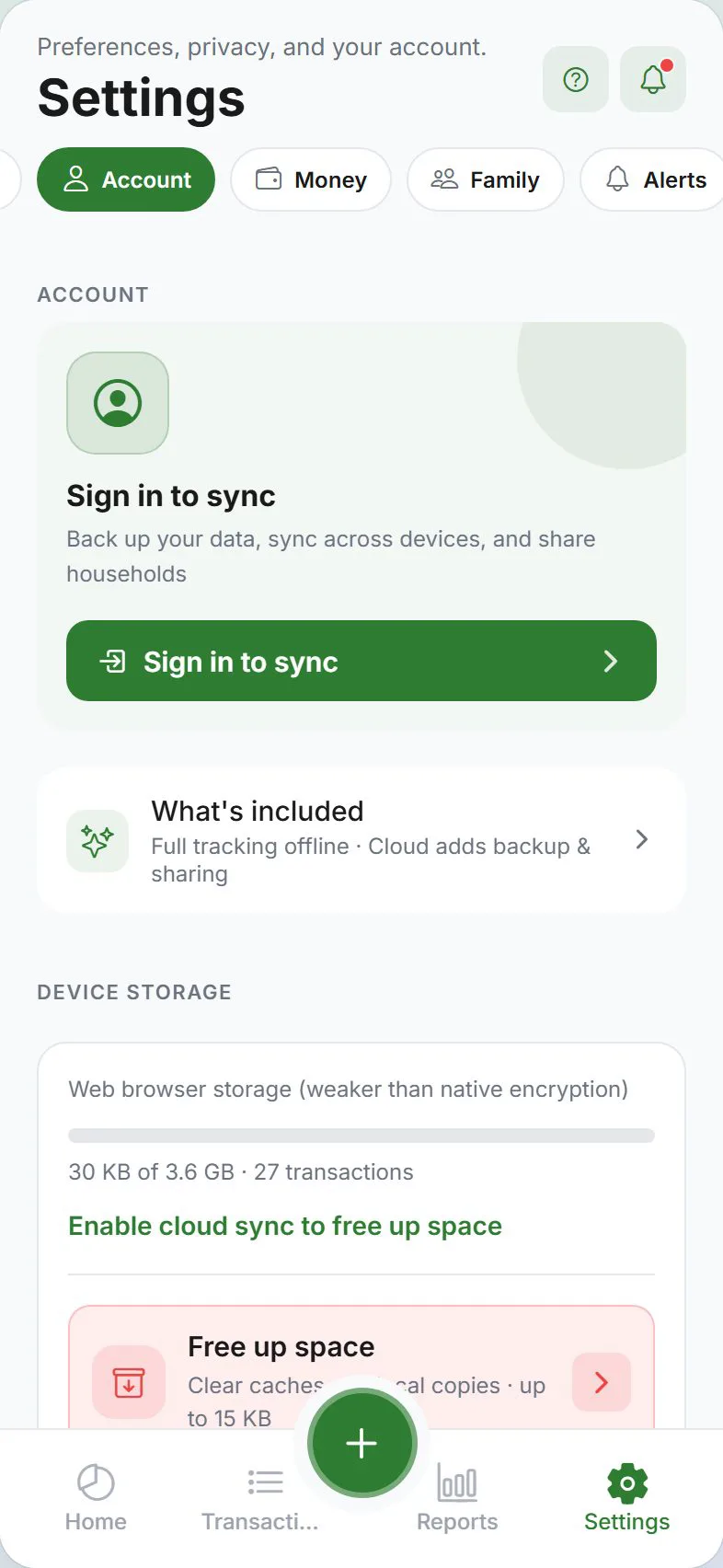
Local-first by default
When you are not signed in:
- Expenses, categories, budgets, and schedules stay on this device only
- Nothing is uploaded to Expense Trail’s servers
- You can still export backups from Settings → Data
This is the most private way to use the app.
Sign in
- Open Settings (gear tab).
- Go to the Account tab.
- Tap Sign in.
- Choose Google or Apple and complete the sign-in on your device or browser.
After sign-in, your name and email appear on the Account screen. You can sign out anytime without losing local data on that device.
Your buddy invite code
When you are signed in with cloud sync, Settings → Account shows a permanent TRAIL- invite code (for example TRAIL-ABCDEFGH).
- Share it so friends can add you as a buddy
- Useful when sign-in hides your email (for example Sign in with Apple)
- Tap Share invite or scan the QR on the Account screen
Only share your code with people you trust. Anyone who has it can send you a buddy request. Decline unwanted requests under Settings → Family → Buddies — do not post your code on public forums or group chats.
The code is only visible while cloud sync is enabled.
Turn on cloud sync
Cloud sync copies your data to your account so other devices can stay in step.
- Settings → Account
- Turn on Cloud sync
- Wait for the first sync to finish — you may see a progress indicator or “Sync now” button
Web browser note: When you turn on cloud sync in the browser, the app may warn you that browser storage is less protected than the phone app. For sensitive data, prefer the installed iPhone or Android app.
What cloud sync includes
When cloud sync is on, these stay aligned across your signed-in devices:
- Expenses, income, and categories
- Wallets, payment methods, tags, and budgets
- Scheduled entries and balance adjustments
- Transfers between wallets
- Savings goals and contributions
- Household membership and shared expenses
Some features require cloud sync to work at all:
| Feature | Needs cloud sync? |
|---|---|
| Transfers between wallets | Yes |
| Savings goals (full management) | Yes |
| Household sharing | Yes |
| Cash flow report (long-range) | Yes |
| Push notifications (most types) | Yes |
| Buddies & split contacts (local only, no code) | No — balances stay on this device |
| Buddies & split contacts (cloud-linked via buddy invite code) | Yes — split amounts sync after both accept |
| LAN sync between two devices | No — works on your Wi‑Fi |
Working offline
If you lose internet while cloud sync is on:
- You can still add and edit entries — changes are saved on the device
- When you are back online, open the app and changes upload automatically
- Settings → Account may show a pending sync count — tap Sync now to retry
End-to-end encryption (optional, stronger privacy)
By default, cloud sync stores readable data on the server so reports and notifications can work. For stronger privacy, you can turn on end-to-end encryption so only your devices can read financial details.
- Settings → Account → Privacy
- Open the Encryption section
- Follow the steps to enable it and save your 12-word recovery phrase
Save your recovery phrase somewhere safe — like a password manager or written copy at home. Without it, encrypted cloud data cannot be opened on a new device.
Full details: Encryption guide.
Different account on this device
Sign out keeps your local database and encryption keys on the device so you can sign back into the same account later.
If you sign in with a different Google or Apple account on this install (for example a family tablet), the app clears the previous account’s encryption keys, household keys, and cloud backup provider links (Google Drive, Dropbox, WebDAV) stored on this device. That prevents one user’s keys from unlocking another user’s encrypted cloud data.
| Situation | Keys & backup links on device |
|---|---|
| Sign out, then sign back into the same account | Usually kept |
| Sign in as a different account | Cleared for the previous account |
| Fresh install or new phone | Empty until you sign in and set up encryption again |
After switching accounts, re-link storage connections and enter your recovery phrase for the account you use.
Sign out vs delete account
| Action | What happens |
|---|---|
| Sign out | Stops syncing. Data already on this device usually stays. Cloud copy remains on the server until you delete the account. |
| Delete account | Removes your server account and cloud data after confirmation. You will be asked to type DELETE and answer a short survey. Export first if you need a copy. |
To delete: Settings → Account → Delete account.
Use the same account everywhere
One sign-in works on iPhone, Android, and web. Enable cloud sync on each device where you want shared data.
Typical setup: Track daily spending on your phone, review reports on a tablet or computer — same account, same numbers.
Troubleshooting sync
| Problem | Try this |
|---|---|
| Numbers differ between devices | Open the app on both devices with internet; wait for sync to finish |
| “Pending sync” will not clear | Tap Sync now on Settings → Account |
| New phone, empty app | Sign in, turn on cloud sync, wait. If encryption is on, enter your recovery phrase |
| Still stuck | See Common issues or email support |
Next steps
- Privacy overview — stealth mode, app lock, and encryption
- Backup & export — save a file copy even without cloud sync
- Households — share expenses with a partner or family member
Was this guide helpful?