
Privacy & security
Guide section
Privacy & security
App lock
Require a PIN or fingerprint before opening Expense Trail on your phone.
App lock stops others from opening Expense Trail if they pick up your phone. Combine it with stealth mode to hide amounts even after unlock.
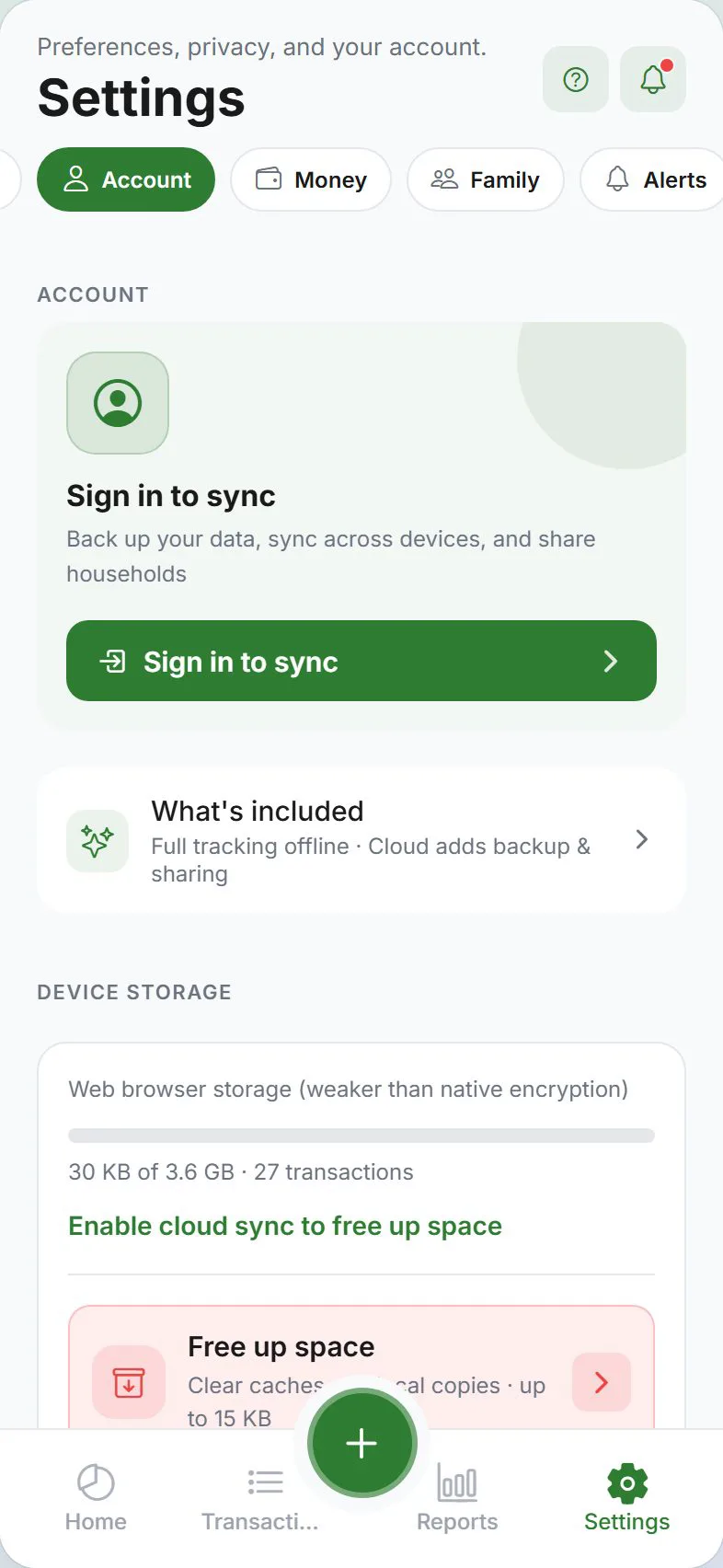
Where to set it up
Settings → Account → Security
Enable app lock (iPhone & Android)
- Turn on App lock (or Set up PIN)
- Create a 6-digit PIN
- Optional: enable Face ID, Touch ID, or fingerprint for faster unlock
- Choose auto-lock timeout:
- Immediately when you leave the app
- After 1 minute
- After 5 minutes
Unlocking
When locked, open the app and enter your PIN or use biometrics. After too many wrong PIN attempts, the app applies a short lockout that gets longer with repeated tries.
Change or turn off PIN
- Settings → Account → Security
- Change PIN or disable app lock
- Confirm with your current PIN
Web browser
App lock with PIN is not available on the web. Use your computer’s login password and sign out on shared PCs. For strongest protection, use the iPhone or Android app.
With stealth mode
| Layer | Protects |
|---|---|
| App lock | Opening the app |
| Stealth mode | Amounts visible inside the app |
Use both in public places.
Related guides
Was this guide helpful?