
Guide section
Notifications
Alerts & push settings
Turn notifications on or off, set budget thresholds, lock-screen privacy, and background sync options.
Settings → Alerts is where you control reminders and push notifications. For a full list of every notification type (cron jobs, events, inbox kinds), see All notifications.
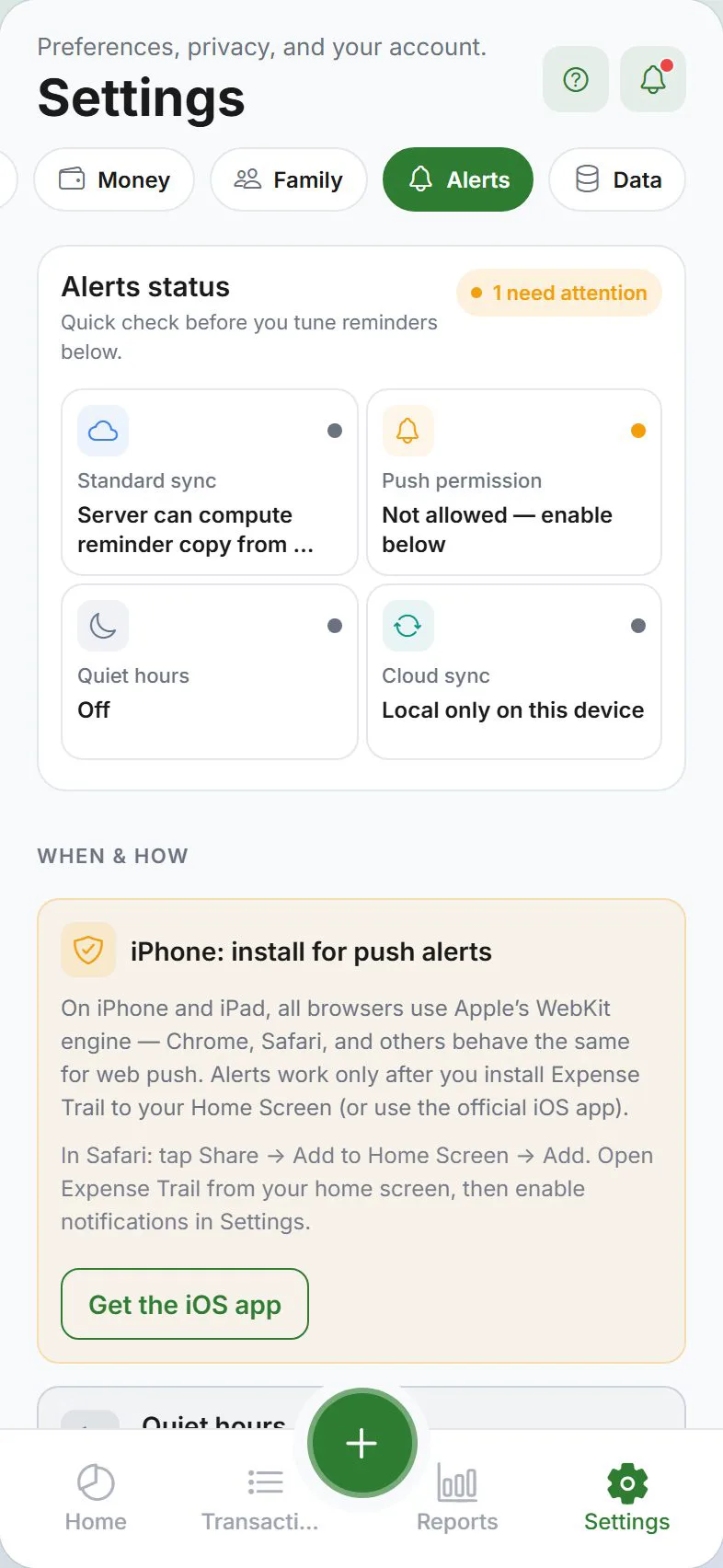
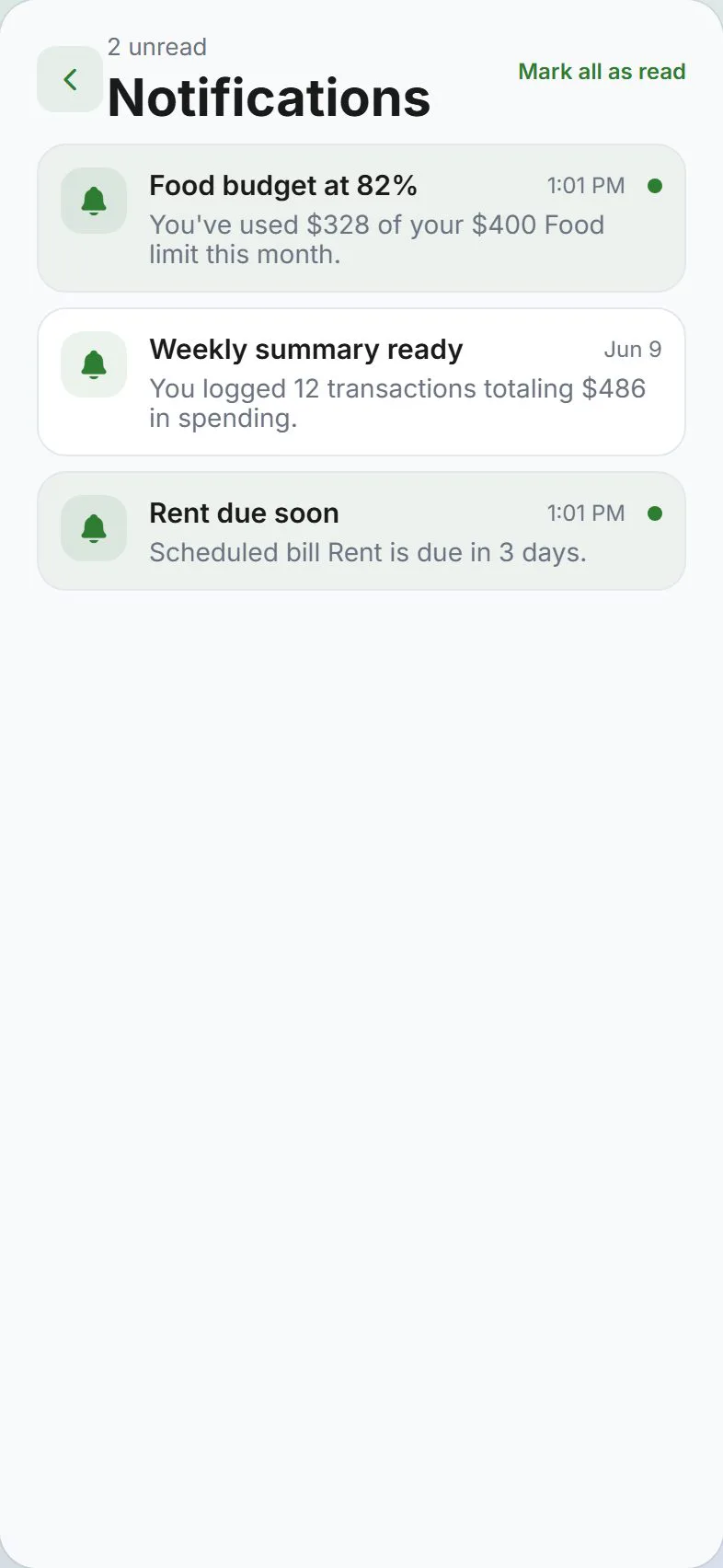
Open alert settings
- Settings (gear tab)
- Alerts tab
- Expand Manage notifications if the section is collapsed
Alerts status card
At the top of the Alerts tab, a status card summarizes:
- Sync mode (standard vs encrypted E2EE) and unlock state
- Push permission on this device
- Quiet hours (active window or off)
- Cloud sync for preference sync across devices
Quiet hours
| Control | What it does |
|---|---|
| Enable quiet hours | Master toggle (default off) |
| Start / end time | Local schedule; supports overnight windows |
| Allow buddy & household invites | Social alerts can still push during quiet (default on) |
| Keep in-app inbox during quiet hours | Bell notifications still saved when push is silenced (default on) |
Details: Quiet hours.
Catalog-driven groups
Alerts are grouped by topic (budgets, daily, scheduled, summaries, goals, household, buddies, confirmations, privacy). Each toggle shows a delivery badge:
| Badge | Meaning |
|---|---|
| Device | Evaluated on this phone (required for E2EE financial copy) |
| Cloud ping | Generic wake push; device fills in details after open |
| Cloud | Server computes title/body from synced data |
| Cloud social | Buddy/household invites (exempt from quiet hours by default) |
| In-app only | Bell inbox / on-screen — no lock-screen push |
On-device alerts (no push permission required)
These work from local data on your phone or browser:
Budget alerts
| Control | What it does |
|---|---|
| Budget alerts toggle | Enables budget monitoring and threshold / exceeded notifications |
| Alert threshold | Warn at 50%, 70%, 80%, or 90% of each budget limit |
Budget progress cards on the Dashboard appear whenever budgets exist — the toggle adds push and inbox alerts when you cross the threshold.
Daily reminder
| Control | What it does |
|---|---|
| Daily reminder toggle | Evening nudge if you logged no expenses today |
| Dashboard banner | While the app is open, a greeting banner appears (dismissible for the day) |
Daily reminder push and inbox items require sign-in. The banner also requires sign-in.
Cloud push alerts
These need sign-in, cloud sync, push permission, and a store or dev client build (not Expo Go). They appear under Push notifications when your platform supports cloud push.
| Toggle | Notification kinds | Guide |
|---|---|---|
| Scheduled & bills | Due today, overdue, due tomorrow | Scheduled entries |
| Weekly summary | 7-day spending recap (+ weekday picker) | Reports |
| Monthly recap | Previous month total (1st of month) | Reports |
| Goal milestones | 50%, 75%, 100% on savings goals | Goals |
| Household activity | Member joined your household | Households |
Buddy requests are always sent when someone uses your TRAIL- invite code — there is no separate toggle.
With end-to-end encryption, budget and goal push text is built on your device after a wake signal — the server does not read your amounts. See All notifications → E2EE path.
In-app notification inbox
Even when you miss a push:
- Tap the bell on the Dashboard header
- Browse unread and past alerts
- Tap a row to open the relevant screen
Details: All notifications → In-app inbox.
Push permission
Allow notifications when your phone or browser asks. If you denied earlier:
| Platform | Fix |
|---|---|
| iPhone | Settings → Notifications → Expense Trail → Allow |
| Android | Settings → Apps → Expense Trail → Notifications |
| Web | Lock icon in address bar → Notifications → Allow |
On iPhone Safari, install to Home Screen before push works — see Web guide.
Hide amounts on lock screen
Enable Generic lock-screen content (push content privacy) so notifications show generic text instead of amounts or category names. Recommended on shared devices.
Send test notification
When signed in with push enabled, tap Send test notification to confirm delivery. Creates both a push and an inbox entry.
Background activity (phone)
| Option | Purpose |
|---|---|
| Show progress in background | Banner when sync, import, or export runs |
| Persistent notification (Android) | Ongoing icon in the shade during long sync |
| Sync offline changes in background | Upload queued edits when app is backgrounded |
| Silent background tasks | Hide success toasts for background work |
Sync / import / export failures also add in-app error rows (see All notifications).
Android: if sync is slow, disable battery optimization for Expense Trail (link in Alerts when background sync is on).
Web push specifics
- Chrome / Edge / Brave — best support on desktop and Android
- iPhone Safari tab — cloud push toggles hidden until you Add to Home Screen
- Expo Go — push not available; use store build
Local-only mode (no sign-in)
You can still get:
- Budget cards on Dashboard
- In-app inbox entries from on-device evaluators (when they run)
Full push suite and server-persisted inbox require account + cloud sync.
Related guides
- All notifications — complete catalog
- Buddies & split contacts
- Budgets
- iPhone / Web
Was this guide helpful?