
Privacy & security
Guide section
Privacy & security
Privacy setup wizard
A step-by-step checkup to choose sync, lock, alerts, and encryption with confidence.
The Privacy checkup (privacy setup wizard) walks you through the most important privacy choices when you first open Expense Trail — or anytime you reopen it from Settings → Account → Privacy.
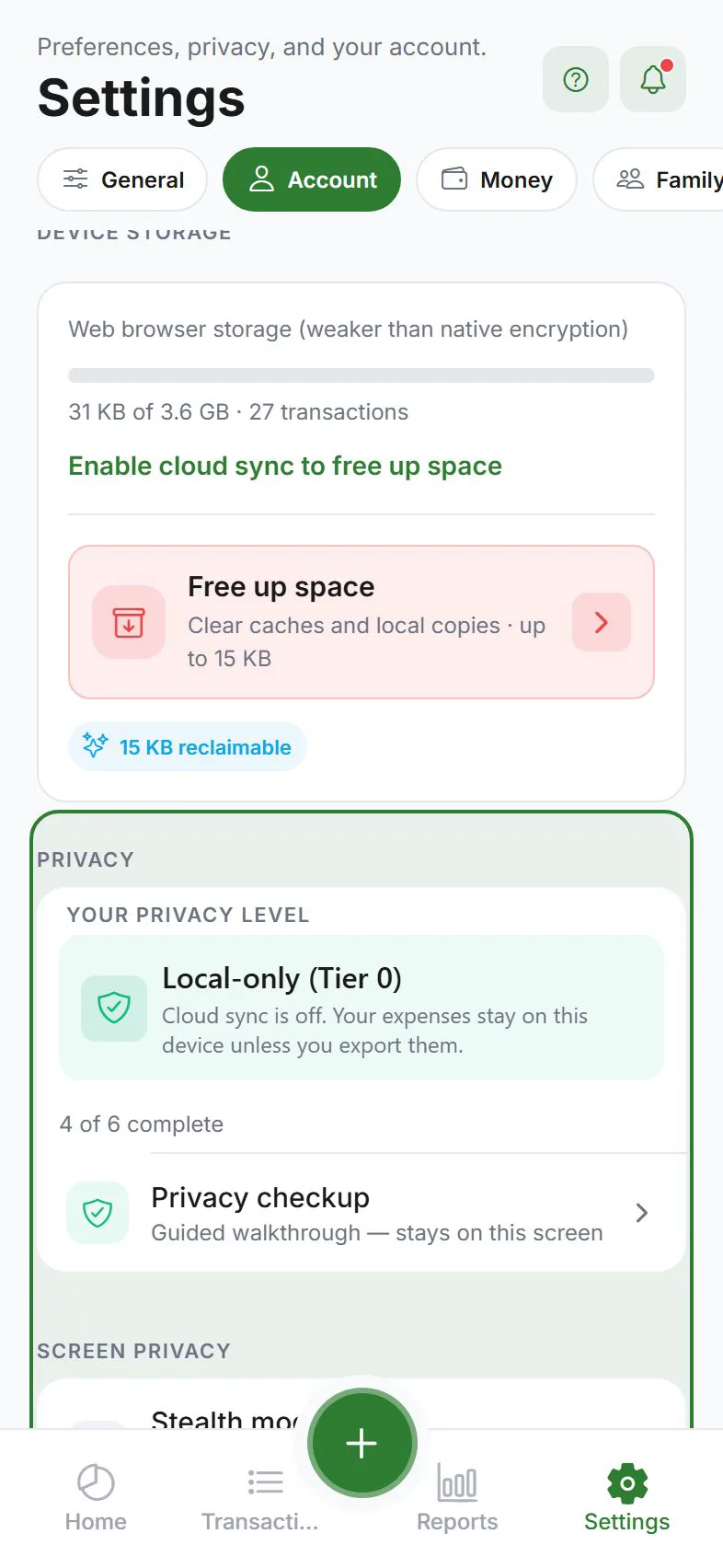
Open the wizard
| From | How |
|---|---|
| First launch | Appears after initial screens (skippable) |
| Dashboard | Tap the Privacy check shield when it shows a badge |
| Settings | Account → Privacy → Privacy checkup |
You can skip and return later — nothing changes until you toggle a setting.
Wizard steps (in order)
1. On-device storage
Explains how data is stored on this phone or browser:
- Encrypted on device — store iPhone/Android app
- Browser storage — web app (weaker than native)
- Standard storage — some development builds
No action required — informational.
2. Cloud sync
Choose intentionally:
| Toggle | Meaning |
|---|---|
| Keep data on this device only | Cloud sync off — maximum privacy |
| Cloud sync on | Backup and multi-device — server can read data unless you enable E2EE |
You can sign in later from Settings → Account.
3. Lock & stealth
- Set up PIN / biometrics (App lock) — phone only
- Turn on Stealth mode to mask amounts
- Optional screenshot block — prevents screenshots and screen recording while the app is open (native apps)
Web users see a note that PIN lock is for native apps.
4. Notifications
- Choose reminder types
- Enable generic lock-screen content to hide amounts in push previews
- Clipboard suggest — off by default for privacy
5. Summary score
Shows X of Y recommendations complete. Tap any row to jump to the relevant setting.
After the wizard
- Banner on Dashboard clears when you finish or dismiss
- Reopen anytime to adjust choices
- Enabling encryption may be a separate step after sign-in
Platform quick reference
| Step | iPhone / Android | Web |
|---|---|---|
| Encrypted storage | Store app | Browser (weaker) |
| PIN lock | Yes | No |
| Biometrics | Face ID / fingerprint | No |
| Push privacy | System + in-app toggles | Limited — install to home screen on iOS for web push |
| E2EE | Supported | Supported with storage caveats |
Related guides
Was this guide helpful?