
Guide section
Getting started
Your first expense
Add an expense, income, or savings contribution from the dashboard or transactions tab.
Logging your first entry takes about 30 seconds. After that, the Dashboard updates automatically so you can see where your money went.
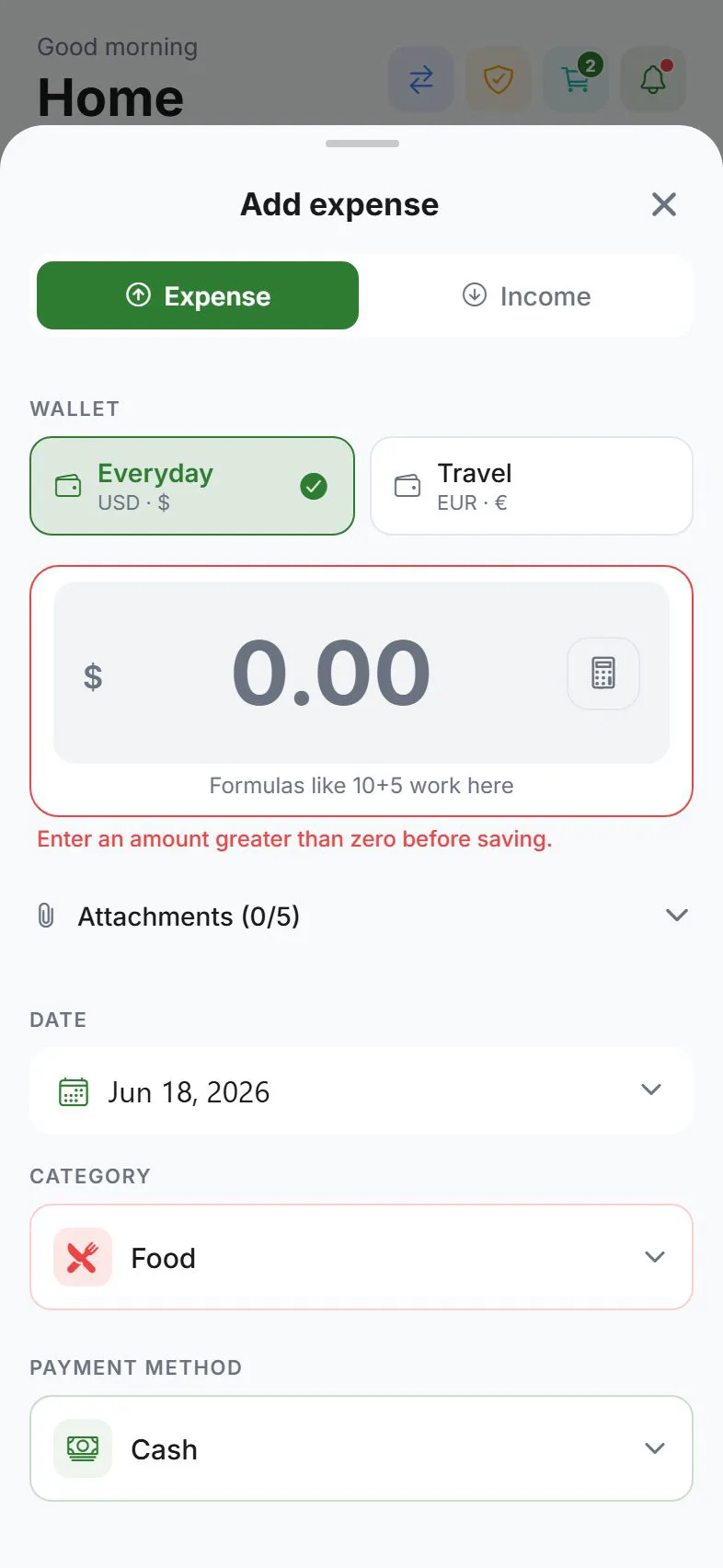
Add an expense
- Open the Dashboard tab.
- Tap the + button in the center of the bottom bar (on phone), or Add expense on web.
- Make sure the type is set to Expense (this is the default).
- Enter the amount.
- Pick a category (for example, Food or Transport).
- Choose the wallet or payment method you used (for example, Cash or Debit card).
- Change the date if the purchase was not today.
- Tap Save.
Your dashboard totals update right away for the period you have selected (usually “This month”).
Add income
Income is money coming in — salary, refunds, gifts, and similar.
- Tap + to open the add sheet.
- Switch the type to Income.
- Enter the amount, pick an income category, and choose where the money went (wallet or payment method).
- Tap Save.
Income appears on the Dashboard and in Transactions under the Income filter.
Add a savings contribution
If you have a savings goal, you can add money toward it from the same + button:
- Open the add sheet.
- Choose Savings (this option appears when you have at least one active goal).
- Pick the goal, enter the amount, and save.
The contribution shows in Transactions under Goals and updates your goal progress.
Optional fields
| Field | When to use it |
|---|---|
| Note | Add context — “Birthday dinner”, “Weekly groceries”, etc. |
| Tags | Label entries for filtering later (for example, “vacation” or “tax-deductible”) |
| Visibility | If you are in a household, choose Private (only you) or Shared (visible to household members) |
Record a transfer between wallets
A transfer moves money from one wallet to another — for example, from Cash to Checking. It is not counted as spending.
- On the Dashboard, tap Record transfer in the header, or
- Open Transactions, switch to the Transfers tab, and add a transfer from there.
Transfers need cloud sync. You must be signed in with cloud sync turned on. See Account & sync.
Edit or delete an entry
- Go to Transactions.
- Tap the entry you want to change.
- Choose Edit to update fields, or Delete to remove it (you will be asked to confirm).
Deleted entries cannot be brought back unless you restore from a backup.
Split a bill with someone
When you pay for a group and others owe you their share, use Split bill in the add sheet. This works with Buddies & split contacts you set up under Settings → Family → Buddies & splits.
See Split expenses for the full walkthrough.
Helpful tips
| Goal | How |
|---|---|
| Track recurring bills | Set up scheduled entries instead of typing the same bill every month |
| Fix a wallet total | Use opening balances in Settings → General → Preferences |
| Hide amounts in public | Turn on stealth mode under Settings → Account → Privacy |
| Paste from a bank SMS | On iPhone or Android, enable clipboard suggest in Preferences — the app may offer to fill in an amount when you open the add sheet |
Next steps
- Customize categories and payment methods
- Set a monthly budget
- Explore the dashboard
- What is a wallet? — start with core concepts
- Guides & tips hub
Was this guide helpful?