
Guide section
Daily use
Add & edit entries
Expenses, income, savings, tags, notes, splits, and household visibility.
Almost everything you track flows through the Add entry sheet. Open it from the + button, the Dashboard, or by tapping an existing row in Transactions.
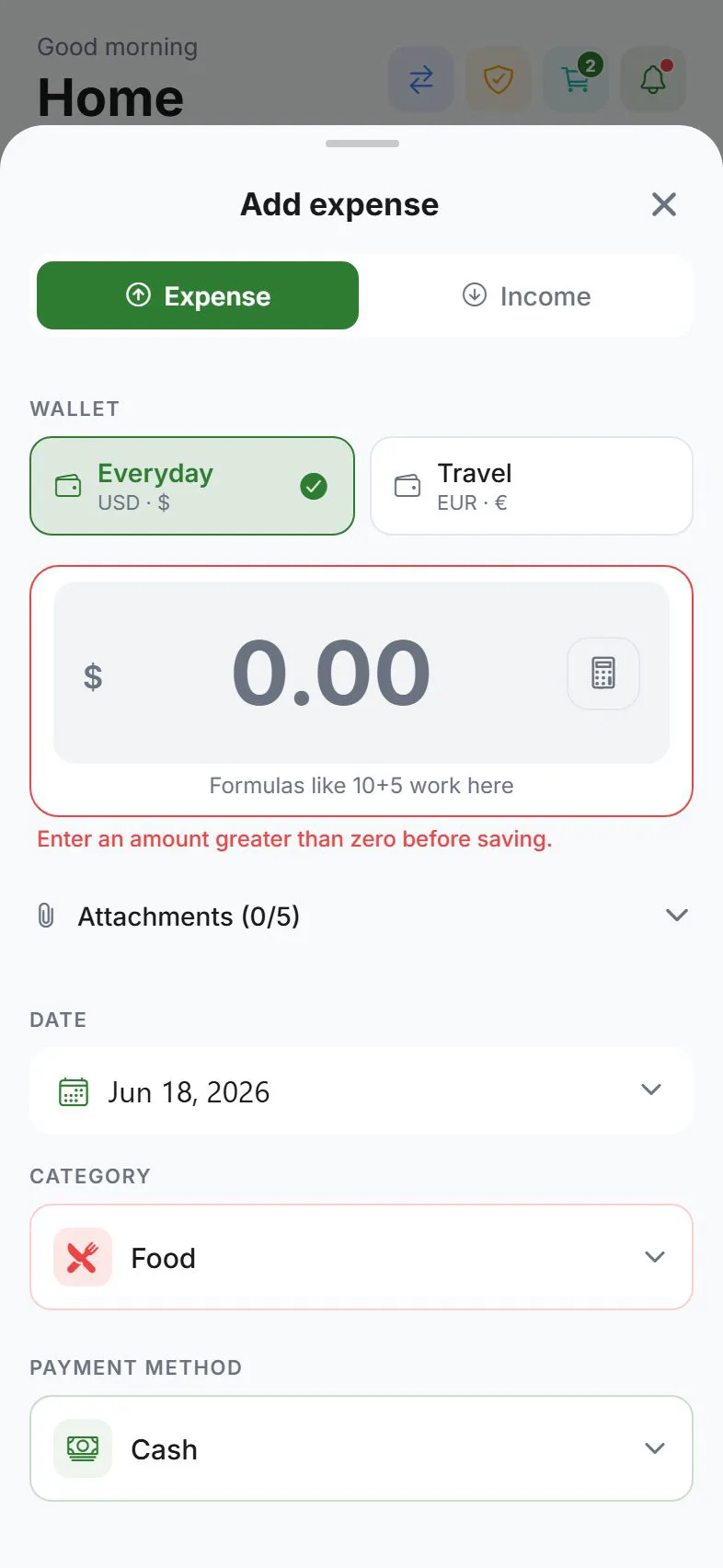
Open the add sheet
| From | How |
|---|---|
| Any tab | Tap + in the center of the bottom bar (phone) |
| Dashboard | + or empty-state Add expense button |
| Edit existing | Transactions → tap a row → Edit |
Choose the entry type
| Type | Use when |
|---|---|
| Expense | Money going out — shopping, bills, dining |
| Income | Money coming in — salary, refunds, side income |
| Savings | Adding to a savings goal (shown when you have active goals) |
Core fields
| Field | Description |
|---|---|
| Amount | How much — uses your default currency unless the wallet uses another |
| Category | Spending or income category for reports |
| Wallet / payment method | Which account or card the money came from or went to |
| Date | Defaults to today — change for past purchases |
| Note | Free text — store names, trip names, anything helpful |
| Tags | Optional labels — search existing tags or create new ones (up to the app limit) |
| Attachments | Optional receipt photos — see Receipt attachments |
Tags in the add sheet
- Tap the tags field.
- Search for an existing tag or type a new name.
- Select tags to attach — they help filter in Transactions and Reports.
Manage all tags from Settings → General → Preferences → Manage tags. See Tags.
Household visibility
If you belong to a household, you may see Visibility:
| Option | Meaning |
|---|---|
| Private | Only you see this entry on synced devices |
| Shared | Household members can see it |
This is separate from split bills — visibility controls who can see the expense; split tracks who owes whom.
Split a bill (Buddies & split contacts)
When you pay for others and they owe you back:
- In the add sheet, turn on Split bill.
- Select Buddies & split contacts to include.
- Pick a split method — equal, exact amounts, percent, shares, or line items.
- Review each person’s share, then save the expense.
Each contact’s share updates their IOU balance. See Split expenses for methods, group defaults, and Settle up.
Split tracking works without cloud sync for local Buddies & split contacts. If you link a contact with their TRAIL- invite code, split amounts can sync between both accounts when cloud sync is on. With end-to-end encryption enabled, server-side split sync is not available — use local split tracking only.
Clipboard suggest (phone only)
On iPhone and Android, if Clipboard suggest is on in Preferences, copying a bank SMS or receipt line before opening the add sheet may offer a suggested amount. Always review before saving — the app never adds an entry without your confirmation.
Save and validation
- Amount must be greater than zero.
- Category and wallet/payment method are usually required.
- If something is missing, the app highlights the field.
After saving, the entry appears on the Dashboard and in Transactions immediately.
Edit or delete
- Transactions → tap the entry.
- Edit to change any field, or Delete to remove it.
- Confirm delete — this cannot be undone without a backup restore.
Transfers vs expenses
Moving money between your own wallets (Cash → Bank) is a transfer, not an expense. Use Record transfer on the Dashboard or the Transfers tab in Transactions. See Transfers.
Common questions
| Question | Answer |
|---|---|
| Wrong category? | Edit the entry and pick a different category |
| Multi-currency wallet? | Enter amount in the wallet’s currency; conversion may show if applicable |
| Recurring bill? | Use scheduled entries instead of re-adding each month |
| Hide this purchase? | Use stealth mode for display — or keep visibility Private in a household |
Related guides
Was this guide helpful?