
Guide section
Money management
Scheduled entries
Set up recurring bills, income, and goal contributions so you do not re-type them every month.
Scheduled entries are templates for money that repeats — rent, salary, subscriptions, or monthly savings. They power the Bill calendar and can create transactions automatically when you use the app.
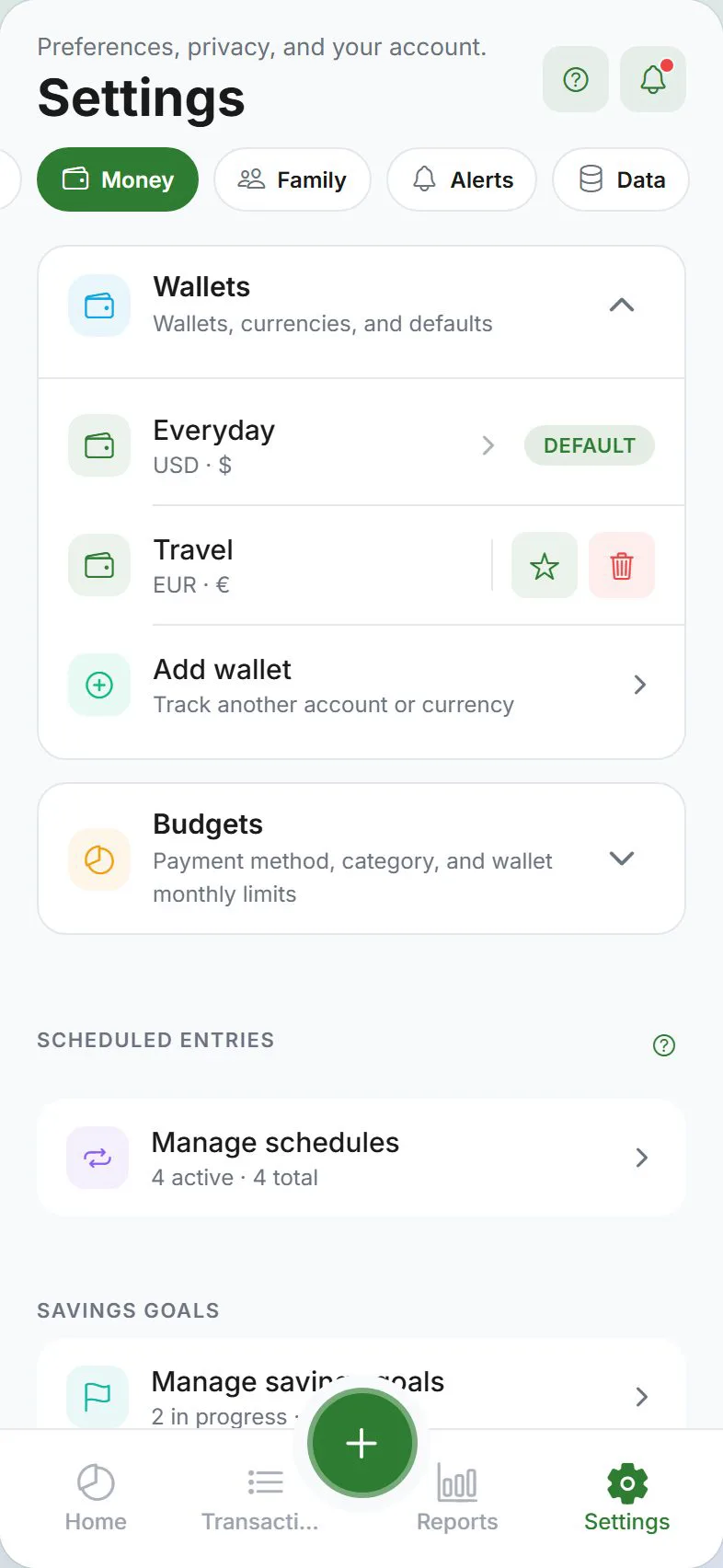
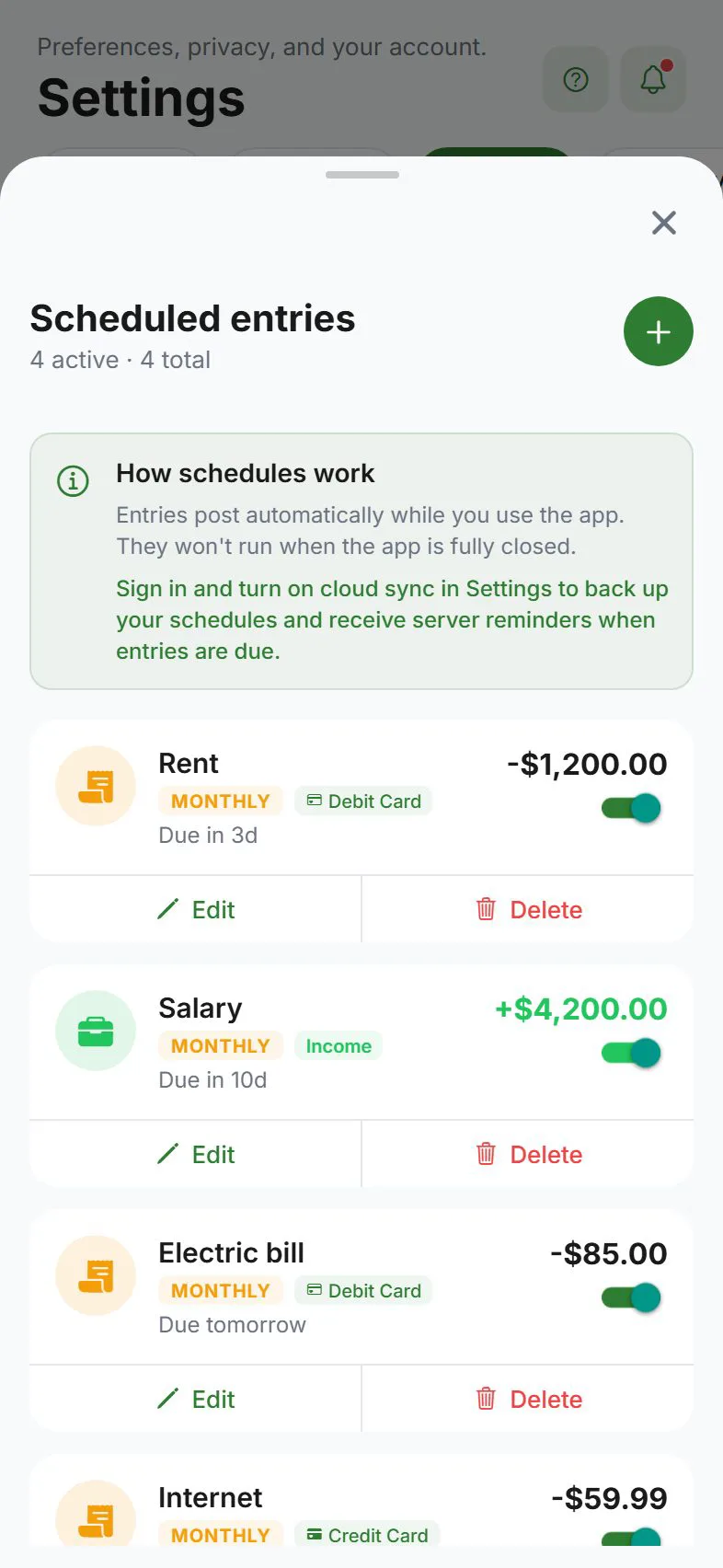
Open scheduled entries
Settings → Money → Scheduled entries
Create a schedule
- Tap Add (or the + button in the manager)
- Choose the type:
- Expense — recurring bill (netflix, rent, utilities)
- Income — recurring income (salary, allowance)
- Goal contribution — recurring savings toward a goal
- Enter a name and amount
- Pick category, payment method, and wallet
- Set frequency: Daily, Weekly, Monthly, or Yearly
- Choose a start date / due pattern
- Add an optional note
- Save
Frequencies explained
| Frequency | Typical use |
|---|---|
| Daily | Rare — small daily costs you want automated |
| Weekly | Allowance, weekly subscriptions |
| Monthly | Rent, phone bill, streaming services |
| Yearly | Insurance, annual memberships |
Active vs paused
Each schedule has an Active toggle:
- On — included in the bill calendar and eligible to post
- Off — paused without deleting — useful for cancelled subscriptions
When transactions are created
Scheduled entries create real transactions when you open the app on or after the due date. They do not run in the background if the app has been closed for days.
For reminders even when the app is closed, enable Scheduled & bills under Settings → Alerts and allow phone notifications.
Bill calendar
See upcoming schedules in Reports → Bills or the Bill calendar guide. The view covers the next 14 days.
Edit or delete
- Settings → Money → Scheduled entries
- Tap an entry → edit fields or delete
- Toggle Active off to pause
Changes apply to future occurrences — past transactions already created stay in Transactions.
Common setups
| Entry | Suggested setup |
|---|---|
| Monthly rent | Expense, Monthly, due on the 1st |
| Paycheck | Income, Monthly or Weekly, on pay day |
| Emergency fund | Goal contribution, Monthly |
| Annual insurance | Expense, Yearly |
Errors and offline use
- Schedules work locally without cloud sync
- With cloud sync, schedules sync across devices
- If a due entry fails to post, open the app and check Transactions — you can add the entry manually if needed
Related guides
Was this guide helpful?