
Money management
Guide section
Money management
Transfers
Move money between wallets without counting it as spending.
A transfer moves money from one wallet to another — for example, withdrawing cash from your bank or paying a credit card bill from checking. Transfers do not increase your spending totals.
Requirements
Transfers need cloud sync:
- Sign in
- Turn Cloud sync on under Settings → Account
If you are offline but sync is enabled, transfers may queue and upload when you reconnect.
Record a transfer
| From | How |
|---|---|
| Dashboard | Tap Record transfer in the header |
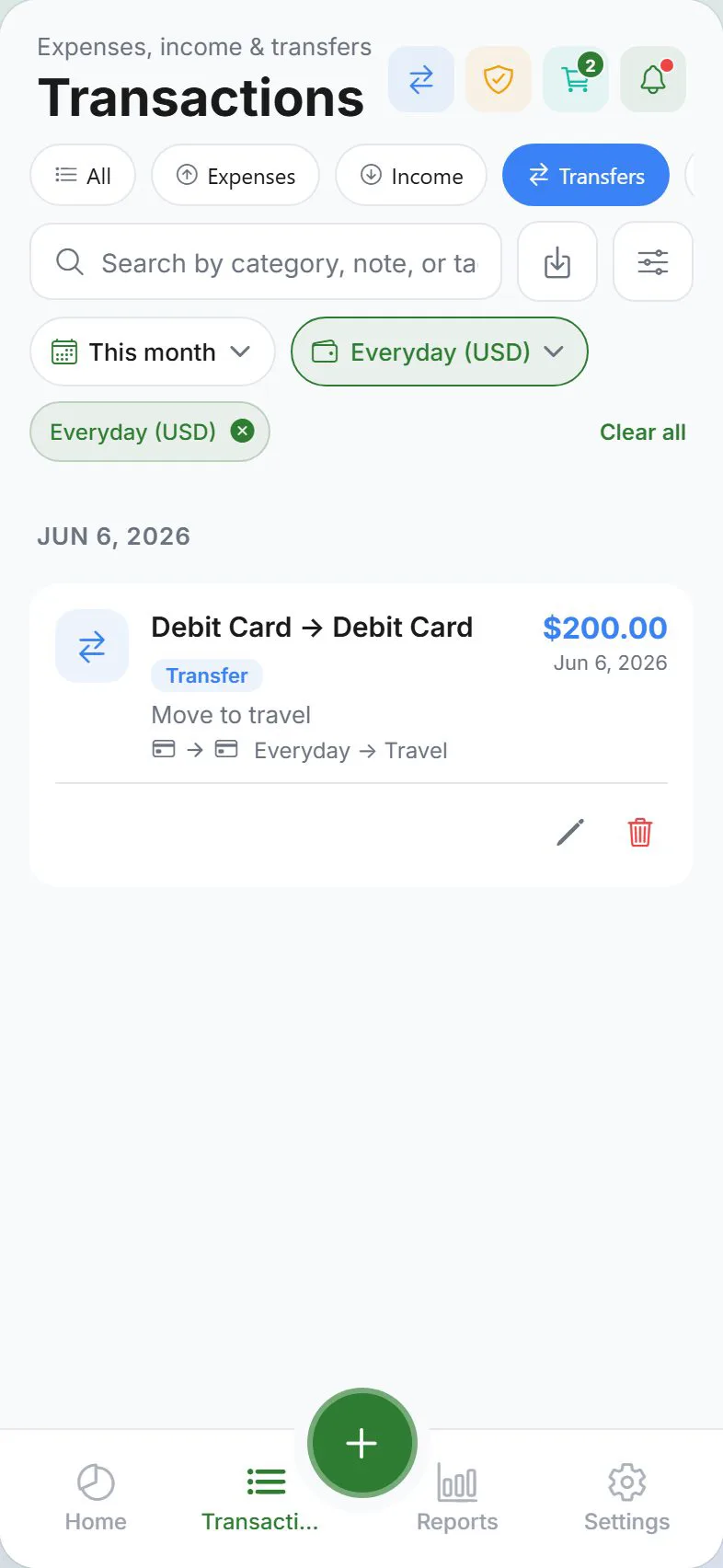
| Transactions | Open the Transfers tab → add transfer |
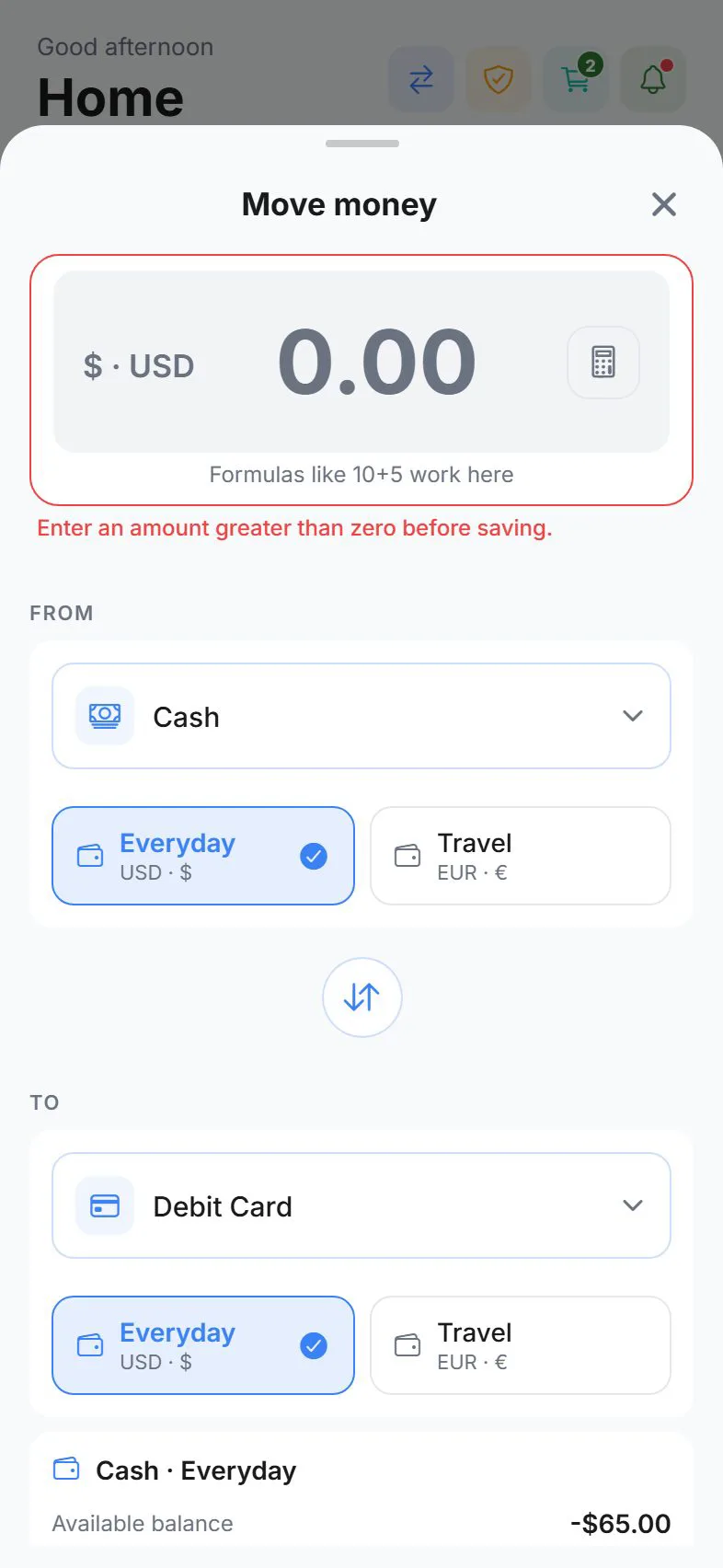
Fill in the transfer
- From — source wallet or payment method
- To — destination wallet or payment method
- Amount — how much to move
- Date — defaults to today
- Note — optional (for example, “ATM withdrawal”)
- Exchange rate — only if the two wallets use different currencies
The app may show a balance preview before you save. If the source wallet does not have enough, you will see a warning.
Household visibility
In a household, you may choose Private or Shared visibility — same as expenses.
Edit or delete
- Transactions → Transfers
- Tap the transfer → Edit or Delete
Some household transfers created by another member may be read-only for you.
Transfers vs expenses
| Action | Use |
|---|---|
| Transfer | Moving your own money between accounts |
| Expense | Money spent on goods or services |
| Settle up (IOU) | Recording repayment between you and a contact — see Split expenses |
Offline behavior
If cloud sync is on but you have no internet:
- You can still record a transfer locally
- A banner may remind you that sync is pending
Tips
| Situation | What to do |
|---|---|
| Paid credit card from bank | Transfer from Checking → Credit card wallet |
| Took cash from ATM | Transfer from Bank → Cash wallet |
| Wrong wallet | Edit the transfer or delete and re-add |
| IOU repayment | Use Settle up in Buddies & splits, not a generic transfer |
Related guides
Was this guide helpful?