
Guide section
Daily use
Bill calendar
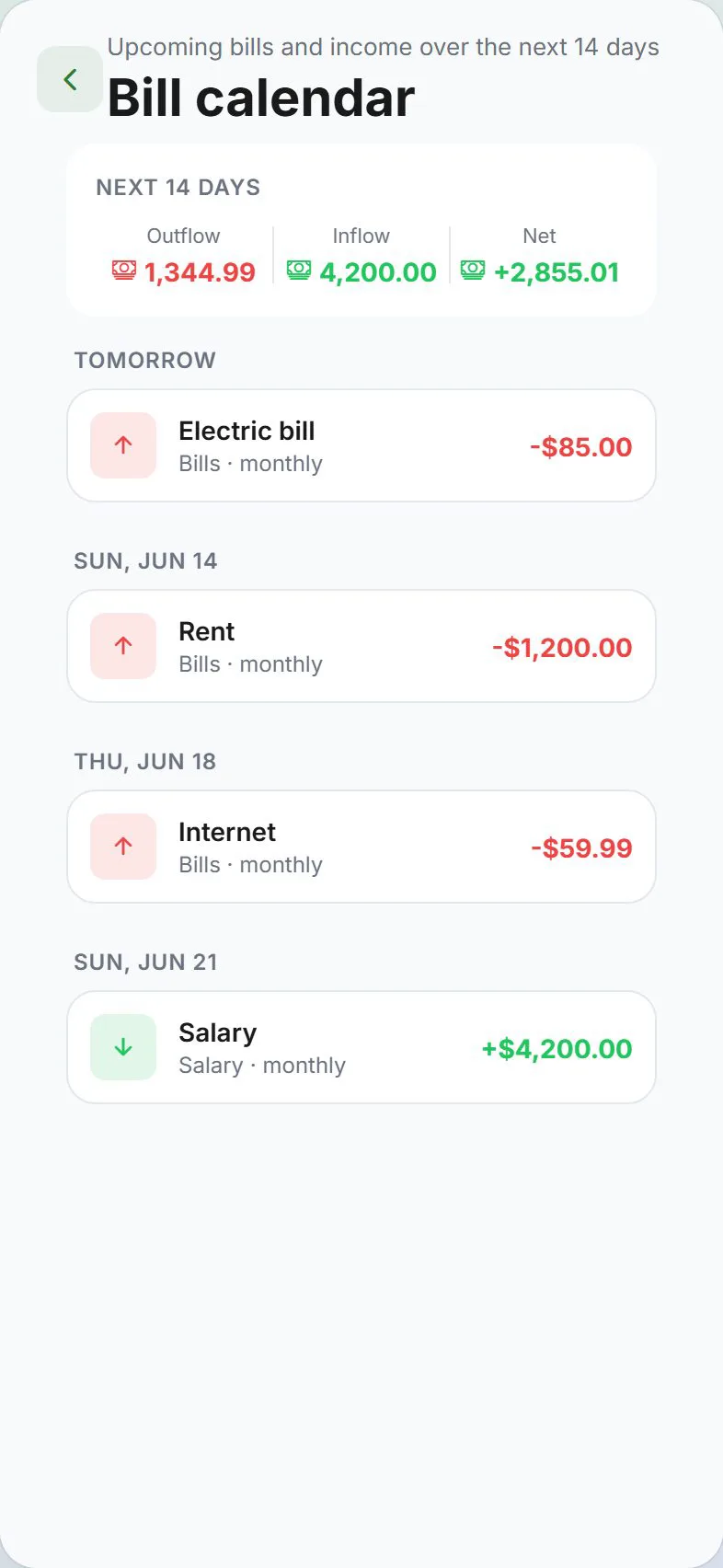
See upcoming bills and income for the next two weeks.
The Bill calendar shows upcoming recurring bills and income — not a history of what you already spent. It helps you plan: What is due this week? Will I have enough?
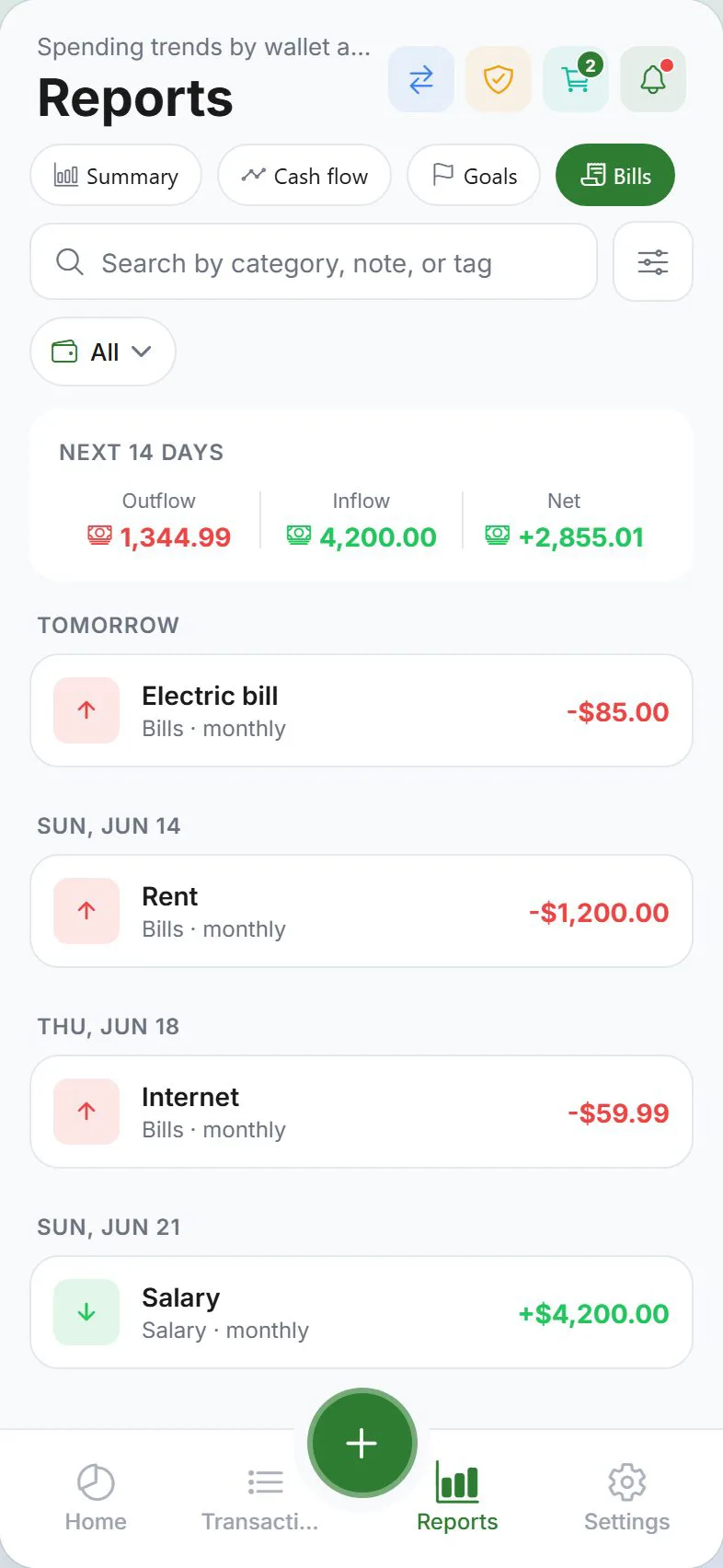
Where to find it
| Location | How to open |
|---|---|
| Reports tab | Open Reports → tap the Bills tab at the top |
| Direct link (web) | Some bookmarks may open /calendar — same bill calendar view |
There is no separate “spending by day” heatmap calendar. To review past spending on a specific date, use Transactions with a Custom range filter.
What it shows
The bill calendar looks 14 days ahead from today. For each day you may see:
- Bills due — from your scheduled entries
- Expected income — scheduled income entries
- Daily totals — projected money in, money out, and net for that day
Days with activity are grouped so you can scan the next two weeks at a glance.
Empty calendar?
If nothing appears:
- You may not have scheduled entries yet.
- Open Settings → Money → Scheduled entries and add recurring bills (rent, subscriptions, salary, etc.).
- Return to Reports → Bills — entries should appear on their due dates.
How scheduled entries become transactions
Recurring schedules create real transactions while you use the app — for example, when you open Expense Trail on or after the due date. They do not post silently if the app has been closed for a long time.
For reliable bill reminders even when the app is closed, turn on Scheduled & bills alerts under Settings → Alerts and allow notifications on your phone.
Example workflow
- Add a Monthly scheduled entry for “Rent” on the 1st.
- Open Reports → Bills mid-month — see rent on the next 1st.
- Enable bill alerts to get a reminder the day before or on the due date.
- When the due date arrives and you open the app, the rent transaction is created automatically.
Edit or remove a scheduled bill
- Settings → Money → Scheduled entries
- Tap the entry to edit amount, date, frequency, or category
- Toggle Active off to pause without deleting
- Delete if you no longer need it
Wallet and currency
Scheduled entries use the wallet and payment method you chose when creating them. Multi-currency wallets show amounts in that wallet’s currency.
Related guides
Was this guide helpful?