
Guide section
Daily use
Transactions
Browse, filter, edit, and delete expenses, income, transfers, and goal activity.
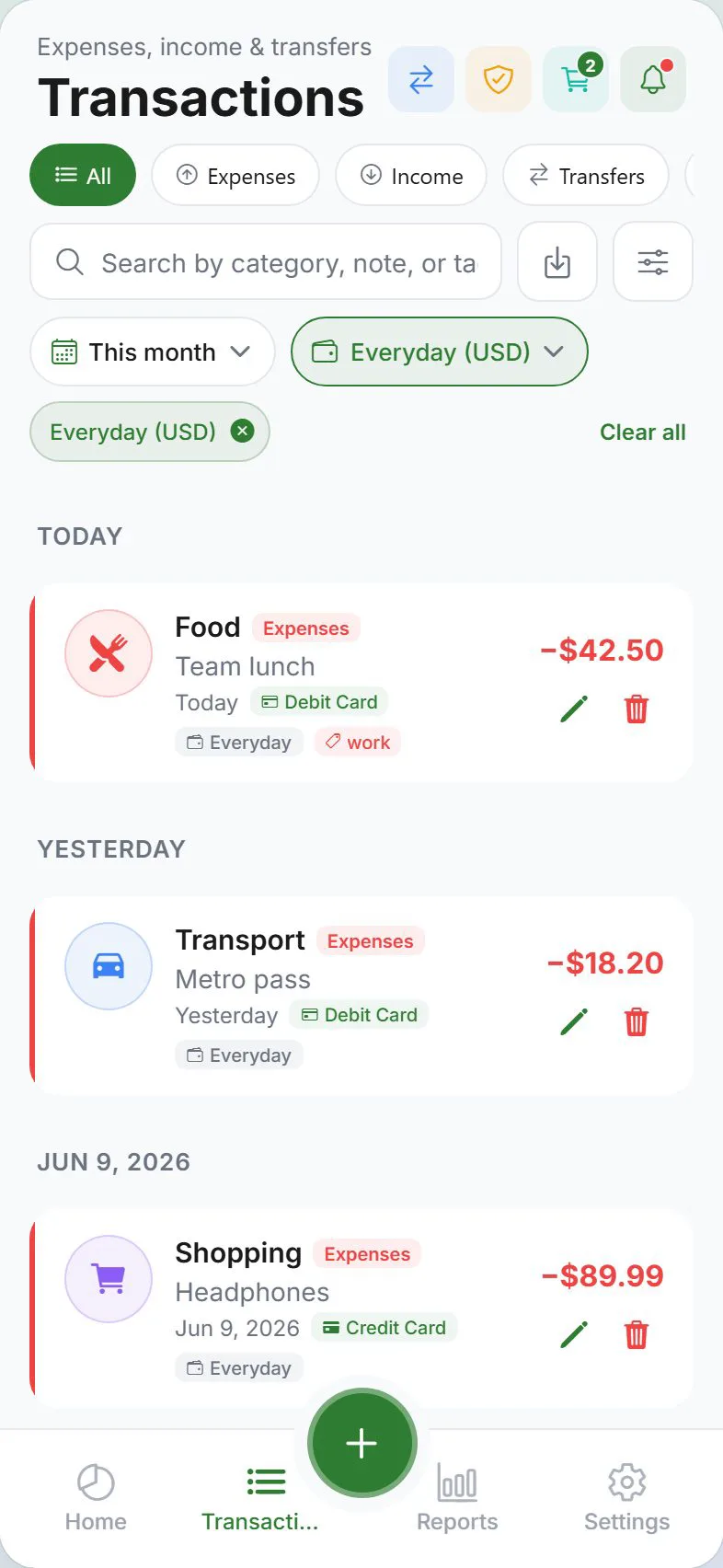
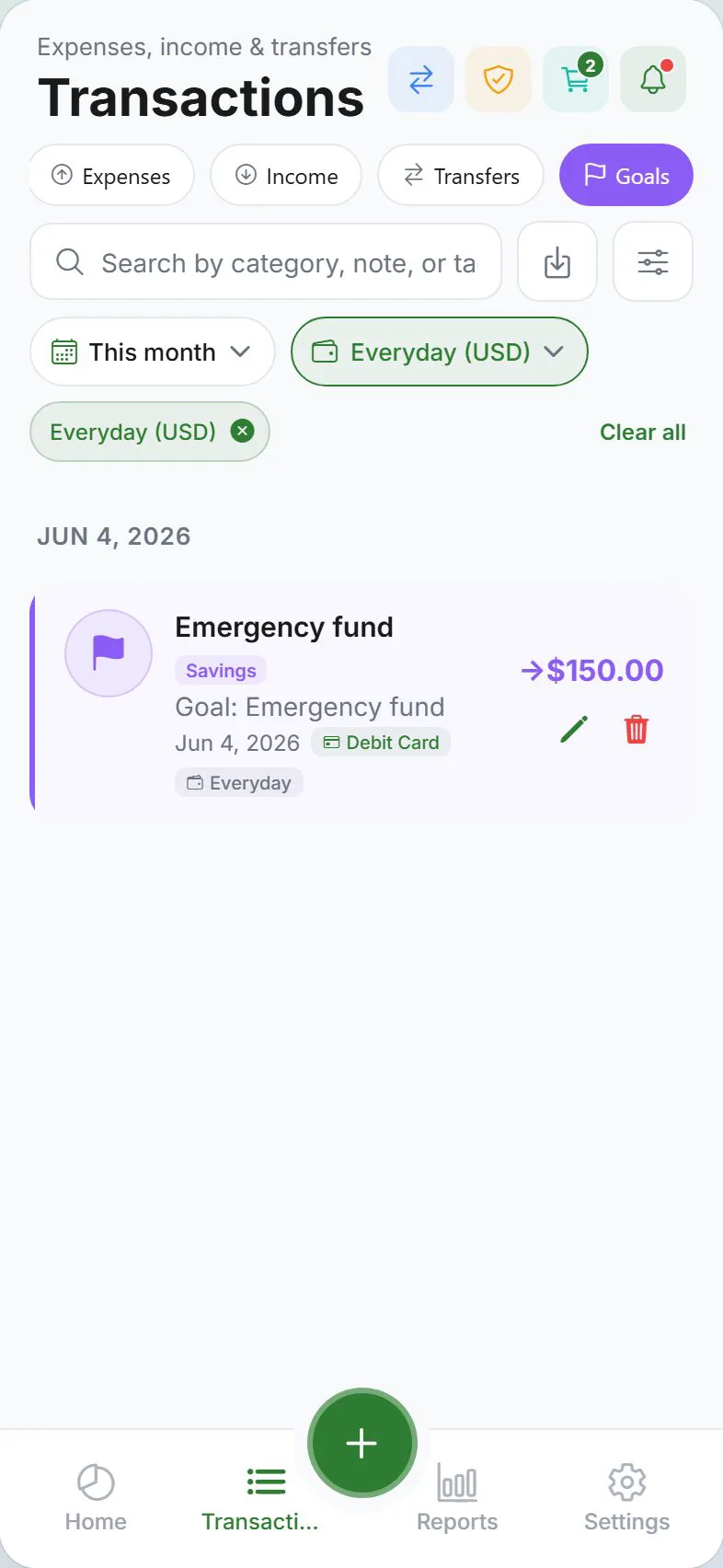
The Transactions tab is your full history — every expense, income entry, transfer, and savings contribution in one scrollable list.
Open Transactions
Tap Transactions in the bottom tab bar (second tab from the left on phone).
Filter by type
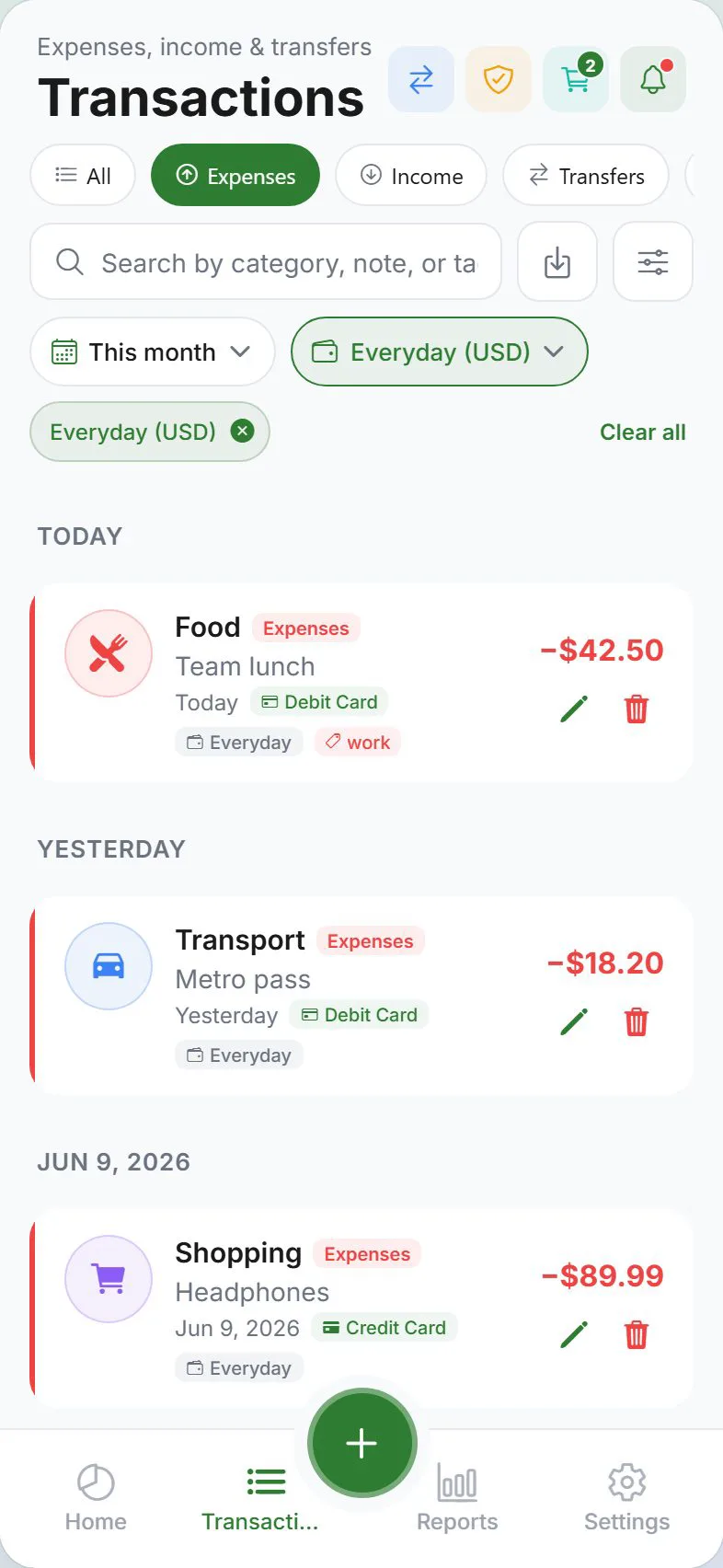
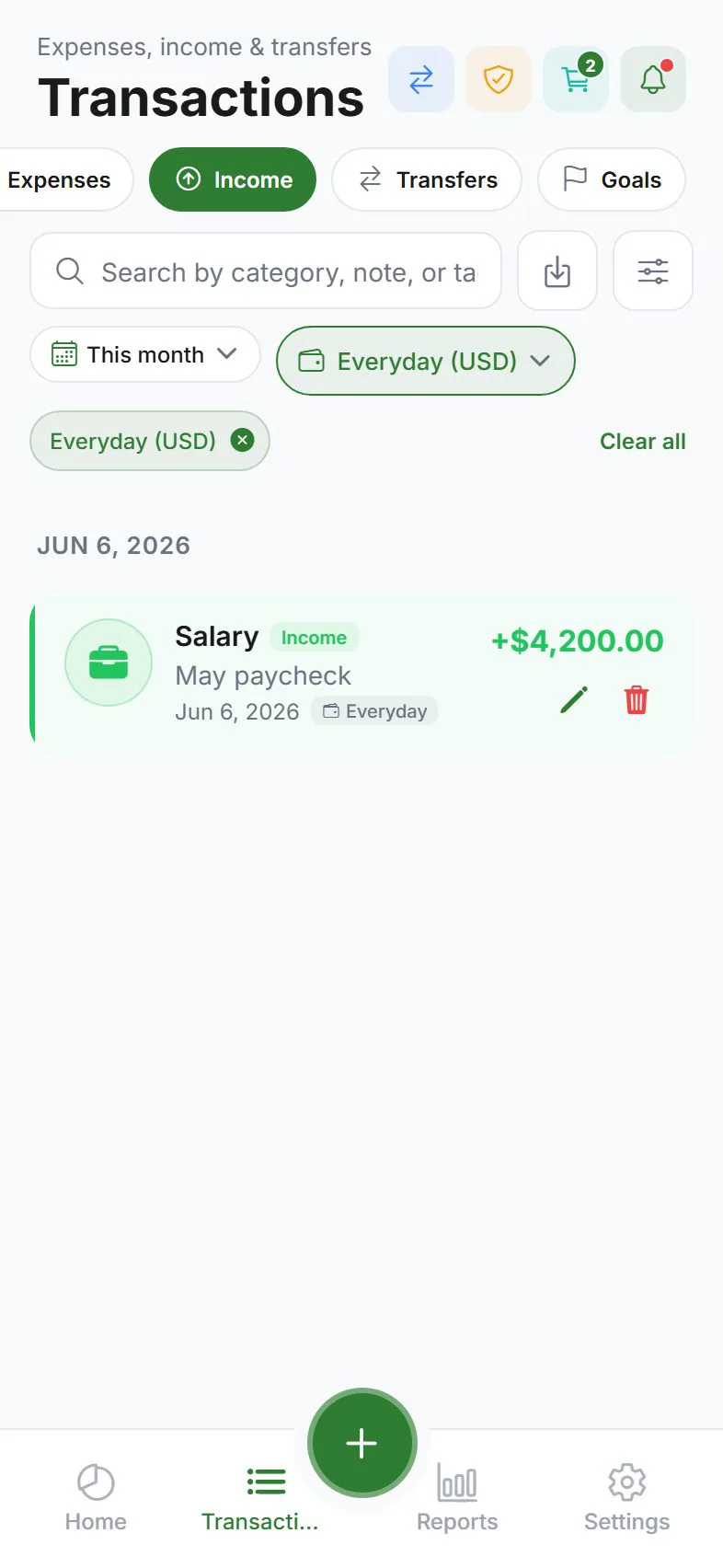
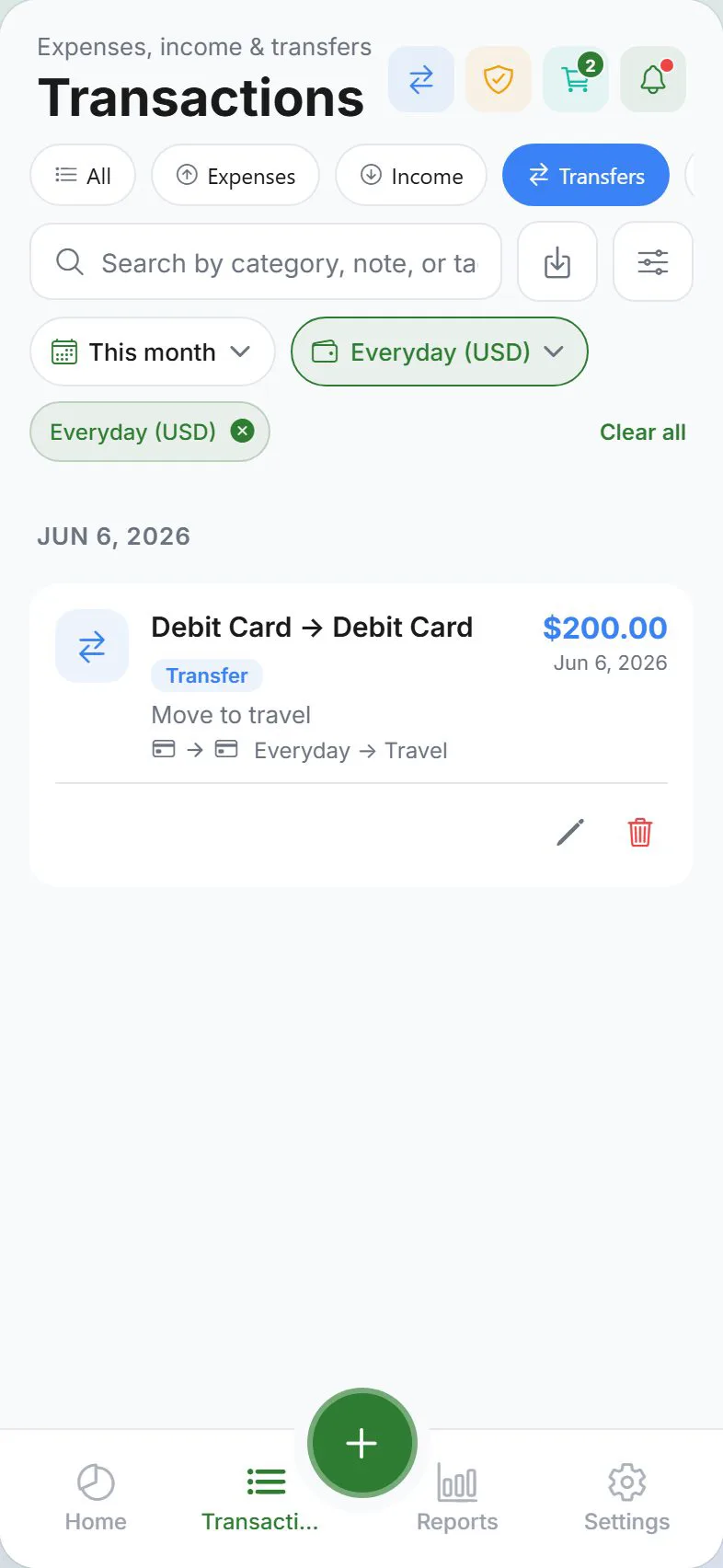
Use the segment control at the top:
| Tab | Shows |
|---|---|
| All | Everything in one list |
| Expenses | Money going out only |
| Income | Money coming in only |
| Transfers | Moves between wallets (requires cloud sync) |
| Goals | Savings contributions and withdrawals (when you have goals) |
The Goals tab appears only if you have at least one savings goal.
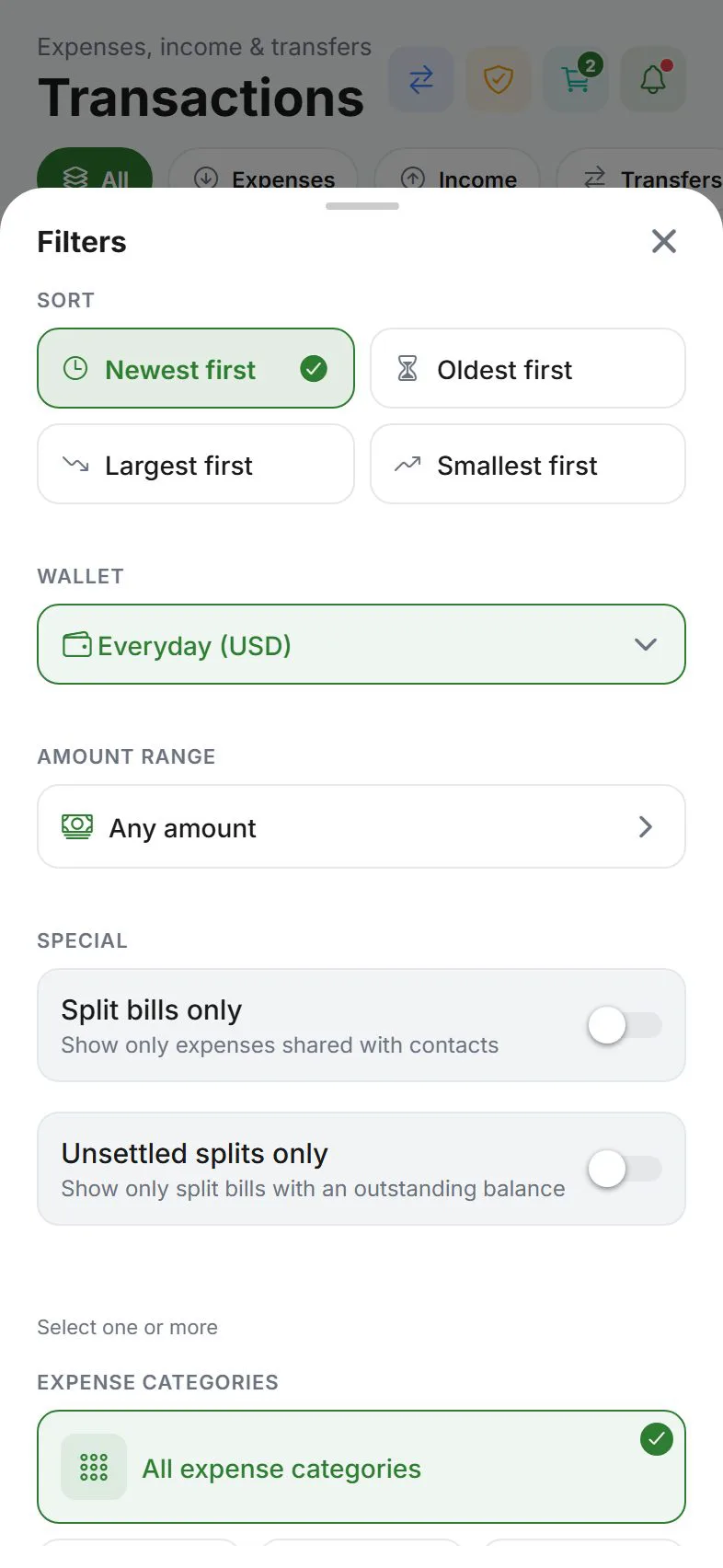
Filter by time
Use the period control (same options as the Dashboard):
- Today, This week, This month, Last month, Custom range, All time
The list groups entries by date with friendly labels like “Today” and “Yesterday”.
Filter by wallet
When you have multiple wallets, use the wallet switcher to show only one account or all wallets together.
Read an entry
Each row typically shows:
- Amount and category
- Payment method or wallet
- Note preview (if you added one)
- Tags (if any)
Tap a row to open details, then Edit or Delete.
Edit or delete
- Tap the entry.
- Edit opens the same sheet as adding — change any field and save.
- Delete removes it after you confirm.
Deleted entries are gone unless you restore from a backup. Export first if you are unsure.
Transfers in this tab
Switch to Transfers to see money moved between wallets. You can add, edit, or delete transfers here when cloud sync is on.
If transfers are greyed out, sign in and enable cloud sync — see Transfers guide.
Goal activity
The Goals filter shows contributions (money added to a goal) and withdrawals (money taken out). These link to your savings goals.
Buddies and splits entries
Expenses with a split bill still appear as normal expense rows. IOU balances are managed under Settings → Family → Buddies & splits, not as separate transaction types.
Refresh the list
Pull down to refresh — useful after sync or import.
Error states
If the list fails to load, you may see an error card with Retry. Check your connection if cloud sync is on, then pull to refresh again.
Stealth mode
With stealth mode on, amounts are masked in the list. Press and hold to peek.
End-to-end encryption (locked rows)
If E2EE is on and this device is locked, synced entries may show placeholders instead of amounts until you enter your recovery phrase. The unlock banner at the top of the app links to the phrase sheet.
After unlock, pull down to refresh the list.
Tips
| Goal | How |
|---|---|
| Find last month’s dining | Set period to Last month, filter Expenses, scan categories |
| Review all card spending | Filter by payment method in reports, or use wallet switcher |
| Clean up a mistake | Tap entry → Edit or Delete |
| Tax-time review | Use Custom range for the tax year, then export |
Related guides
Was this guide helpful?