
Data & backups
Guide section
Data & backups
Import data
Restore an encrypted backup or bring in JSON/CSV data from a file.
Import replaces or merges data on this device from a backup file. Always export first if you are unsure — import can overwrite local categories, budgets, schedules, and transactions.
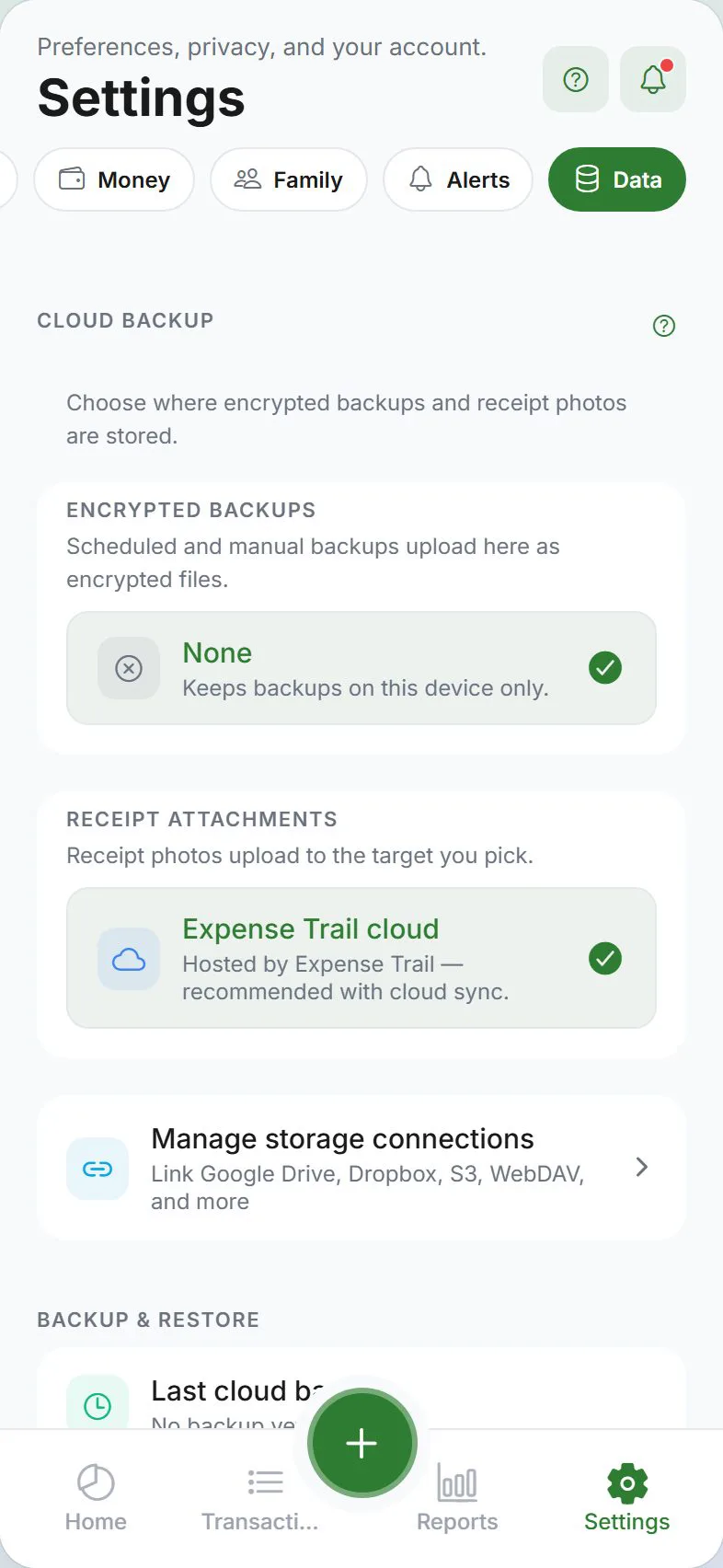
Open import
Settings → Data → Import backup
From an encrypted backup
- Tap Import backup
- Select the encrypted file from Files, Drive, or email attachment
- Enter the password you used when exporting
- Read the confirmation — import replaces local data on this device
- Confirm and wait — a progress banner may appear
If cloud sync is on, restored data may upload to your account after import.
From JSON or CSV
- Choose the JSON or CSV file
- The app auto-detects format
- Confirm the import warning
- Wait for completion
Plain JSON/CSV files are not password-protected — only import files you created or trust.
Expense Trail CSV uses standard spreadsheet quoting — fields with commas, quotes, or line breaks in notes and category names are supported when you export and re-import from the app.
Before you import
| Check | Why |
|---|---|
| Export current data | So you can undo if you picked the wrong file |
| Cloud sync status | Restored data may sync upward and affect other devices |
| Password ready | Encrypted backups fail without the correct password |
After import
- Open Dashboard and Transactions to verify totals
- Run Sync now under Settings → Account if you use cloud sync
- Re-enable app lock and encryption if needed
Common errors
| Error | What to do |
|---|---|
| Wrong password | Try again or locate the correct backup export |
| Unrecognized format | File may be corrupted or not from Expense Trail |
| Import failed mid-way | Retry with a stable connection; export current state first |
Migrating from another app
Expense Trail imports its own JSON/CSV format best. For other apps:
- Set opening balances to match bank totals
- Enter recent history manually or via CSV if you convert formats yourself
- Use tags and categories to organize going forward
Related guides
Was this guide helpful?