
Guide section
Getting started
Language, currency & preferences
Set your language, default currency format, categories, tags, and clipboard suggestions.
Most personal settings live under Settings → General → Preferences. Set these early so amounts, dates, and labels feel natural in your region.
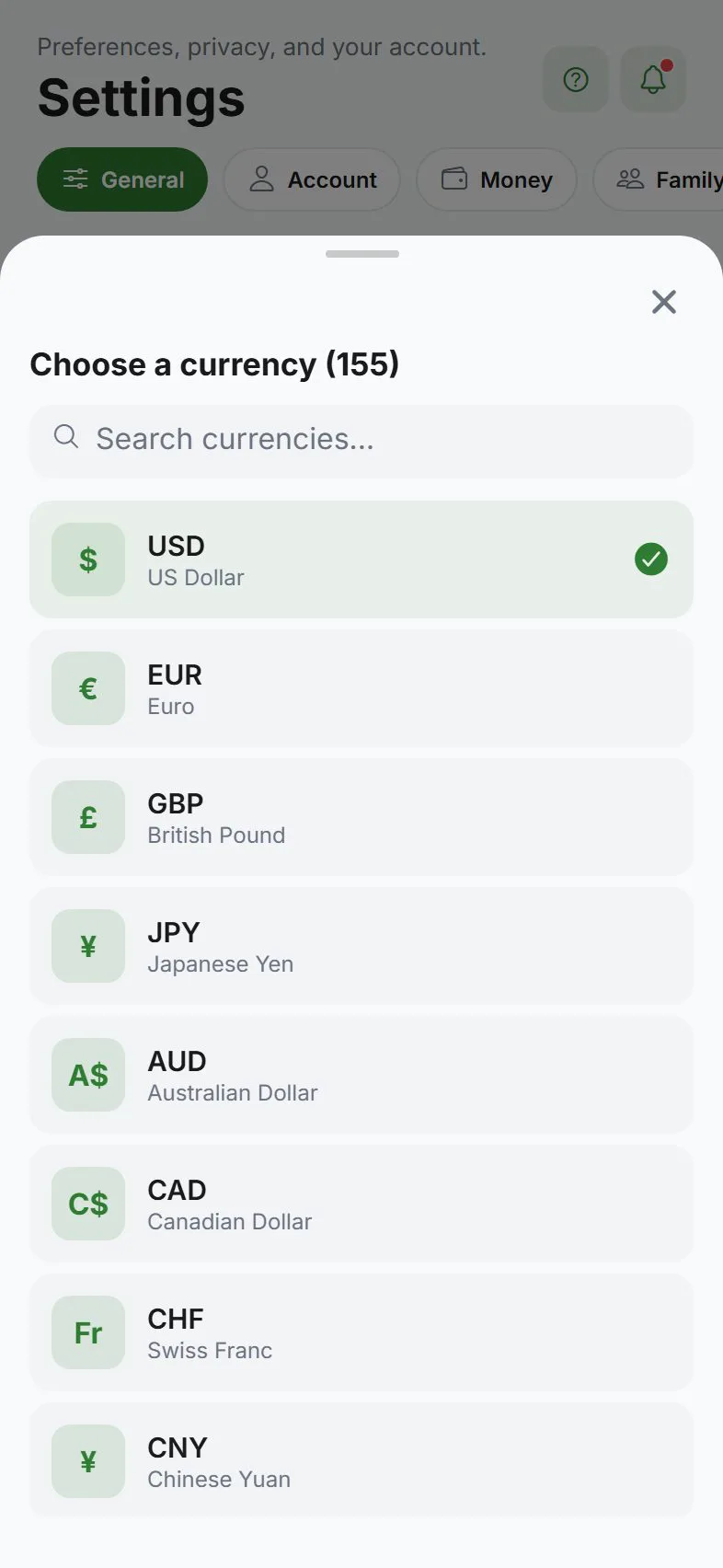
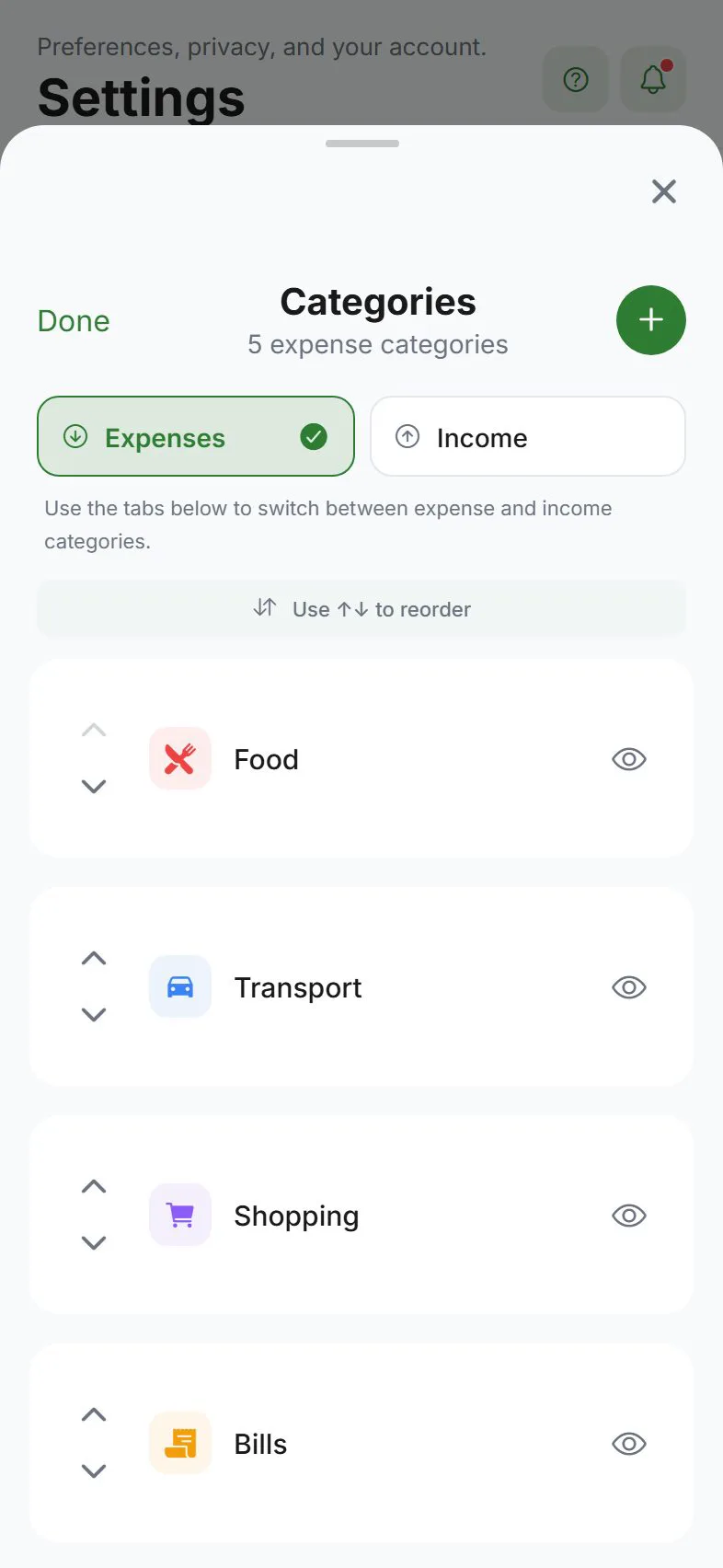
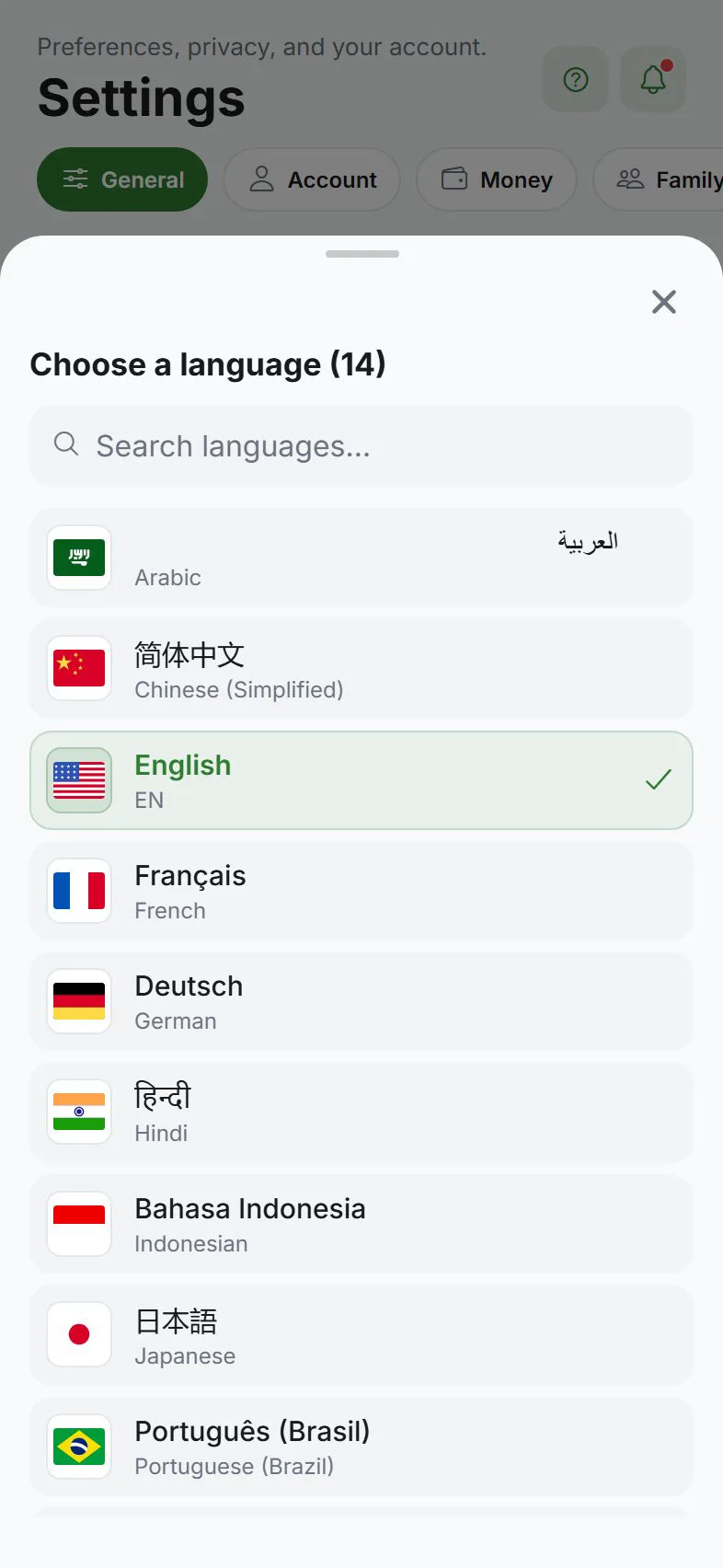
Open Preferences
- Tap Settings (gear tab).
- Open the General tab.
- Scroll to Preferences.
You can also jump here from the privacy checkup or by searching settings if your screen is wide enough.
Language
Expense Trail supports many languages, including English, Spanish, Portuguese (Brazil), Hindi, Urdu, Arabic, Indonesian, Chinese, Japanese, German, French, Russian, Turkish, and Vietnamese.
- Tap Language in Preferences.
- Pick your language from the list.
- The app restarts labels immediately — no sign-out needed.
Default currency and number format
- Tap Currency to choose your main currency (for example, USD, EUR, INR).
- Tap Number format if you want a specific way to show decimals and grouping.
New entries use this currency by default. If you use multiple wallets in different currencies, each wallet can have its own currency.
Clipboard suggest (iPhone and Android only)
When enabled, the app can read a copied bank SMS or receipt line and suggest an amount when you open the add-expense sheet. You always confirm before saving — nothing is added automatically.
- Settings → General → Preferences
- Turn Clipboard suggest on or off
This option does not appear on the web app. It is only for the installed phone apps.
For privacy, you can leave it off and type amounts manually. The privacy checkup mentions this setting.
Manage categories
Categories group your spending and income (Food, Salary, Rent, etc.).
- In Preferences, tap Manage categories
- Switch between Expense and Income tabs
- Add, edit, hide, or reorder categories
See the full guide: Categories.
Manage payment methods
Payment methods describe how you paid — Cash, Debit card, Credit card, and so on.
- In Preferences, tap Manage payment methods
- Add methods, pick icons, rename labels, hide unused ones, or reorder the list
See Payment methods.
Manage tags
Tags are optional labels you attach to entries for flexible filtering.
- In Preferences, tap Manage tags
- Create or delete tags
See Tags.
Opening balances
If a wallet total does not match your real bank balance, use Opening balances to set a starting point or small correction.
- In Preferences, tap Opening balances
- Pick a wallet and payment method combination
- Enter the adjustment — quick +10 / +100 buttons help for small tweaks
- Confirm when you are done
See Opening & balance adjustments.
Appearance (same General tab)
While you are in General, you can also change:
| Setting | What it does |
|---|---|
| Theme | Light, Dark, or follow your phone’s system setting (Auto) |
| Accent color | Pick a preset or custom color for buttons and highlights |
| No-spend streak | Track days without discretionary spending — see No-spend streak |
| Haptics | Vibration feedback on taps (phone only — not on web) |
About section
At the bottom of General, About shows your app version, links to this user guide, privacy policy, terms, and cookie preferences.
Next steps
- Your first expense
- Wallets — set up Cash, bank, and card accounts
- Settings overview — map of all six settings tabs
Was this guide helpful?