
Guide section
Daily use
Dashboard
Your spending overview, budget progress, category breakdown, and quick actions.
The Dashboard is the first tab when you open Expense Trail. It answers: How much did I spend? Am I on budget? Where did the money go?
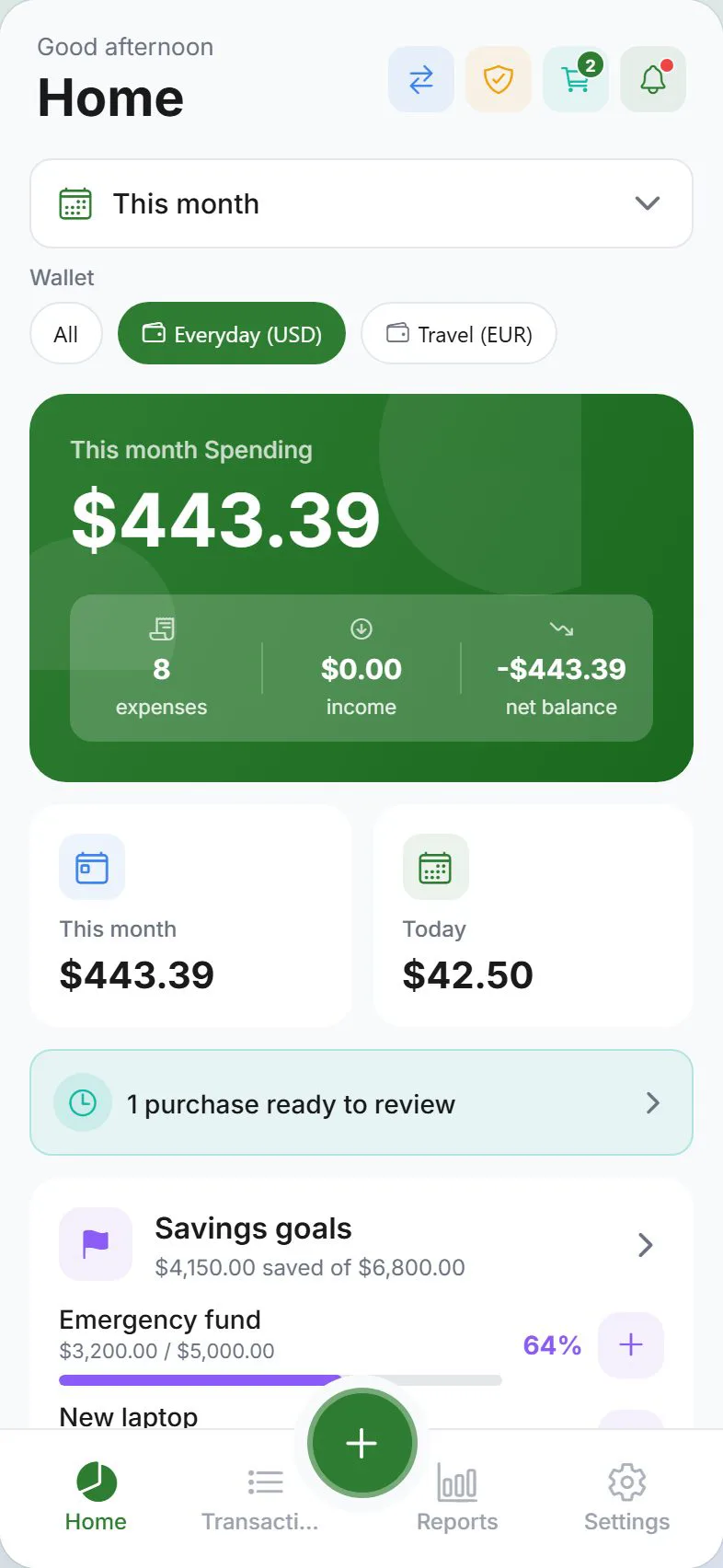
Change the time period
At the top of the Dashboard, pick how far back to look:
| Period | Best for |
|---|---|
| Today | What you spent since midnight |
| This week | Current calendar week |
| This month | Most common — monthly tracking |
| Last month | Compare to the previous month |
| Custom range | Pick any start and end date |
| All time | Lifetime totals since you started |
Spending, income, and net balance all update when you change the period.
Filter by wallet
If you have more than one wallet, use the wallet switcher near the top to focus on one account or see everything combined.
What each section shows
Hero totals
The large numbers at the top show:
- Spending — total expenses in the period
- Income — money coming in
- Net balance — income minus spending (and related adjustments)
Entry counts appear next to spending so you know how many transactions are included.
Stat cards
Smaller cards often highlight Today and This month for a quick snapshot without changing the main period filter.
Budget overview
If you set budgets, cards appear here showing:
- How much you have spent vs your limit
- How much is remaining
- A warning color when you are close to or over the limit
Tap a budget card to jump to budget settings or see more detail in Reports.
By category
A pie chart (or list) shows spending broken down by category — Food, Transport, Bills, and so on. This helps you spot where most money goes.
Savings goals
If you use savings goals, a summary shows progress on each goal. Tap to open the full Goals screen or add a quick contribution.
IOU summary
When you use split bills or Buddies & split contacts, a card may show net balances — who owes you and whom you owe. Tap to open Settings → Family → Buddies & splits.
No-spend streak
With no-spend streak enabled in Preferences, a flame chip shows consecutive days without discretionary spending. Tap to configure categories or pause rules.
Purchase wishlist
When items finish their 48-hour cooling-off period, a banner offers ready to review — tap to open the purchase wishlist and log or skip each item.
Header actions
| Button | What it does |
|---|---|
| Notifications (bell) | Opens the in-app notification inbox — unread count shows as a badge |
| Privacy check (shield) | Opens Settings → Account → Privacy or the privacy checkup if you have recommendations |
| Record transfer | Opens the transfer sheet to move money between wallets |
Banners you may see
| Banner | Meaning |
|---|---|
| Sign in for cloud backup | Optional — dismiss if you want to stay local-only |
| Daily reminder | A nudge to log today’s spending (when signed in with reminders on) |
Stealth mode
When stealth mode is on, amounts show as dots or masked text. Press and hold on a masked amount to peek at the real number briefly — useful in public places.
Add an expense from here
Tap the + button in the tab bar (center on phone) to log spending without leaving the Dashboard.
Refresh your numbers
Pull down on the Dashboard to refresh totals. This is helpful after a sync or import.
Tips for daily use
| Goal | Suggestion |
|---|---|
| Check budget mid-month | Set period to This month and scroll to budget cards |
| See only one bank account | Use the wallet switcher |
| Quick privacy review | Tap the shield icon when it shows a badge |
| Log on the go | Use the center + from any tab |
Related guides
Was this guide helpful?