
Guide section
Platforms
Widgets & home-screen shortcuts
Quick actions from your home screen and glanceable Goals and IOU widgets on iPhone and Android.
Expense Trail supports home-screen shortcuts (quick actions) and widgets on installed iPhone and Android apps. They read a local snapshot of your data — no account password is shown on the widget.
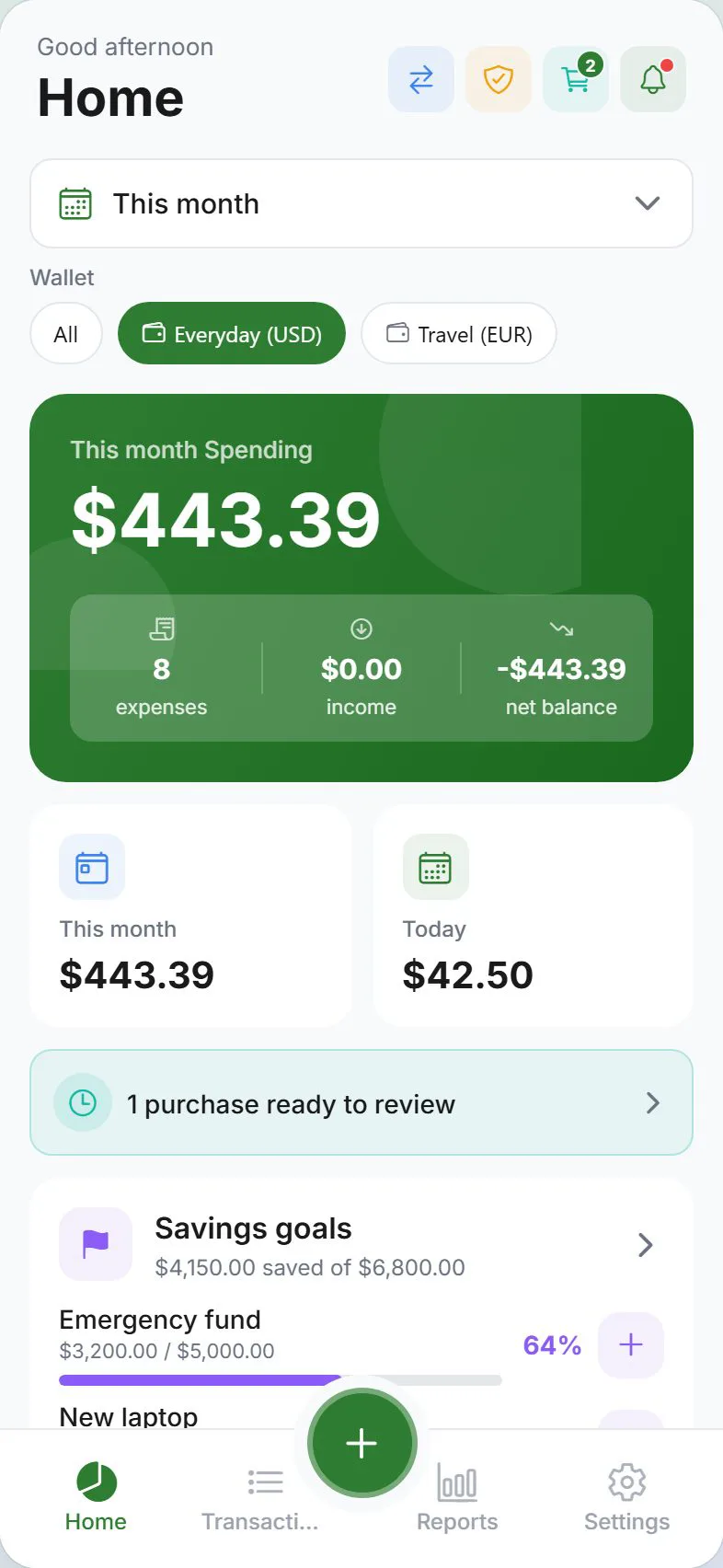
Home-screen shortcuts (quick actions)
Long-press the app icon to open shortcuts:
| Shortcut | Opens |
|---|---|
| Add expense | Add entry sheet — expense |
| Add income | Add entry sheet — income |
| Split expense | Add entry with split bill enabled |
| Goal contribution | Add entry — savings toward a goal |
| IOU code | Settings — share or enter a contact code |
| Household | Settings — household section |
Shortcuts use the same deep links as in-app navigation — you land in the right screen after unlock if app lock is on.
Widgets
Add widgets from the system widget picker (home screen or lock screen where supported).
| Widget | Shows |
|---|---|
| Goals | Savings goals with progress bars and contribute CTA |
| Splits | Split balances with settle-up reminder |
| Quick add | One-tap expense, income, split, and goal shortcuts |
| Spending today | Today's total and monthly spending |
| Budget pulse | Active budgets with progress and alert states |
| Goal focus | Primary savings goal with ring-style progress |
| No-spend streak | Discretionary no-spend streak status |
| Month at a glance | Today, month, net, and income summary |
| Wallet balance | Wallet balances at a glance |
| Place reminder | Recent arrive/leave at a saved place (within 24h), or your first saved place |
| Wishlist | Purchase wishlist items ready to review |
Widgets update when you open the app and data syncs locally. If you have no goals or IOU activity, the widget shows a short empty state.
Widget settings (goal & wallet)
Under Settings → General → Home screen widgets you can choose:
| Setting | Affects |
|---|---|
| Goal focus widget | Which savings goal appears on Goal focus (or Automatic for the first active goal) |
| Wallet & month widgets | Which wallet Wallet balance shows, and which wallet’s totals Month at a glance uses (or All wallets for up to three balances) |
Changes apply after the next widget refresh (open the app or wait for the periodic update).
Large layouts (iOS & Android)
Budget pulse and Month at a glance support a large home-screen size where available:
- Budget pulse — up to five budget rows with remaining amounts
- Month at a glance — prominent net total plus today, month, and income stats (wallet name when a single wallet is selected)
On Android, resize the widget to the largest grid size to see the expanded layout.
Stealth mode
With stealth mode on, widget text may mask amounts and sensitive names — same idea as the Dashboard.
Requirements
| Requirement | Notes |
|---|---|
| Store or dev build | Widgets and shortcuts are not available in Expo Go |
| Sign in (widgets) | Goals and IOU widgets expect data from your signed-in or local ledger snapshot |
| Web | No widgets or icon shortcuts — use the installed app |
Android lock screen
Compact lock-screen widgets may show a single summary line. Use generic lock-screen content under Settings → Alerts if you want less detail on the lock screen. See Alerts & push.
Related guides
Was this guide helpful?