
Money management
Guide section
Money management
Budgets
Set monthly spending limits by category or payment method and get alerts before you overspend.
Budgets help you cap spending in areas that matter — groceries, dining out, or everything on your credit card. Progress shows on the Dashboard and in Reports.
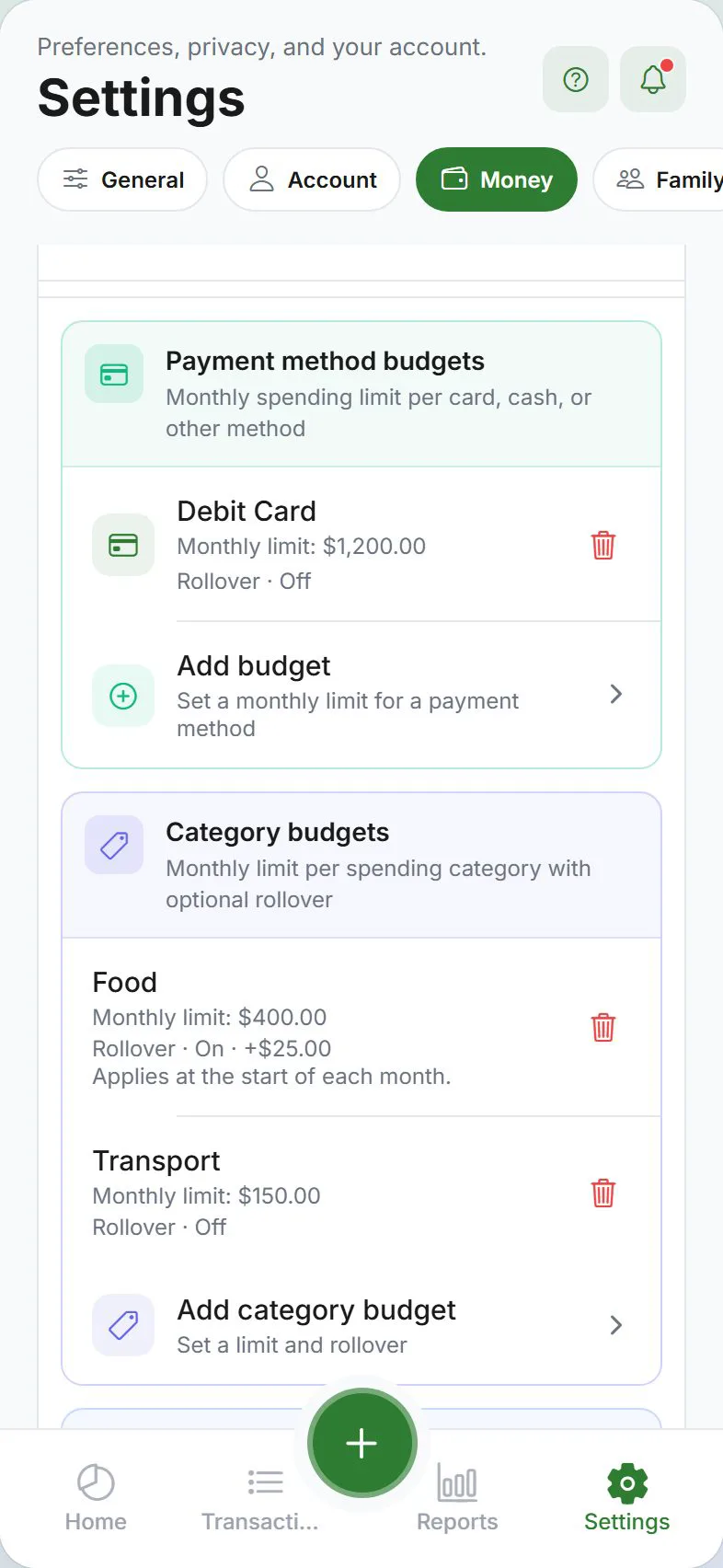
Open budget settings
- Settings → Money tab
- Expand the Budgets section
Two types of budgets
| Type | Limits spending on… | Example |
|---|---|---|
| Category budget | One category (or group) | “Food” — $400/month |
| Payment method budget | Everything paid with one method | “Credit card” — $1,000/month |
You can set multiple budgets at once — for example, a Food category budget and a Credit card method budget.
Set a category budget
- Settings → Money → Budgets
- Add or edit a category budget
- Pick the category (Food, Entertainment, etc.)
- Enter the monthly limit
- Optional: turn on Rollover to carry unused money to next month
- Optional: set a starting carryover if you already had budget left over
- Save
Set a payment method budget
- Same Budgets section
- Add a payment method budget
- Pick the method (Credit card, Cash, etc.)
- Enter the monthly limit and save
Alert threshold
When creating or editing a budget, choose when to warn you:
| Threshold | Meaning |
|---|---|
| 50% | Alert halfway through the budget |
| 70% | Alert when you have 30% left |
| 80% | Common default |
| 90% | Alert when almost at the limit |
Alerts appear on the Dashboard (highlighted budget cards). With notifications enabled, you may also get a push — see Alerts.
See budget progress
| Where | What you see |
|---|---|
| Dashboard | Budget cards with spent vs limit and remaining amount |
| Reports → Summary | Budget utilization section |
| Over budget | Cards turn warning colors when you exceed the limit |
Enable budget notifications
- Settings → Alerts
- Turn on Budget alerts
- Allow notifications in your phone’s system settings
Choose push privacy if you want generic lock-screen text without amounts.
Remove or change a budget
- Settings → Money → Budgets
- Tap the budget → edit the limit or delete
Clearing the limit removes the budget from the Dashboard.
Tips
| Goal | Suggestion |
|---|---|
| Start simple | One category budget (Food or Shopping) for the first month |
| Credit card cap | Use a payment method budget on your card |
| Rollover | Good for flexible categories like “Personal care” |
| Weekly mindset | Monthly limits are shown on the Dashboard; Reports may show weekly estimates for context |
Related guides
Was this guide helpful?