
Guide section
Platforms
Web app
Use Expense Trail in your browser at dashboard.expensetrail.app.
The web app gives you the same tabs and settings as the phone apps — handy on a laptop or when you cannot install from an app store. For the strongest privacy (PIN lock, encrypted storage), prefer the iPhone or Android app.
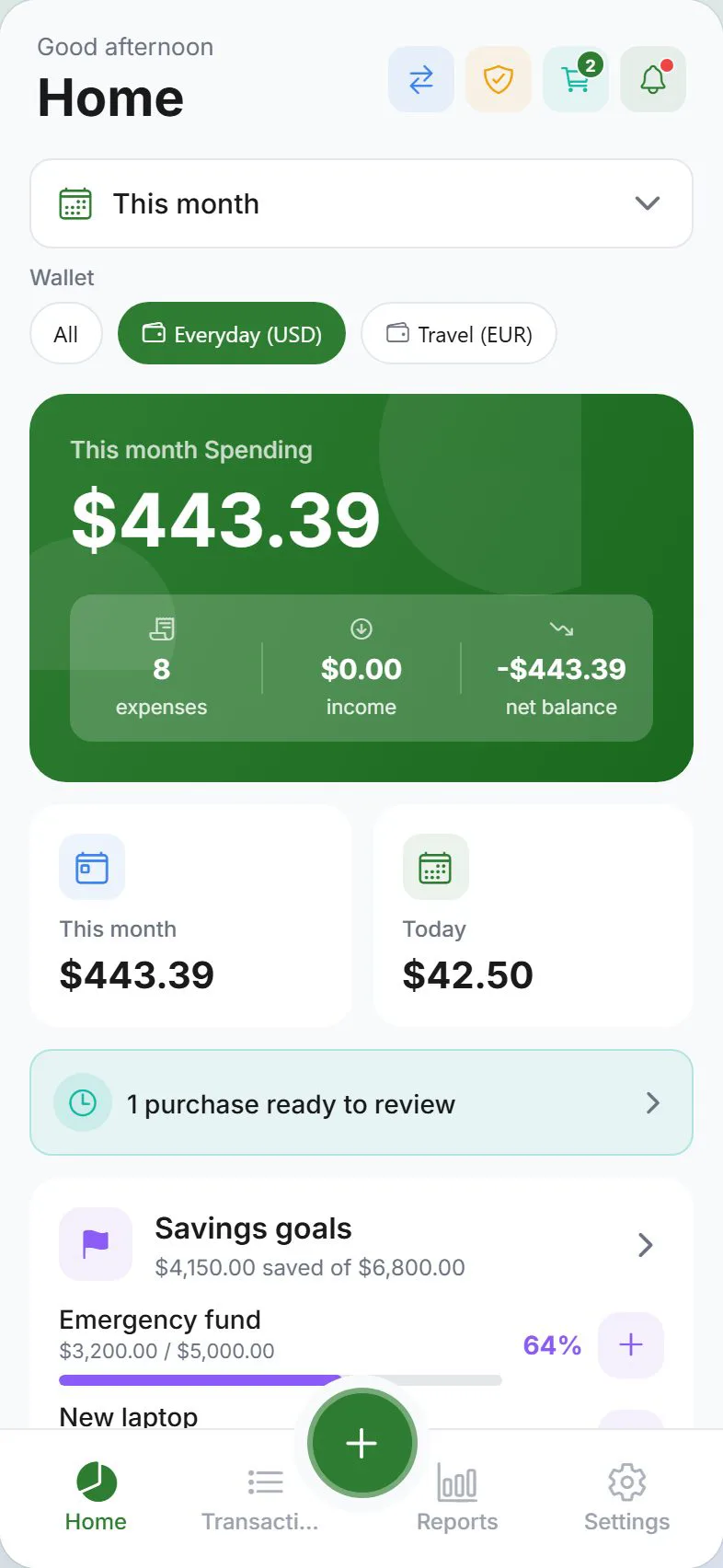
Open the web app
Go to https://dashboard.expensetrail.app in:
- Chrome, Edge, Firefox, or Safari
- Desktop or mobile browser
Install like an app (optional)
| Device | Steps |
|---|---|
| iPhone Safari | Share → Add to Home Screen (needed for web push) |
| Android Chrome | Menu → Install app / Add to Home screen |
| Desktop Chrome/Edge | Install icon in address bar when offered |
Web vs phone app
| Feature | Web | iPhone / Android app |
|---|---|---|
| Add expenses, budgets, reports | Yes | Yes |
| Encrypted on-device database | Browser storage (weaker) | Stronger native storage |
| PIN / app lock | Not available | Yes |
| Fingerprint unlock | No | Yes |
| Push notifications | Browser-dependent | Full |
| Clipboard suggest | No | Yes |
| LAN sync | Manual IP only | Auto-find on some builds |
| iCloud backup | No | iPhone share sheet |
Core money tracking works the same — differences are mostly security and notifications.
Desktop tips
- Tab and Enter move through forms
- Wide screen shows more columns in Reports and Settings
- Mouse wheel may scroll chart areas horizontally
Sign-in and storage
Browsers in private/incognito mode may erase data when you close the window. For persistent local data:
- Use normal browsing mode, or
- Sign in with cloud sync enabled
If the app looks empty after an update, sign in again — sync restores when enabled.
Updates
Web updates when you load a fresh copy:
- Tap Refresh in the in-app update banner, or
- Hard refresh: Ctrl+Shift+R (Windows/Linux) or Cmd+Shift+R (Mac)
Web push notifications
| Browser | Support |
|---|---|
| Chrome, Edge, Brave (desktop & Android) | Good |
| Firefox | Varies |
| Safari (iPhone) | Requires Add to Home Screen first |
Configure under Settings → Alerts. Follow the in-app iOS PWA install banner if notifications fail on iPhone Safari.
Security on shared computers
- Sign out when finished on public or work PCs
- Do not stay signed in on library computers
- Official URL uses HTTPS only — check the address bar
Export and backup on web
Settings → Data — same export, import, and cloud backup flows as mobile.
Related guides
Was this guide helpful?