
Guide section
Notifications
Quiet hours
Pause lock-screen alerts overnight while keeping the in-app inbox optional.
Quiet hours in Settings → Alerts silences OS push during a schedule you choose (for example 10:00 PM–7:00 AM). It is separate from iOS Focus or Android Do Not Disturb — Expense Trail applies its own gate on server and device delivery.
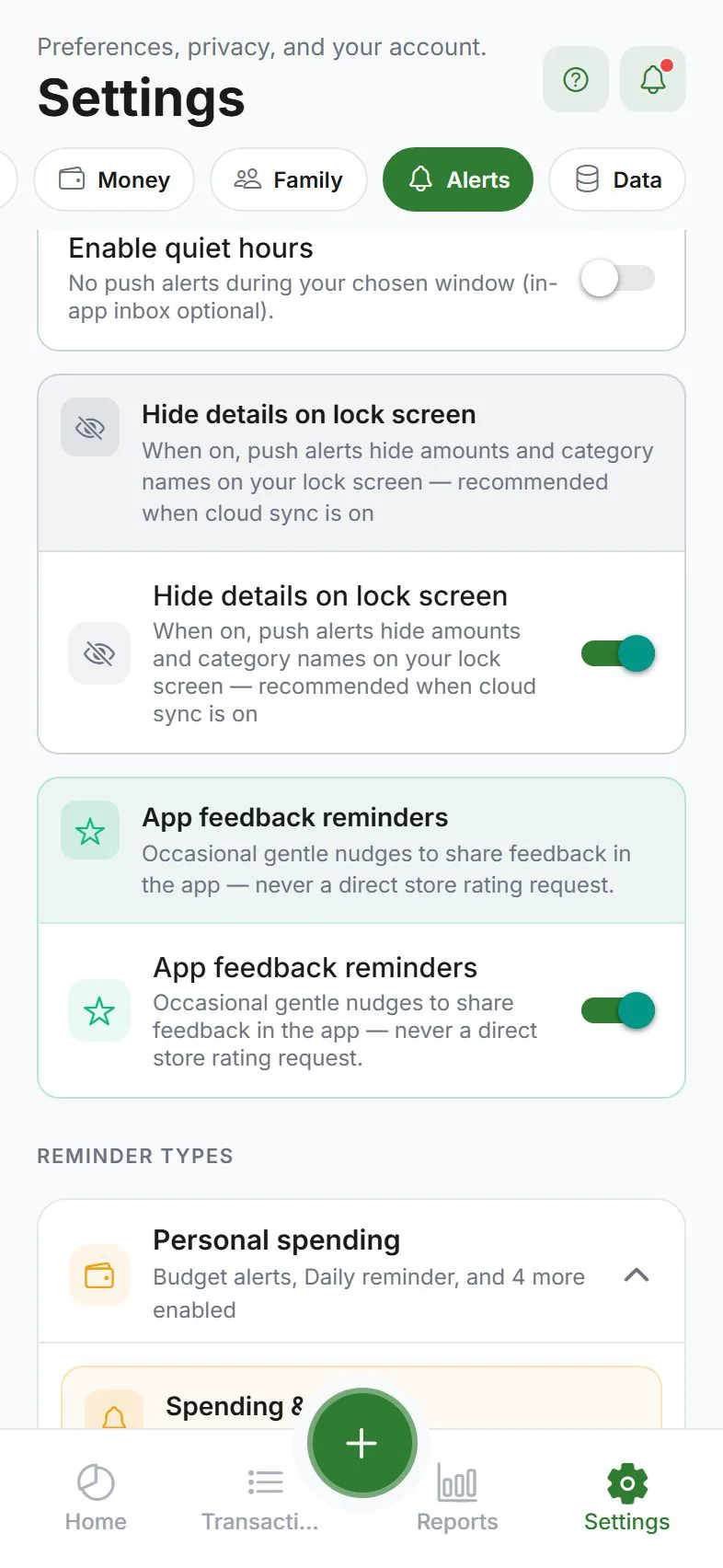
What quiet hours blocks
- Lock-screen / notification-shade push for financial reminders, summaries, and scheduled bills
- Local OS banners fired by on-device evaluators during the window
What quiet hours does not block (v1)
- In-app inbox rows by default (optional sub-toggle to suppress)
- Buddy / household invites when Allow social during quiet hours is on (default)
- Test push (always delivers so you can verify setup)
- Background sync error rows and the Android persistent sync icon
Overnight schedules
Start time can be after end time (e.g. 22:00 → 07:00). The app uses your device timezone locally; signed-in users also sync timezone to the account so server cron respects the same window.
E2EE users
Encrypted sync users receive a generic cloud ping at cron time (no amounts on the lock screen). The app evaluates reminders after open or when the push is received. Quiet hours suppress that ping the same way as standard push.
See also Alerts & push settings and All notifications.
Was this guide helpful?