
Guide section
Notifications
All notifications
Complete list of push alerts, scheduled reminders, in-app inbox items, and background messages in Expense Trail.
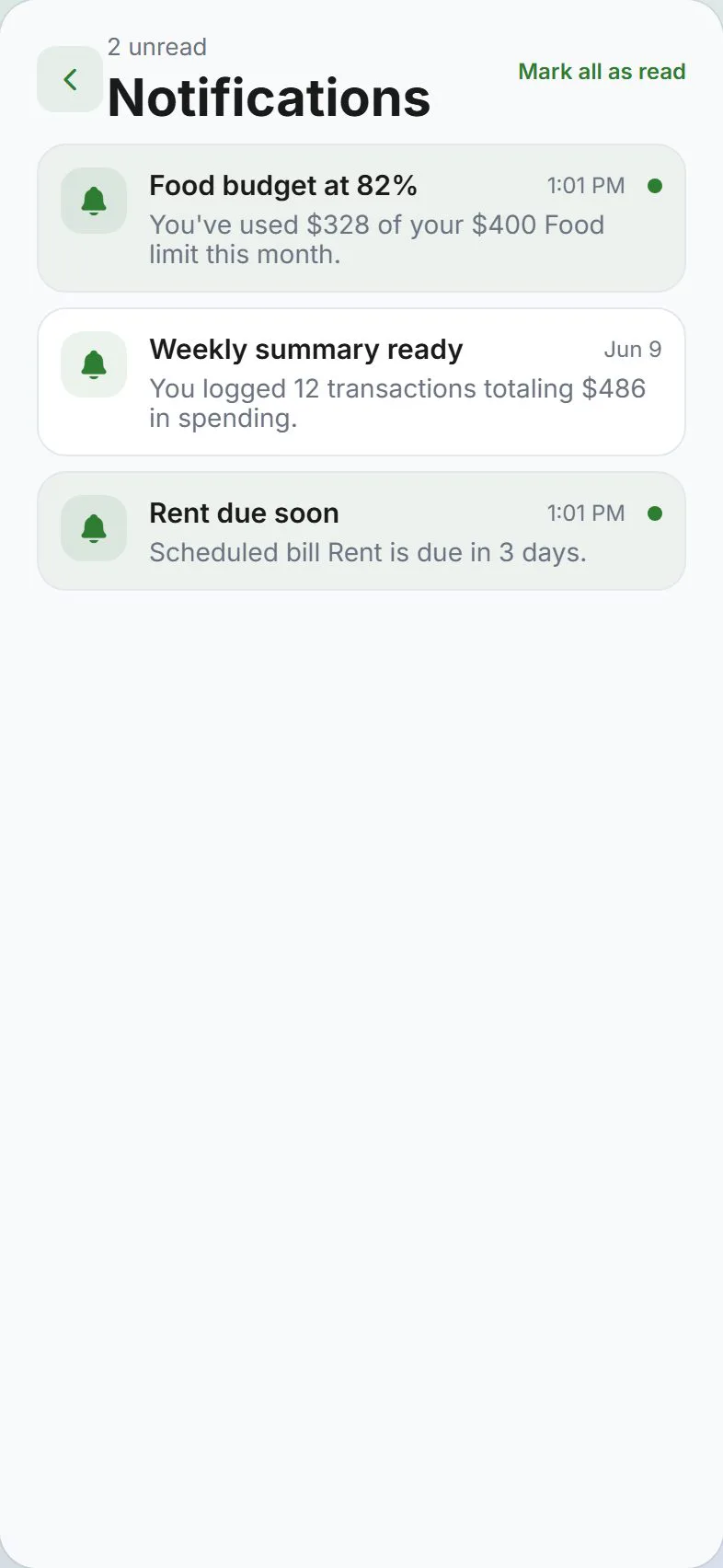
Expense Trail uses three ways to reach you: on-screen hints (Dashboard budget cards, daily banner), lock-screen push (optional), and the in-app inbox (bell on the Dashboard). This page lists every notification type, what triggers it, and where to turn it on or off.
For step-by-step settings, see Alerts & push settings.
Three delivery channels
| Channel | Where | Needs push permission? | Needs sign-in + sync? |
|---|---|---|---|
| On-screen | Dashboard budget cards, daily reminder banner | No | Banner: yes; budget cards: no |
| OS push | Lock screen / notification shade | Yes | Most types: yes |
| In-app inbox | Dashboard bell → Notifications screen | No | Cloud users sync from server; local-only users store on device |
Cloud users get push + in-app together for most alerts. Tapping either opens the same destination (budgets, Reports, Settings, etc.).
The inbox keeps up to 100 recent items. Unread rows are highlighted; use Mark all read on the Notifications screen.
Settings map
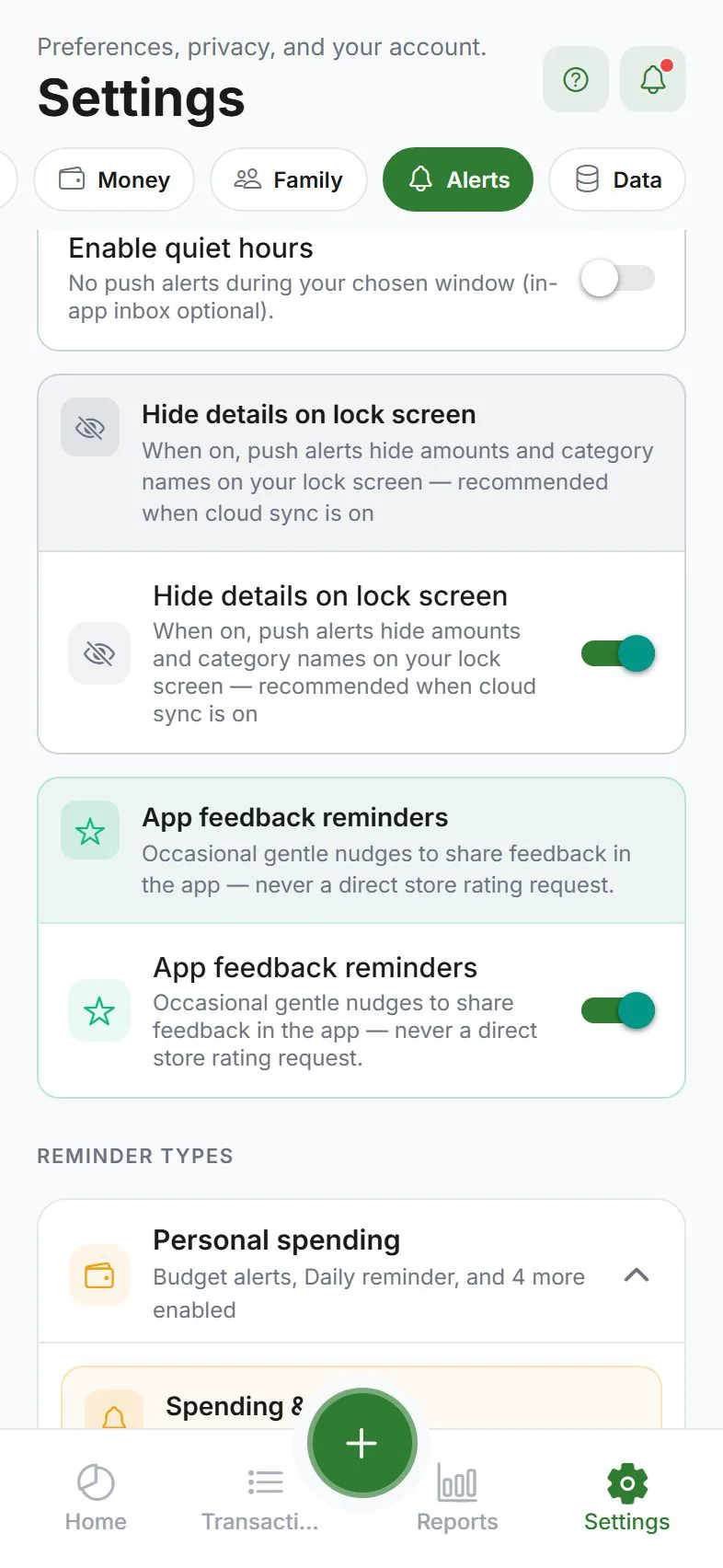
Open Settings → Alerts:
| Group | What it controls |
|---|---|
| Spending & budgets | Budget threshold + exceeded alerts (device-evaluated for E2EE) |
| Daily & habit | Daily reminder when no expenses logged |
| Scheduled & bills | Due today, overdue, due tomorrow |
| Summaries | Weekly summary + monthly recap |
| Goals | Milestones + optional deadline reminders |
| Household / Buddies | Shared activity + split settle-up |
| Confirmations | Optional expense/transfer saved alerts |
| Privacy reminders | Generic E2EE unlock nudge when vault is locked |
| Push permission | Allow notifications on your phone or browser |
| Quiet hours | Pause lock-screen push overnight; optional inbox persistence |
| Background activity | Progress toasts, Android persistent icon, silent tasks, background sync upload |
Buddy requests have no separate toggle — if someone adds you via your TRAIL- invite code, you receive a push and inbox item when signed in with cloud sync.
Complete notification catalog
| Notification | What it tells you | User setting | Push | In-app inbox | Tap opens |
|---|---|---|---|---|---|
| Budget threshold | Spending crossed your alert % (e.g. 80%) for a budget | Budget alerts + threshold | Yes* | Yes | Dashboard (budgets) |
| Budget exceeded | Spending went over 100% of a budget limit | Budget alerts | Yes* | Yes | Dashboard (budgets) |
| Daily reminder | No expenses logged today | Daily reminder | Yes* | Yes | Dashboard |
| Daily reminder banner | Same nudge while the app is open | Daily reminder | No (banner only) | Yes (no OS banner) | Dismiss or add expense |
| Scheduled — due today | Recurring bill or income due today | Scheduled & bills | Yes* | Yes | Settings → Scheduled entries |
| Scheduled — overdue | Recurring entry past its due date | Scheduled & bills | Yes* | Yes | Settings → Scheduled entries |
| Scheduled — due tomorrow | Entry due the next calendar day | Scheduled & bills | Yes* | Yes | Settings → Scheduled entries |
| Weekly summary | Last 7 days spending + top category | Weekly summary (+ pick weekday) | Yes* | Yes | Reports |
| Monthly recap | Previous month spending total | Monthly recap | Yes* | Yes | Reports |
| Goal milestone (50%) | Savings goal reached half of target | Goal milestones | Yes* | Yes | Goals |
| Goal milestone (75%) | Savings goal reached 75% | Goal milestones | Yes* | Yes | Goals |
| Goal completed (100%) | Savings goal fully funded | Goal milestones | Yes* | Yes | Goals |
| Goal deadline approaching | Target date within 7 days | Goal deadline reminders (sub) | Yes* | Yes | Goals |
| E2EE unlock reminder | Generic nudge when encrypted vault is locked | Privacy reminders | Yes‡ | Yes | Settings → Privacy |
| Household member joined | Someone accepted your household invite | Household activity | Yes | Yes | Settings → Household |
| Buddy request | Someone linked you via buddy invite code | (always when invited) | Yes | Yes | Settings → Buddies & splits |
| Split settle-up reminder | Unsettled IOU balance with a split contact | Split settle-up reminders | Yes* | Yes | Settings → Buddies & splits |
| Transfer recorded | Confirmation after you record a transfer (optional) | Transfer recorded | Yes* | Yes | Transactions |
| Expense saved | Confirmation after you add an expense (optional) | Expense saved | Yes* | Yes | Transactions |
| Household shared expense | A member added a shared expense | Household activity | Yes | Yes | Transactions |
| Household shared transfer | A member recorded a shared transfer | Household activity | Yes | Yes | Transactions |
| Wishlist ready | Purchase cooling-off period ended | Purchase wishlist | Yes* | Yes | Wishlist |
| Shopping place exit | Left a saved place — log spending? | Shopping place reminders (phone) | Yes* | Yes | Add expense (note prefilled) |
| Test notification | Confirms push delivery | Send test notification button | Yes | Yes | Varies |
| Product announcement | News, tips, or offers from Expense Trail | (no user toggle — operational messages) | Optional† | Yes | Varies (in-app link or website) |
| Sync error | Cloud sync failed in background | Background task notifications | In-app only | Yes | Retry sync |
| Import error | Background import failed | Background task notifications | In-app only | Yes | Retry sync |
| Export error | Background export failed | Background task notifications | In-app only | Yes | Retry sync |
| Recurring error | Scheduled entry could not post | Background task notifications | In-app only | Yes | Retry sync |
*Push requires sign-in, cloud sync, OS permission, and a supported build (not Expo Go). See Alerts & push.
†Product announcements may include push when you opted into notifications; they always appear in the in-app inbox when sent to your account.
How notifications are triggered
Scheduled server jobs (cloud sync, standard encryption)
When your data is synced with standard (non-encrypted) cloud storage, the server runs scheduled jobs and sends push + in-app notifications. Default times (your timezone on the server):
| Job | Default schedule | Notification kind |
|---|---|---|
| Daily reminder | Every day 7:00 PM | daily_reminder — only if you logged no expenses today |
| Scheduled due today | Every day 8:00 AM | scheduled_due_today |
| Scheduled overdue | Every day 9:00 AM | scheduled_overdue |
| Scheduled due tomorrow | Every day 6:00 PM | scheduled_due_tomorrow |
| Weekly summary | Every day 8:00 PM (fires on your chosen weekday only) | weekly_summary |
| Monthly recap | 9:00 AM on the 1st of each month | monthly_recap |
Scheduled transactions still post when you open the app on or after the due date. Push reminders help you open the app — they do not create entries silently in the background.
Event-driven (happens when you use the app)
| Event | Notification | When |
|---|---|---|
| Add or sync an expense | Budget threshold / exceeded | After spending crosses your threshold or limit |
| Add a goal contribution | Goal 50% / 75% / 100% | When progress crosses a milestone |
| Partner accepts household invite | Household member joined | Other members get notified |
| Someone enters your buddy invite code | Buddy request | Invitee gets push + inbox item |
| Tap Send test notification | Test push | Immediately |
Budget and goal event pushes run on the server for standard sync, or on your device when end-to-end encryption is on (see below).
On-device only (no server cron)
| Source | Examples |
|---|---|
| Dashboard UI | Budget progress cards (always when budgets exist); daily reminder banner |
| Local evaluators | E2EE wake pushes, offline users, daily banner inbox entry |
| Background tasks | Sync / import / export / recurring errors → in-app inbox (one per activity type per day) |
End-to-end encryption (E2EE) path
When E2EE is enabled, the server cannot read your amounts — so it cannot compute budget or goal text server-side.
- The server sends a generic wake push at the same cron times as standard users (daily reminder, scheduled bills, weekly summary, monthly recap) with payload
evaluate_*— no amounts in the JSON. - Your phone runs the same logic (budget, bills, goals, daily reminder, weekly/monthly) using decrypted local data.
- You still get OS notifications and in-app inbox entries — generated on the device.
Wake cron jobs mirror standard schedules: daily reminder (19:00), scheduled reminders (08:00), weekly summary (20:00 on your chosen weekday), monthly recap (09:00 on the 1st). Quiet hours suppress wake push but inbox rows may still be created.
Buddy invites and household joins still use the server (they do not need decrypted expense amounts).
Lock-screen privacy
Settings → Alerts → Generic lock-screen content (or Push content privacy) replaces detailed amounts and labels with generic text like “Expense Trail — You have a reminder”. Recommended on shared devices. See Privacy overview.
In-app inbox behavior
| Topic | Detail |
|---|---|
| Open | Dashboard bell (badge = unread count) |
| Cloud sync on | Inbox merges server list with local cache (up to 50 fetched, 100 stored) |
| Local-only | Inbox shows notifications created on this device only |
| Tap a row | Same routing as push — Dashboard, Reports, Goals, Settings section, or retry sync |
| Buddy invite | Opens Buddies & splits — you still Accept or Decline there |
| Refresh | Pull down on the Notifications screen |
Background activity messages
Separate from spending alerts — these cover sync, import, export, and backup running while the app is in the background:
| Setting | What you see |
|---|---|
| Show progress in background | Banner when a long task runs |
| Persistent notification (Android) | Ongoing icon during sync |
| Silent background tasks | Hide success toasts |
| Sync offline changes in background | Upload queued edits when app is backgrounded (Android; needs sign-in + sync) |
Failures also add an in-app error row (once per activity type per day) with a Retry sync action.
Platform notes
| Platform | Notes |
|---|---|
| iPhone / Android (store app) | Full push + inbox + background options |
| Web (Chrome / Edge) | Push after allowing notifications; best on desktop and Android |
| iPhone Safari tab | Install to Home Screen first, then allow push |
| Expo Go | Push not available — use a store or dev client build |
Related guides
- Shopping place reminders — on-device geofence (phone only)
- Quiet hours — pause lock-screen push overnight
- Alerts & push settings — toggles, permissions, test push
- Scheduled entries
- Budgets
- Savings goals
- Buddies & split contacts
- Households
Was this guide helpful?