
Guide section
Data & backups
Storage connections
Link your own S3, WebDAV, or Cloudinary for receipts, and Drive, Dropbox, or iCloud for backups.
Storage connections let you choose where receipt photos and encrypted backup files live — your cloud, not only Expense Trail’s default hosting. Set up connections under Settings → Account, then pick targets under Settings → Data.
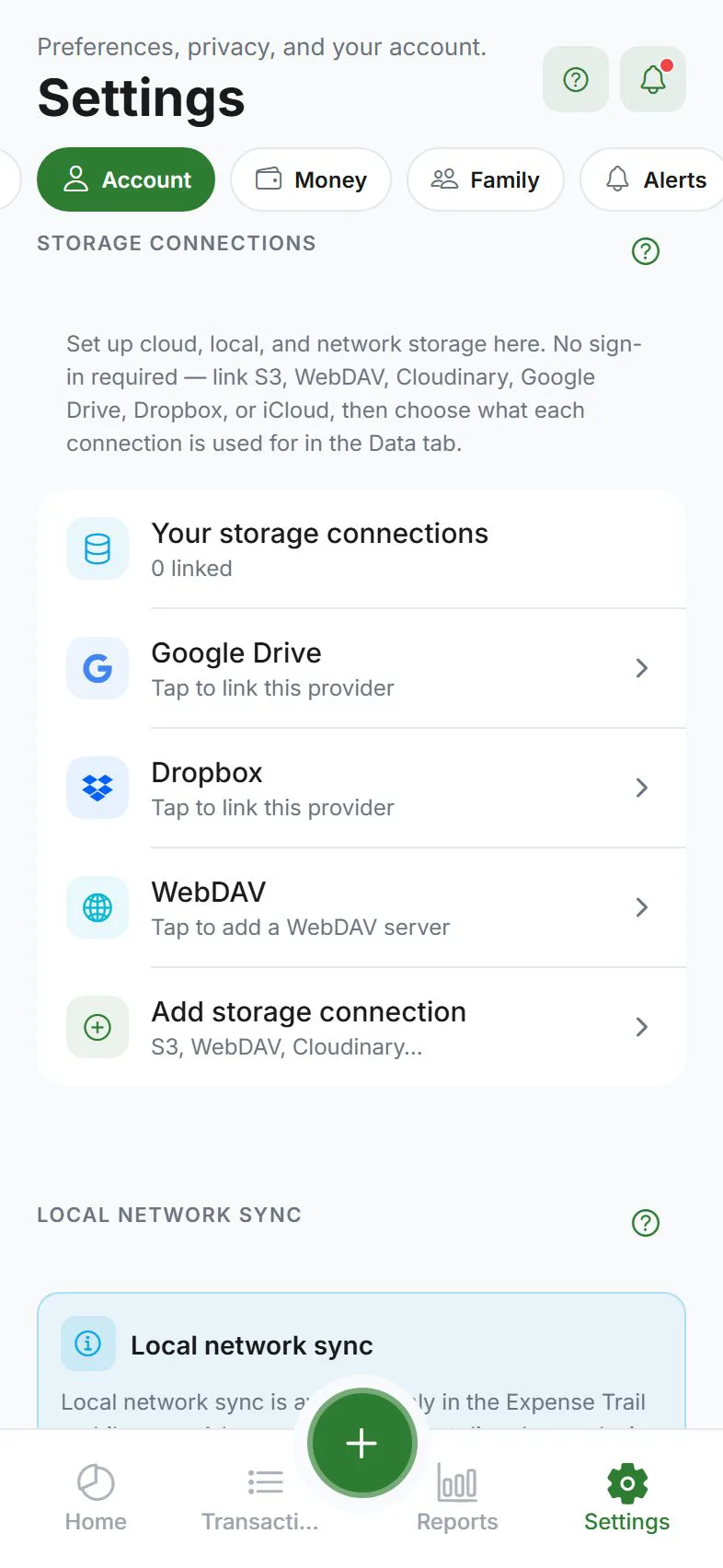
Open storage connections
Settings → Account → Storage connections
No sign-in is required to add bring-your-own storage (BYOS) connections. When you sign in, connection metadata can sync to your account; credentials stay protected on device and server per your encryption mode.
Connection types
| Provider | Typical use | Add from |
|---|---|---|
| S3-compatible | Receipt attachments (AWS S3, Cloudflare R2, etc.) | Add connection → S3 |
| WebDAV | Attachments and/or backups (Nextcloud, NAS) | Add connection → WebDAV |
| Cloudinary | Receipt attachments | Add connection → Cloudinary |
| Google Drive | Encrypted backups | Quick link row |
| Dropbox | Encrypted backups | Quick link row |
| iCloud Drive | Backups (iPhone/iPad only) | Quick link row |
S3 and Cloudinary connections are for attachments. Google Drive, Dropbox, WebDAV, and iCloud are oriented toward encrypted backups. You can have multiple connections but each provider type is usually linked once.
Add a BYOS connection
- Tap Add storage connection
- Choose S3, WebDAV, or Cloudinary
- Enter a connection name and provider credentials (bucket, URL, keys, etc.)
- Save — secrets are stored on this device and synced to your account only when signed in with cloud sync
When editing, leave credential fields blank to keep existing secrets unchanged.
Choose what each connection does
After linking, open Settings → Data:
| Target | Options |
|---|---|
| Receipt attachments | Expense Trail cloud (default when signed in) or your S3 / WebDAV / Cloudinary connection |
| Encrypted backups | None, or a linked Drive / Dropbox / WebDAV / iCloud connection |
See Cloud backup for schedules and recovery phrases.
Local network sync
From the storage hub you can open LAN sync — move data directly between two devices on the same Wi‑Fi without the public internet. See LAN sync.
Remove a connection
- Open the connection → Delete
- If the connection is in use, the app warns you:
- Attachments may fall back to Expense Trail cloud
- Backup target may clear until you pick another
Confirm only when you have another target or export if needed.
Free up device storage
Settings → Account also shows device storage with Free up device storage — clear local caches, pending queues, attachment copies, and similar on this device only. Your cloud account and sync are not deleted.
You can clear these categories when space is low:
| Category | What it removes |
|---|---|
| App cache | Temporary app cache |
| Pending sync queue | Queued uploads waiting for network |
| Notification cache | Cached notification payloads |
| Local attachment copies | Receipt files cached on device |
| Local transaction cache | Cached transaction rows for faster lists |
| Extra ledger data | Additional local ledger copies |
| Scheduled entry cache | Cached scheduled-entry data |
| Temporary files | Exports and other temp files |
If you clear pending sync, local transaction cache, or other ledger-related categories while cloud sync is on but data has not uploaded yet, the app warns you first. Continuing permanently deletes that unsynced data from this device.
Security notes
- Do not share connection passwords in chat or email
- WebDAV and S3 credentials live in secure storage on device
- For maximum privacy, combine BYOS attachments with end-to-end encryption on sync
Related guides
Was this guide helpful?