
Guide section
Data & backups
Backup & export
Save your data as an encrypted file, JSON, or CSV — on your device or to the cloud.
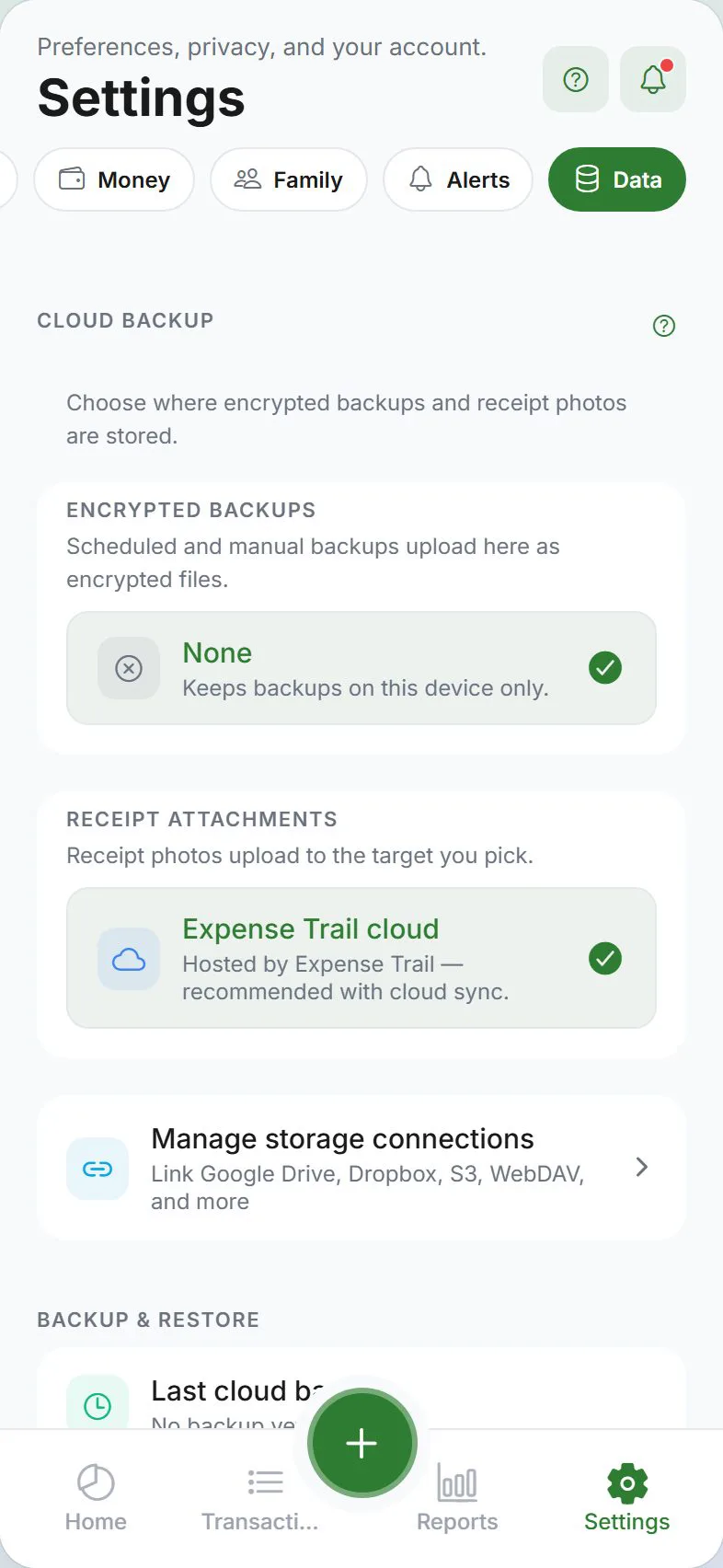
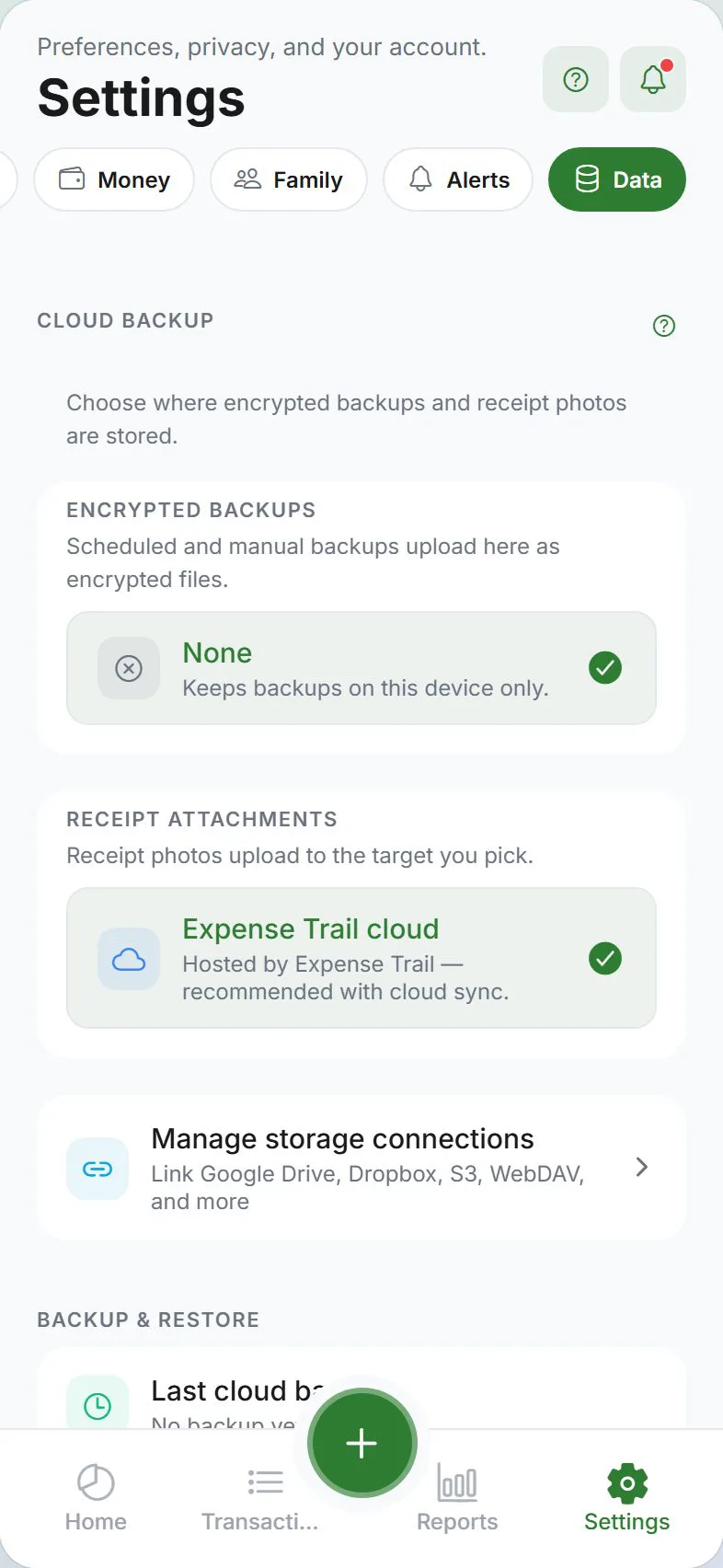
Backups protect you if you lose your phone, switch devices, or need a spreadsheet copy. Everything starts under Settings → Data.
Three export formats
| Format | Password? | Best for |
|---|---|---|
| Encrypted backup | Yes — you choose a password | Safest full backup — restore in Expense Trail |
| JSON | No | Readable file for tech-savvy users or tools |
| CSV | No | Opening in Excel or Google Sheets |
JSON and CSV are not password-protected. Anyone who opens the file can read your finances. The app asks you to confirm before exporting plain files. Prefer encrypted backup when possible.
Export an encrypted backup
- Settings → Data
- Tap Export encrypted backup
- Enter a strong password — you need the same password to import later
- Save the file to Files, Google Drive, email, or a USB drive
The backup includes entries, schedules, goals, wallets, transfers, tags, budgets, and balance adjustments.
Export JSON or CSV
- Settings → Data
- Tap Export to JSON or Export to CSV
- Read the warning and confirm if prompted
- Save or share the file
Use CSV for simple spreadsheet analysis; JSON for full structure if you know how to use it.
CSV exports use standard quoting so notes and categories with commas survive round-trips. Values that could be interpreted as spreadsheet formulas are escaped on export and restored on import.
Automated cloud backup
For scheduled uploads to Google Drive, Dropbox, WebDAV, or iCloud (iPhone):
See Cloud backup — same Data tab, Cloud backup section.
When to export
| Situation | Suggestion |
|---|---|
| Before resetting the app | Export encrypted backup first |
| Before deleting your account | Export + verify file opens |
| Tax or accountant | CSV export for the year |
| New phone, no cloud sync | Encrypted backup → import on new device |
Restore
Use Import in the same Data section.
What export does not include
Exports reflect data on this device at export time. If cloud sync is still uploading, sync first (Settings → Account → Sync now) so the file is complete.
Related guides
Was this guide helpful?