
Privacy & security
Guide section
Privacy & security
Local network (LAN) sync
Copy data between two devices on the same Wi‑Fi without using the cloud.
LAN sync lets two phones or tablets on the same home Wi‑Fi exchange data directly — useful if you do not want cloud upload or need a one-time merge between devices.
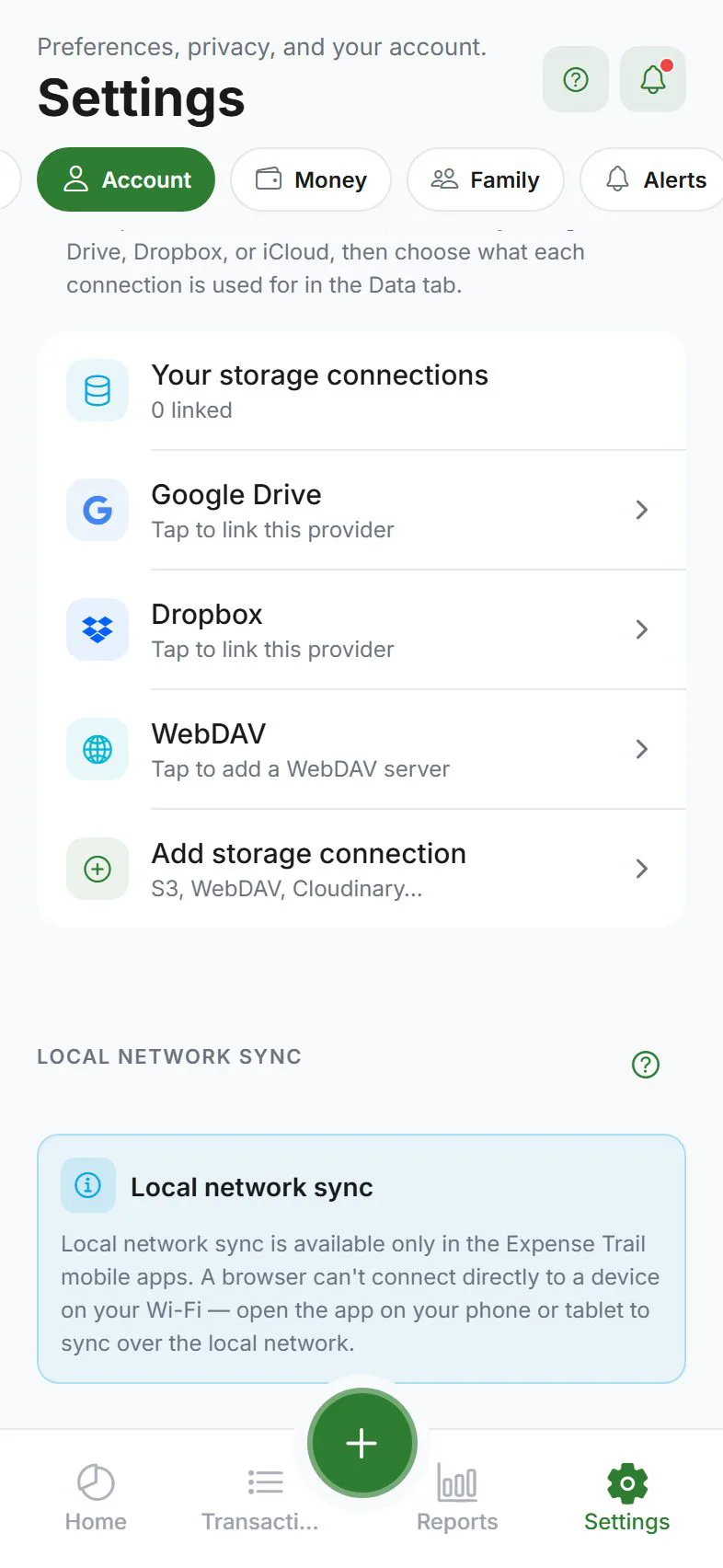
Where to find it
Settings → Data → Local network sync
Tap the row to open the pairing screen.
When to use LAN sync
| Good for | Not a replacement for |
|---|---|
| Phone + tablet on same Wi‑Fi | Daily automatic cloud sync |
| One-time merge after travel | Household sharing |
| Privacy-conscious home setup | Encrypted cloud backup for lost-device recovery |
Keep a regular backup even if you use LAN sync.
How to pair and sync
You need both devices on the same network.
On device A (host)
- Open LAN sync on both devices
- Device A shows a pairing code and listens on a local port
- Note the code
On device B (join)
- Find nearby devices if on a phone dev build, or
- Enter device A’s IP address and port manually (required on web or strict firewalls)
- Enter device A’s pairing code
- Confirm codes match on both screens
- Tap Sync now and wait for success
Platform differences
| Platform | Discovery |
|---|---|
| iPhone / Android | May auto-find nearby devices on supported builds |
| Web | Manual IP address only — browsers cannot browse local network names |
Security tips
- Use home or trusted Wi‑Fi — avoid public café networks
- Verify pairing codes match before syncing
- If you scan a QR code, confirm the pairing code and address match what the other device shows — mismatches are rejected to reduce wrong-peer risk
- Allow local network access if your phone asks (iOS local network permission)
Firewall note
Some routers or VPNs block device-to-device traffic. If sync fails, try manual IP, disable VPN, or use cloud sync instead.
Related guides
Was this guide helpful?