
How to store receipts in your S3, WebDAV, or cloud
BYOS storage hub.
BYOS storage hub. In short: Expense Trail helps you byos receipt storage with manual logging on iOS, Android, and web—no bank linking, no ads on core features. Follow the steps below, then use the product docs for screen-by-screen detail.
Before you start
Export or back up before bulk import. Expense Trail does not scrape banks—CSV/spreadsheet import is manual. See Data import for column mapping.
Steps
Export or back up before bulk import or reset.
You should see: You have a rollback file.
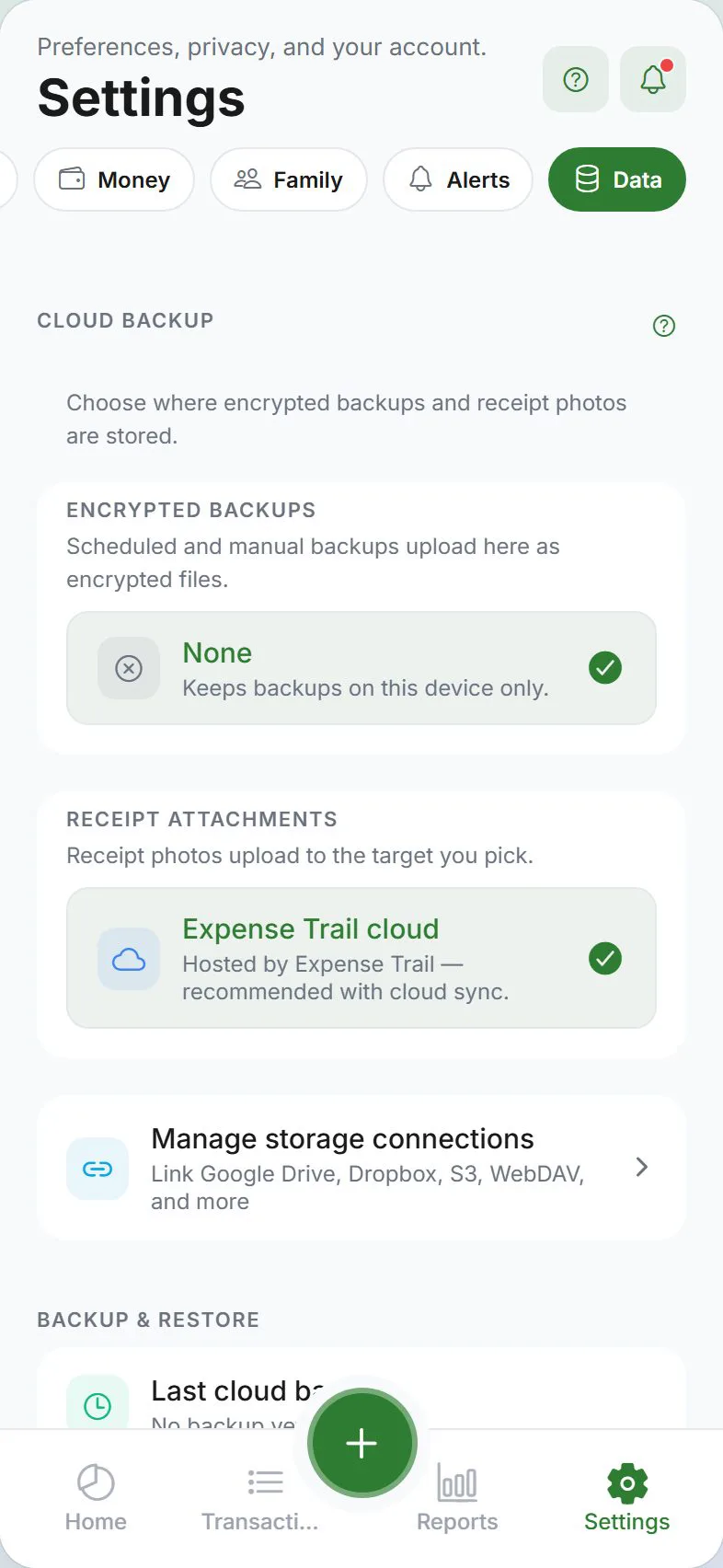
Open Settings → Data for import, export, or cloud backup.
You should see: Data hub lists available actions.
Follow format rules in the product doc (CSV columns, encrypted JSON).
You should see: Preview or validation passes.
Run import/export on Wi‑Fi for large attachments.
You should see: Progress completes without timeout.
Verify counts in Transactions after import.
You should see: Row totals match expectations.
Common mistakes
- Importing without wallet mapping — Every row needs a wallet column or default wallet.
- Unencrypted backup on shared drives — Use encrypted export for sensitive ledgers.
- Assuming OCR — Attachments are photos/PDFs you store; we do not auto-parse receipt text unless shipped.
Why this approach works
Spreadsheets break on mobile; cloud folders lose structure. Import, export, encrypted backup, and BYOS storage put you in control of file format and location—critical before device upgrades or tax-season prep. BYOS storage hub.
Quick answer (byos receipt storage)
BYOS storage hub. Use Expense Trail on iOS, Android, or web; core features are free without ads. You log each line manually—there is no bank feed to reconcile later.
Featured-snippet style: BYOS storage hub. Expense Trail uses manual entry—add wallets and categories, follow the steps above, and review Reports weekly. No bank linking; guest mode works without an account.
Tips that stick
- Set default wallet and default category under Settings so repeat logging takes seconds.
- Log the expense the same day—memory fades and group splits get disputed.
- Once per week, open Reports and scan for empty days or categories over 80% of budget.
- Link related tasks in Learn hub instead of duplicating long product docs here.
Troubleshooting
- Totals look wrong — Search Transactions for duplicates, wrong dates, or expenses logged instead of transfers.
- Feature missing on web vs mobile — Some platform tools (widgets, geofence) are mobile-only; see platform guides.
- Still stuck — Open the product doc linked below for screen-by-screen paths; concept pages explain why wallets, categories, and budgets differ.
Related concepts
BYOS for attachments and backups
BYOS receipt storage connects your S3, WebDAV, or Cloudinary bucket so files live in infrastructure you control. Configure in Settings → Data storage hub; test upload with one receipt before bulk migration. Encryption and credentials stay in your cloud account—we do not sell storage upsells.
Keep scope small
You do not need every wallet, category, and buddy configured before store receipts in your s3, webdav, or cloud. Start with one wallet and one category, complete the steps above, then refine labels in Settings when patterns appear. Revisit Learn hub for concept pages if wallet vs category vs budget still feels unclear—they prevent the most common setup mistakes.
Frequently asked questions
Store receipts in your S3, WebDAV, or cloud—do I need an account?
Guest mode works for local-only tracking. Sign in with Google or Apple if you need cloud sync, household, or push alerts. See use without an account.
Does Expense Trail link to my bank?
No. Expense Trail is manual entry only. You log amounts you choose; we do not pull bank transactions.
What if something looks wrong after I finish?
Check Transactions for duplicate or backdated lines. For wallet totals, use balance adjustments rather than fake expenses.
Is this financial advice?
No—this guide explains product setup only. For tax, legal, or investment decisions, consult a qualified professional.