
Money management
Guide section
Money management
Opening & balance adjustments
Set starting balances or fix a wallet total when it does not match your bank.
Opening balances (also called balance adjustments) set how much money a wallet had before you started tracking — or fix a small mismatch without faking a purchase.
When to use this
| Situation | Use opening balance? |
|---|---|
| Started tracking mid-month and wallet shows $0 but bank has $500 | Yes — set opening balance |
| Bank app says $1,200 but Expense Trail says $1,150 after many entries | Yes — small adjustment |
| Bought groceries yesterday | No — add a normal expense |
| Moved money between accounts | No — use a transfer |
Where to find it
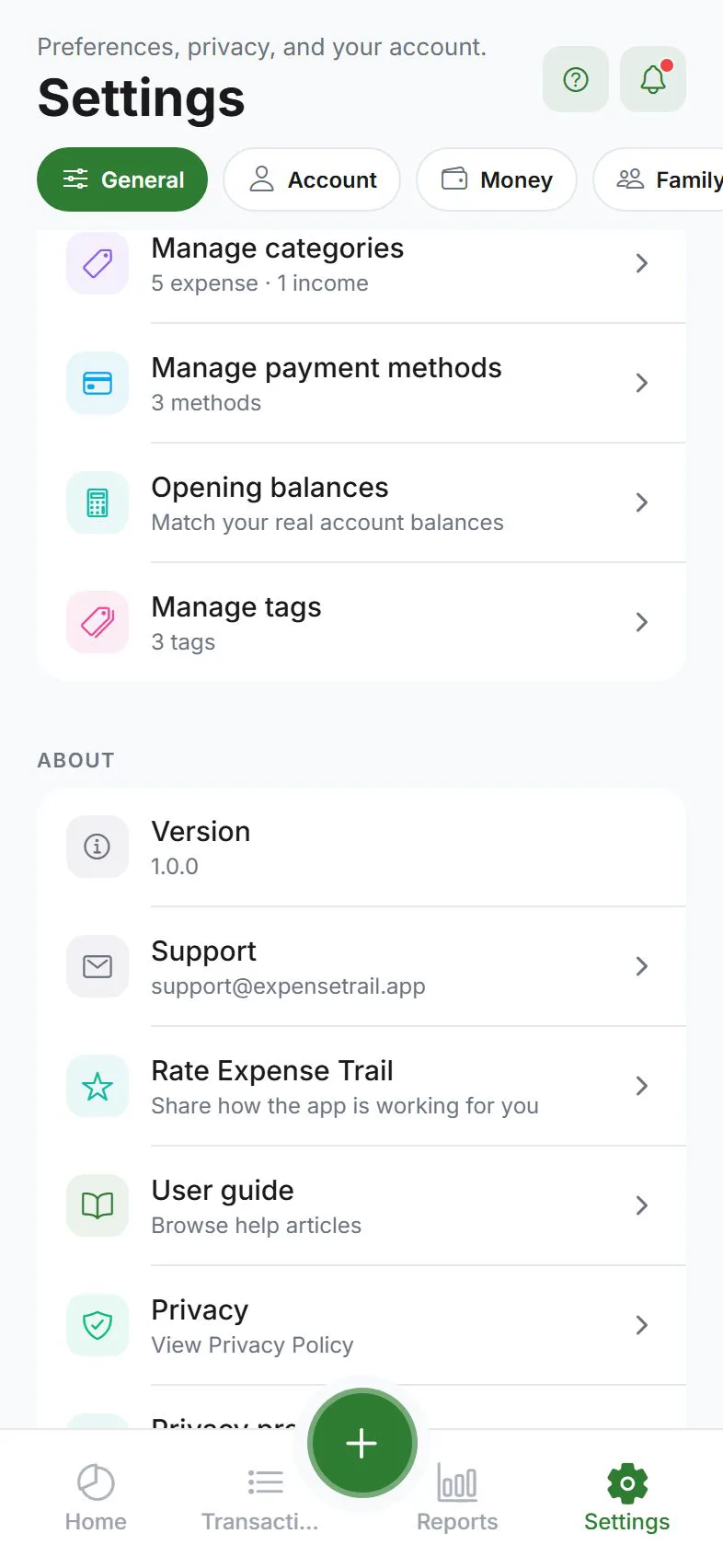
- Settings → General tab
- Preferences
- Tap Opening balances
This is under General → Preferences, not under the Money tab. The Money tab manages wallet names; Preferences manages the numbers inside them.
Set or adjust a balance
- Open Opening balances
- Pick a wallet and payment method combination
- Review what the app calculated from your transactions
- Enter the adjustment so the total matches reality
- Use quick +10 / +100 (or negative) buttons for small fixes
- Confirm to save, or Discard if you changed your mind
The adjustment appears as a special line in your transaction history and counts in monthly totals on reports.
What you will see on screen
For each wallet/method pair, the screen typically shows:
- From transactions — sum of entries you logged
- Adjustment — your manual correction
- Total — what the app treats as the current balance
Cloud sync
- Adjustments are stored on your device
- With cloud sync on, they sync to other devices
- Without sync, they stay local only
Do not use for everyday spending
Adjustments are for starting points and corrections — not for logging coffee, rent, or shopping. Use the + button for normal expenses.
Migrating from another app
- Export or note your current bank balances
- Set opening balances to match
- Optionally import historical entries if you have a backup file
- Going forward, log new expenses normally
Related guides
Was this guide helpful?