
Guide section
Money management
Wallets
Track cash, bank accounts, and cards — each with its own balance and currency.
Wallets are the accounts where your money lives — Cash in your pocket, Checking, Savings, or a credit card you track. Every expense and income entry is tied to a wallet (through a payment method).
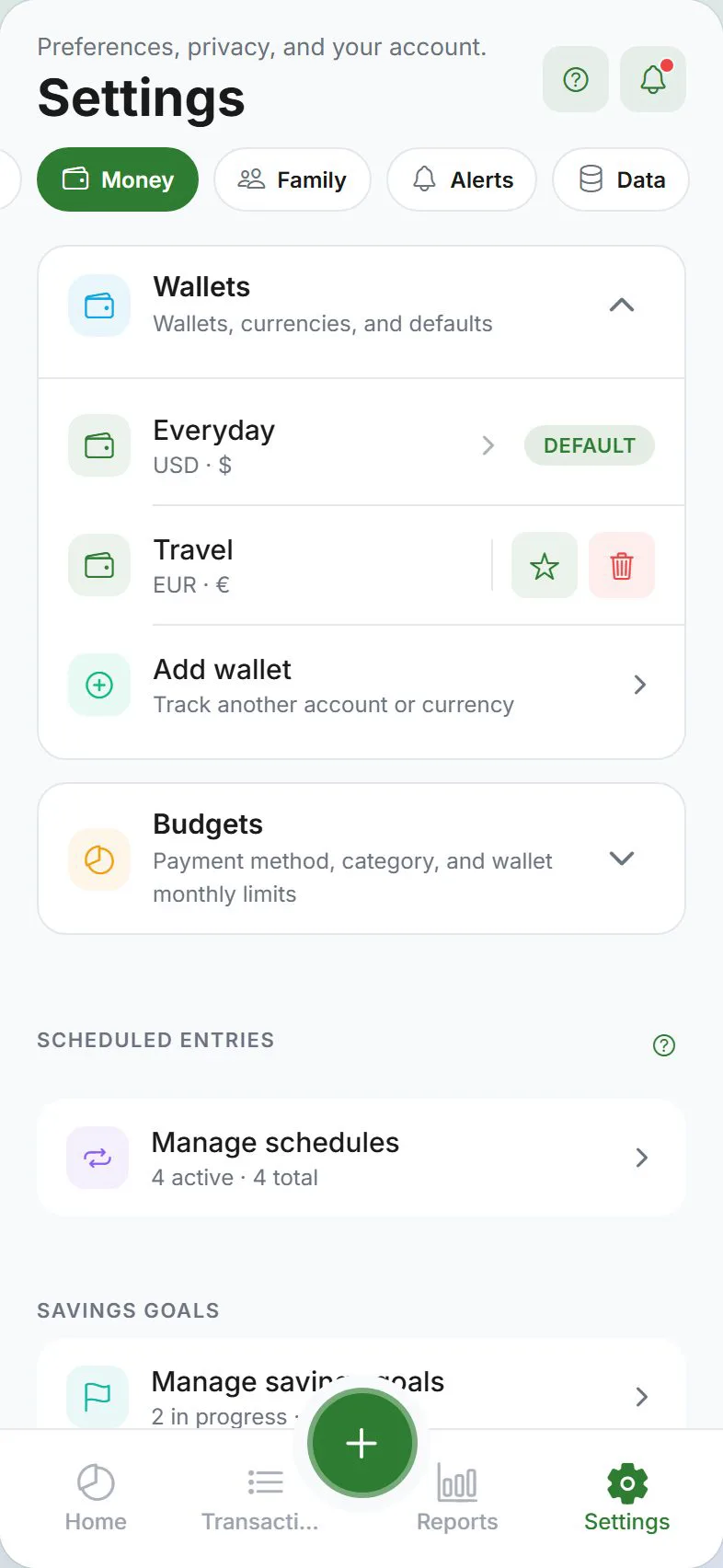
Open wallet settings
- Settings → Money tab
- Expand the Wallets section (accordion)
Wallets vs payment methods
| Term | Meaning | Example |
|---|---|---|
| Wallet | An account with a balance | “Cash”, “Chase Checking”, “Travel EUR” |
| Payment method | How you paid on a specific entry | “Debit card”, “Cash”, “Apple Pay” |
You usually have one payment method per wallet, but you can customize labels. See Payment methods.
Add a wallet
- Settings → Money → Wallets → Add wallet
- Enter a name (for example, “Main checking”)
- Pick a currency if you track more than one
- Save
The new wallet appears in the wallet switcher on Dashboard, Transactions, and Reports.
split contact wallets
When you add an split contact, the app creates a special wallet labeled Name (IOU). These wallets:
- Track what each contact owes you (or what you owe them)
- Appear in the wallet list and switcher like normal wallets
- Are used by Settle up when someone repays you
Do not delete an split contact wallet manually unless you are removing the contact — use Buddies & splits instead.
Edit or delete a wallet
- Tap the wallet in the list
- Change the name or currency, or delete if empty
Deleting a wallet that still has transactions may be blocked or may require moving entries first. Export a backup before big changes.
Default wallet
One wallet can be your default for new entries. Set this when creating or editing a wallet.
Filter by wallet
On Dashboard, Transactions, and Reports, use the wallet switcher to focus on one account or see all wallets combined.
Multi-currency
Each wallet can use its own currency. Transfers between different currencies may ask for an exchange rate.
Opening balances
When you start mid-month or your total does not match your bank app, use Opening balances — not a regular expense.
Path: Settings → General → Preferences → Opening balances
See the dedicated guide: Opening & balance adjustments.
Household and cloud sync
- With cloud sync on, wallets sync across your signed-in devices.
- In a household, some shared entries may appear in shared views — wallet setup stays under your Money settings.
Tips
| Situation | What to do |
|---|---|
| Starting fresh | Keep one “Cash” and one “Bank” wallet — add more later |
| Travel abroad | Add a wallet in local currency for the trip |
| Balance wrong | Check opening balances before deleting entries |
| Move money between accounts | Use a transfer, not an expense |
Related guides
- Payment methods
- Transfers
- Balance adjustments
- What is a wallet? — concept explainer
Was this guide helpful?