
How to split rent and utilities with roommates
Split groups and scheduled rent.
Split groups and scheduled rent. In short: Expense Trail helps you split rent roommates with manual logging on iOS, Android, and web—no bank linking, no ads on core features. Follow the steps below, then use the product docs for screen-by-screen detail.
Before you start
You need at least one wallet for the expense payer. For splits, add buddies first. Household sharing is separate—see split bills vs household.
Steps
Open Settings → Family → Buddies and add everyone who shares bills.
You should see: Buddy list shows local or cloud-linked contacts.
Create a split group if the same people split rent or trips often.
You should see: Group appears under Family with shared history.
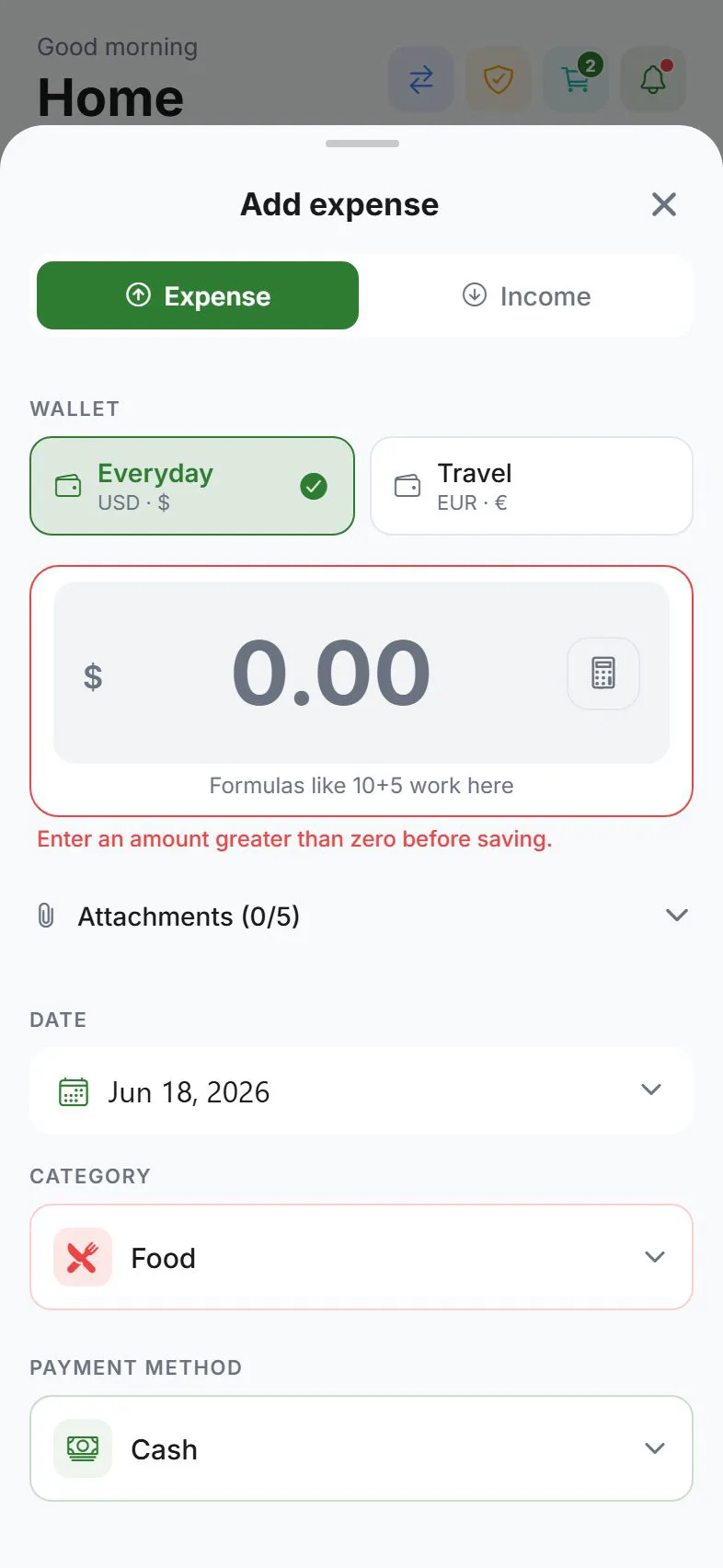
Add the expense, tap Split, and pick equal, exact, percent, shares, or line items.
You should see: Each person's share is visible before you save.
Confirm IOU wallets updated for each buddy.
You should see: Dashboard shows Name (IOU) balances.
When someone repays, use Settle up—not a new expense.
You should see: IOU wallet moves toward zero.
Common mistakes
- Using household for friend IOUs — Buddies and split groups track who owes whom; household is for partners with shared/private visibility.
- Skipping settle-up — IOU wallets stay open until you record repayment.
- Splitting transfers — Move money between your wallets with transfers, not split expenses.
Why this approach works
Restaurant tabs, rent, and trips fail when IOUs live in group chat. Recording splits in Expense Trail gives each buddy an IOU wallet, five split methods on one expense, and settle-up when cash changes hands—without payment processing. Split groups and scheduled rent.
Quick answer (split rent roommates)
Split groups and scheduled rent. Use Expense Trail on iOS, Android, or web; core features are free without ads. You log each line manually—there is no bank feed to reconcile later.
Featured-snippet style: Split groups and scheduled rent. Expense Trail uses manual entry—add wallets and categories, follow the steps above, and review Reports weekly. No bank linking; guest mode works without an account.
Tips that stick
- Set default wallet and default category under Settings so repeat logging takes seconds.
- Log the expense the same day—memory fades and group splits get disputed.
- Once per week, open Reports and scan for empty days or categories over 80% of budget.
- Link related tasks in Learn hub instead of duplicating long product docs here.
Troubleshooting
- Totals look wrong — Search Transactions for duplicates, wrong dates, or expenses logged instead of transfers.
- Feature missing on web vs mobile — Some platform tools (widgets, geofence) are mobile-only; see platform guides.
- Still stuck — Open the product doc linked below for screen-by-screen paths; concept pages explain why wallets, categories, and budgets differ.
Related concepts
Rent plus utilities in one split group
Split rent with roommates works best with a split group for the same people each month. Log rent as a scheduled entry if it is fixed, then split equally or by shares (larger room = more shares). Utilities vary—split each bill when it arrives rather than guessing. IOU balances should match your roommate chat; if not, check for missing settle-up entries.
Split bills without a separate app
Many people search "split rent roommates" after a frustrating group dinner or trip. Expense Trail keeps splits beside your personal budgets and wallets—you do not need Splitwise for IOUs and another app for monthly caps. Local buddies work offline; cloud TRAIL codes sync IOUs when everyone signs in. Settle-up entries keep history honest when cash or Venmo repays a friend.
Frequently asked questions
Split rent and utilities with roommates—do I need an account?
Guest mode works for local-only tracking. Sign in with Google or Apple if you need cloud sync, household, or push alerts. See use without an account.
Does Expense Trail process payments between friends?
No. Expense Trail tracks who owes whom and settle-up entries—it does not move money between bank accounts.
What if something looks wrong after I finish?
Check Transactions for duplicate or backdated lines. For wallet totals, use balance adjustments rather than fake expenses.
How long does setup take?
Most users finish in 10–20 minutes if wallets and categories already exist. Add buddies or household invites when everyone has the app installed.
Can I do this on web and mobile?
Yes—Expense Trail syncs when signed in (or use guest/LAN for offline-first workflows). Widgets and geofence are mobile-only.
Is Expense Trail free for this?
Core tracking, budgets, splits, and export are free without ads. See Is Expense Trail really free?.
Is this financial advice?
No—this guide explains product setup only. For tax, legal, or investment decisions, consult a qualified professional.