
Guide section
Platforms
iPhone & iPad
Tips for using Expense Trail on iOS — permissions, Face ID, notifications, and updates.
The iPhone and iPad app is the recommended way to use Expense Trail for everyday tracking — strongest on-device encryption, Face ID, and reliable notifications.
Install
Download from the App Store. See Install guide.
Navigation
| Element | Action |
|---|---|
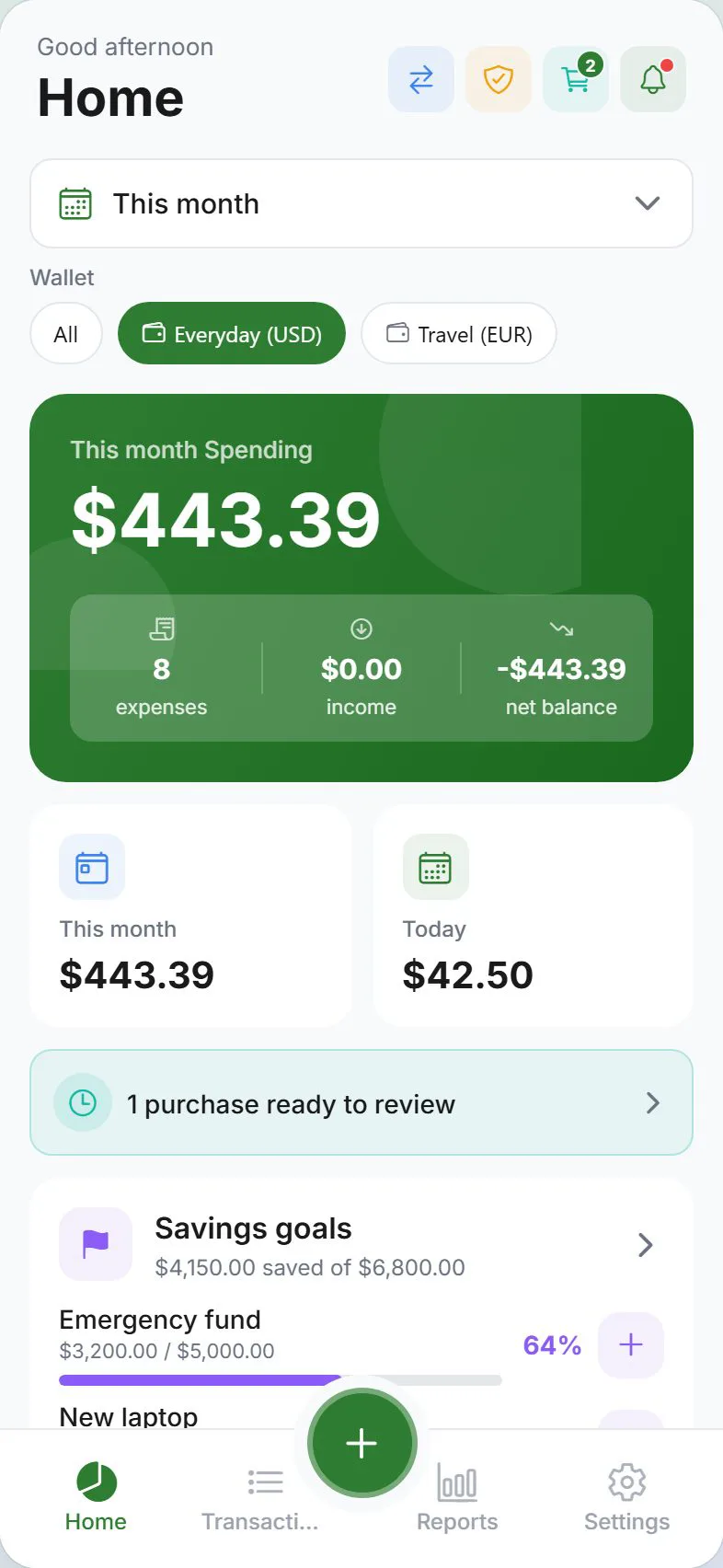
| Bottom tabs | Dashboard, Transactions, Reports, Settings |
| Center + | Add expense, income, or savings |
| Swipe back | Return from Goals screen or bill calendar |
Permissions
iOS may ask for:
| Permission | Why |
|---|---|
| Notifications | Budget alerts, bill reminders, weekly summary |
| Face ID / Touch ID | App lock |
| Local network | LAN sync between devices on Wi‑Fi |
Change anytime in iPhone Settings → Expense Trail.
Face ID and app lock
- Settings → Account → Security in the app
- Enable PIN and Face ID / Touch ID
- Choose lock timeout (immediate, 1 min, 5 min)
See App lock.
Push notifications on iPhone
- Allow notifications when iOS asks
- Settings → Alerts in the app — enable the types you want
- Check Focus modes — they can silence alerts during Do Not Disturb
Web push on iPhone (Safari)
If you use the web app in Safari, add it to your Home Screen first — iOS only allows web push for installed web apps. The app shows step-by-step instructions under Settings → Alerts.
iCloud backup
Settings → Data → Cloud backup → iCloud Drive uses the share sheet — save each backup manually to iCloud. Automatic schedule is not available for iCloud; use Google Drive or Dropbox for scheduled backups.
See Cloud backup.
Clipboard suggest
Settings → General → Preferences → Clipboard suggest can pre-fill amounts from copied bank SMS. Phone only — not on web.
Widgets and shortcuts
Add Goals or IOU widgets from the iOS widget gallery, or long-press the app icon for quick actions (add expense, split, goal contribution, and more). See Widgets & shortcuts.
Updates
- Regular updates via App Store
- Required update screen blocks use until you update (rare, critical fixes only)
Tips for iPad
- Wide layout shows more settings tabs without scrolling
- Same account as iPhone — enable cloud sync
- Keyboard + trackpad: Tab through forms like on desktop
Troubleshooting
| Issue | Try |
|---|---|
| App frozen after background | Force-quit and reopen |
| No push notifications | iOS Settings → Notifications → Expense Trail → Allow |
| Sync stuck | Open app on Wi‑Fi, tap Sync now |
| More help | Common issues |
Related guides
Was this guide helpful?