
Reports
Guide section
Reports
Bills calendar (Reports)
Upcoming bills and income from scheduled entries — next 14 days.
The Bills tab in Reports is your bill calendar — a forward-looking view of recurring bills and income, not a history of past spending.
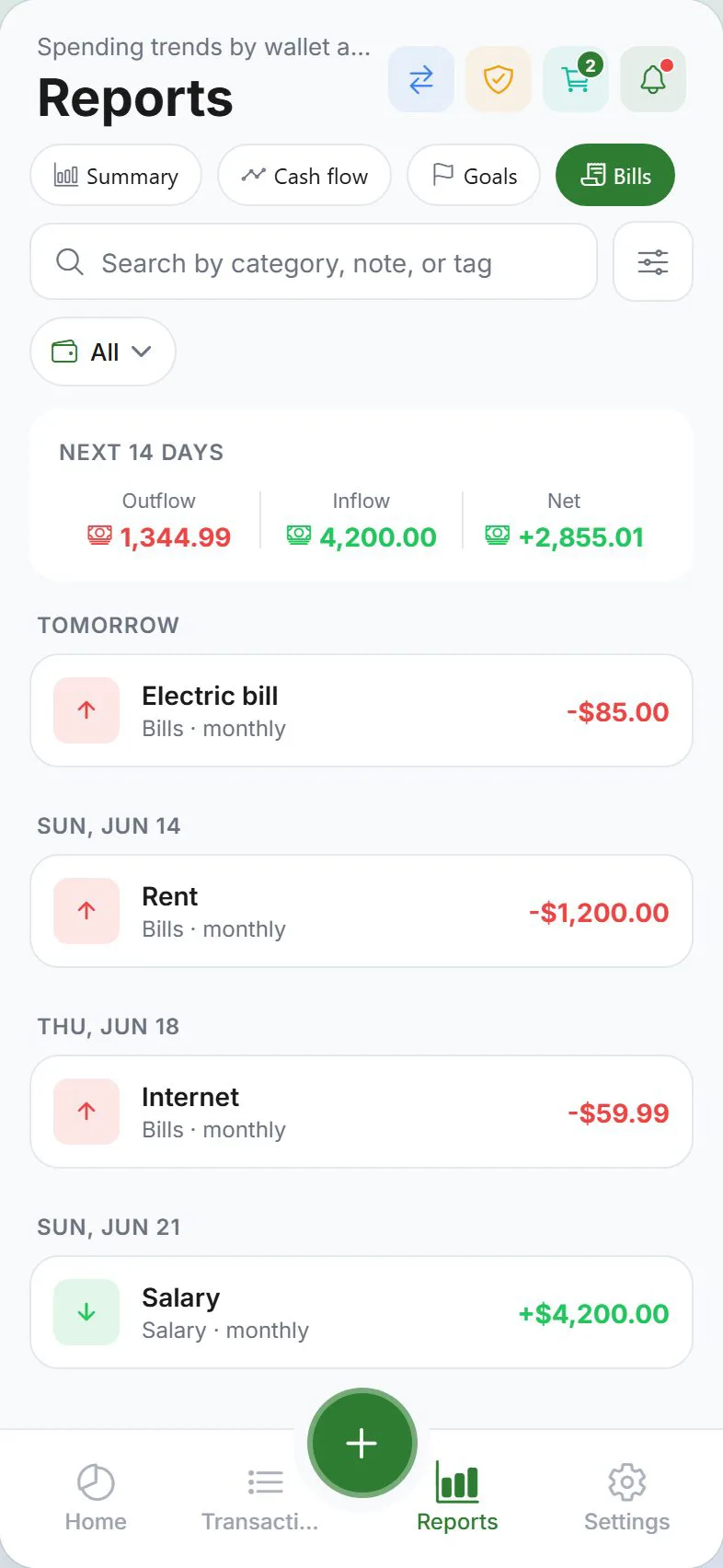
Open the bills calendar
- Tap Reports
- Select the Bills tab
Same content appears in the standalone bill calendar route and in Daily use → Bill calendar.
What it shows
For the next 14 days:
| Item | Source |
|---|---|
| Bills due | Scheduled expense entries |
| Expected income | Scheduled income entries |
| Daily totals | Projected in, out, and net per day |
Tap a day to see entries grouped for that date.
Empty calendar
Add scheduled entries first:
- Settings → Money → Scheduled entries
- Create monthly bills (rent, phone, subscriptions)
- Return to Reports → Bills
When bills post as transactions
Scheduled items become real transactions when you open the app on or after the due date. For reminders while the app is closed, enable Scheduled & bills alerts — see Alerts.
Edit upcoming bills
Changes happen in Settings → Money → Scheduled entries, not on the calendar itself:
- Edit amount or due date
- Toggle Active off to pause
- Delete cancelled subscriptions
Related guides
Was this guide helpful?