
Guide section
Family & sharing
Households
Share expenses with a partner or family member using one cloud account.
A household lets two or more people share selected expenses through Expense Trail’s cloud sync. Each person signs in with their own account but sees shared entries marked by members.
Requirements
Before creating or joining a household:
- Sign in with Google or Apple
- Turn Cloud sync on under Settings → Account
Households do not work in local-only mode.
Open household settings
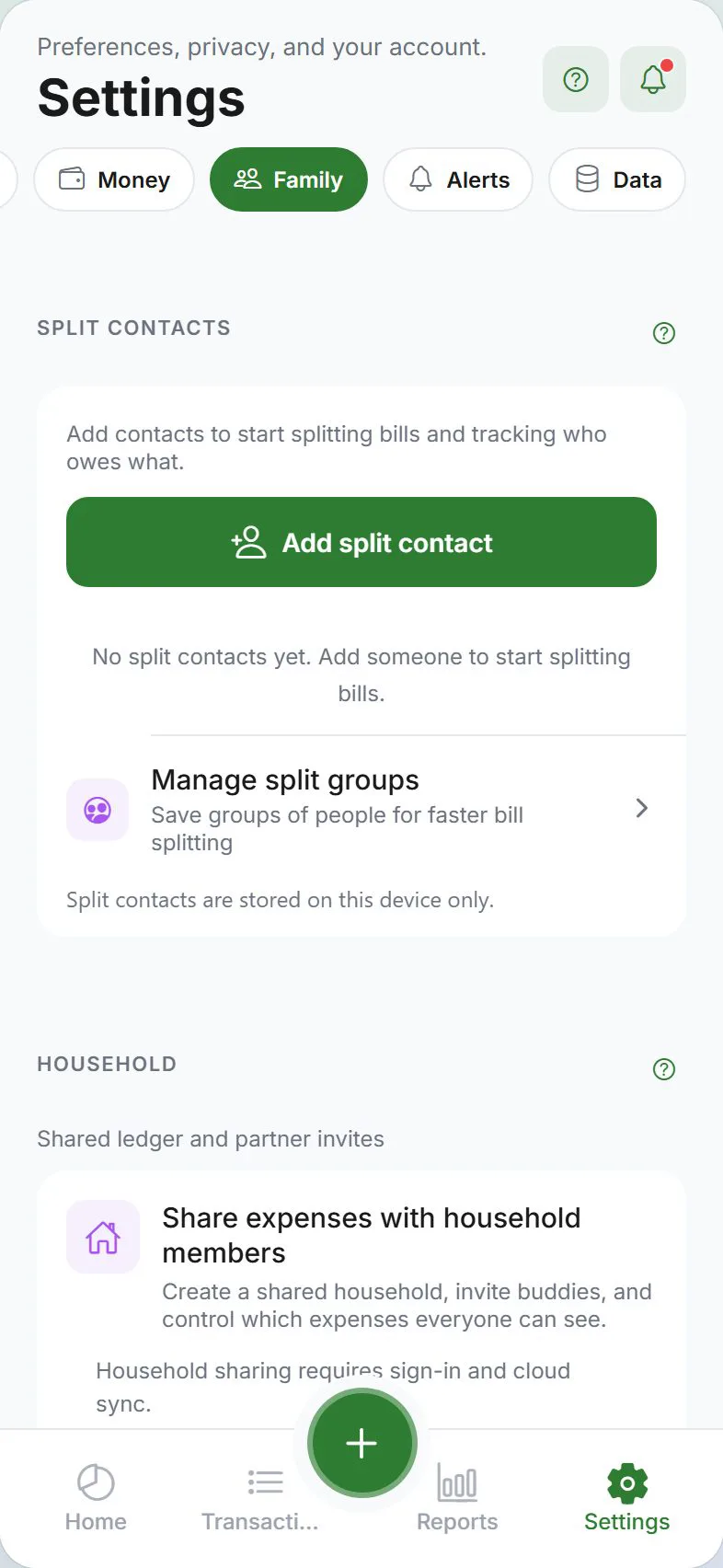
Settings → Family tab → Household section
Create a household
- Tap Create household
- Enter a name — “Smith family”, “Our apartment”, etc.
- Save
You can belong to more than one household (for example home and a shared apartment).
Invite members
- Add the person as a buddy first (invite code or QR)
- Open the household → Invite buddy
- They accept under Household pending invites
There is no public household invite link — only buddies you have already accepted can be invited.
Shared vs private expenses
When logging an expense, choose Visibility:
| Setting | Who sees it |
|---|---|
| Private | Only you (on your synced devices) |
| Shared | All household members |
Default may be private — switch to Shared for rent, groceries, or other joint costs.
End-to-end encryption in households
If you use end-to-end encryption, household members need proper key setup so everyone can read shared encrypted fields. Complete the privacy checkup if prompted after joining.
Notifications
Turn on Household activity under Settings → Alerts to get a push when someone accepts an invite or joins.
Edit household name
Household owners can rename the household from Settings → Family.
Leave a household
- Settings → Family → Leave household
- Read the confirmation — shared expenses may become private on your account after leaving
- Confirm
Leaving does not delete your personal account or local data.
Trust and privacy
Only join a household with people you trust to see shared spending. Private entries stay private unless you mark them shared.
See Privacy overview.
Household vs split bills
| Feature | Household | Split bills |
|---|---|---|
| Purpose | Shared ledger in the cloud | Informal “who owes whom” (buddies + local contacts) |
| Needs sync | Yes (for shared ledger) | Local splits work offline; buddies need cloud sync |
| Best for | Partners, family budget | Roommates, one-off dinners |
See Split expenses and Buddies.
Troubleshooting
| Problem | Try |
|---|---|
| Partner cannot see shared expense | Confirm visibility is Shared, correct household if you belong to several, and both finished encryption setup |
| Buddy cannot be invited to household | Add them as an active buddy first, then send a household invite |
| Cannot create household | Check sign-in and cloud sync |
Related guides
- Account & sync
- Encryption
- Add & edit entries
- Shared household explained — concept explainer
Was this guide helpful?