
Organization
Guide section
Organization
Tags
Label entries for flexible filtering in transactions and reports.
Tags are optional labels you attach to individual entries — “vacation”, “work trip”, “tax-deductible”. Unlike categories, one entry can have several tags, and tags are great for cross-cutting filters.
Add tags while logging
- Open the Add entry sheet (+ button)
- Tap the Tags field
- Search existing tags or type a new name to create one
- Select tags and save the entry
Recent tags may appear for quick selection.
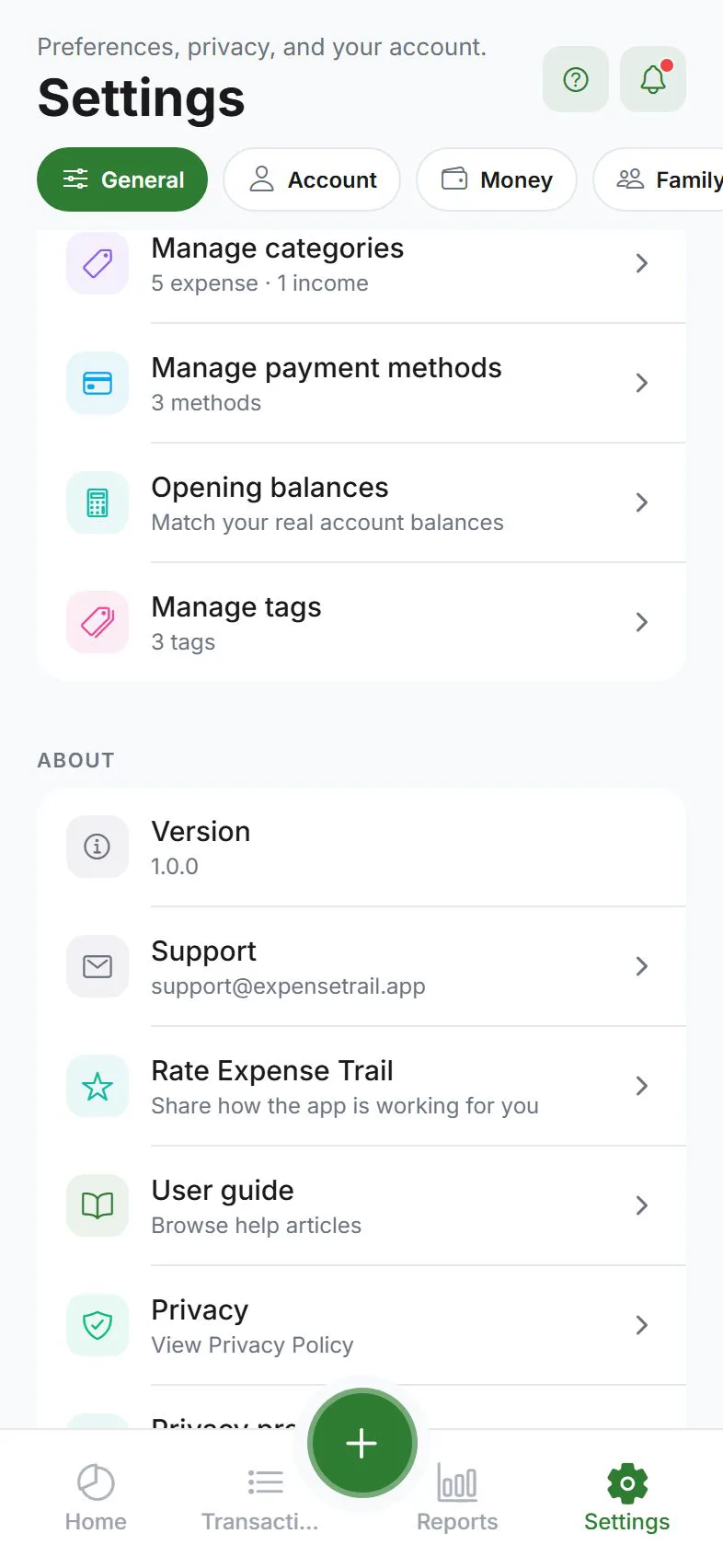
Manage all tags
- Settings → General → Preferences
- Tap Manage tags
- Create new tags or delete ones you no longer need
Deleting a tag removes it from future pickers; old entries may keep the label in history depending on version.
Filter by tag in Reports
- Open Reports
- Use tag filter chips (when you have tags)
- Charts and totals refresh for entries with that tag
Wallet filters work the same way — combine wallet + tag for precise views.
Tags vs categories
| Category | Tag | |
|---|---|---|
| Required? | Usually yes | Optional |
| How many? | One per entry | Multiple allowed |
| Best for | “What kind of spending?” | “Why or which project?” |
| Budgets | Category budgets | No tag budgets |
Example: Category Food, tags vacation and 2025-trip.
Cloud sync
With cloud sync on, tags sync across devices. Offline, tags you create still work locally.
Tips
| Goal | Suggestion |
|---|---|
| Tax deductions | Tag deductible purchases consistently |
| Trips | One tag per trip name |
| Keep list short | Delete unused tags in Manage tags |
| Too many tags | Prefer categories for broad groups; tags for exceptions |
Related guides
Was this guide helpful?