
Guide section
Family & sharing
Split expenses
Split a bill with Buddies & split contacts using equal, exact, percent, share, or line-item methods.
Split bill lets you record when you pay for a group and track how much each person owes you. It uses Buddies & split contacts under Settings → Family → Buddies & splits — separate from household sharing.
How it works
- You pay the full amount (one expense entry)
- You select contacts to split with — or pick a saved split group
- You choose a split method (equal, exact amounts, percent, shares, or line items)
- Each contact’s share is tracked as “they owe you” (or vice versa)
- When someone pays you back, use Settle up to clear the balance
On your device: IOU balances, line-item labels, and split UI preferences are stored locally. If you use cloud sync, the server only receives who owes how much (wallet + amount per contact) — not item names or receipt-style breakdowns. That keeps shared sync useful without uploading full receipt detail.
Cloud sync is not required for split tracking.
Set up Buddies & split contacts first
Before splitting, add the people you split with:
- Settings → Family tab
- Expand Buddies & splits
- Tap Add split contact (local name) or Add buddy (cloud TRAIL- code)
- Enter a name — “Alex”, “Roommate Sam”
- Save — the app creates a contact wallet for tracking
See Buddies & split contacts for balance views and cloud buddies.
Split when adding an expense
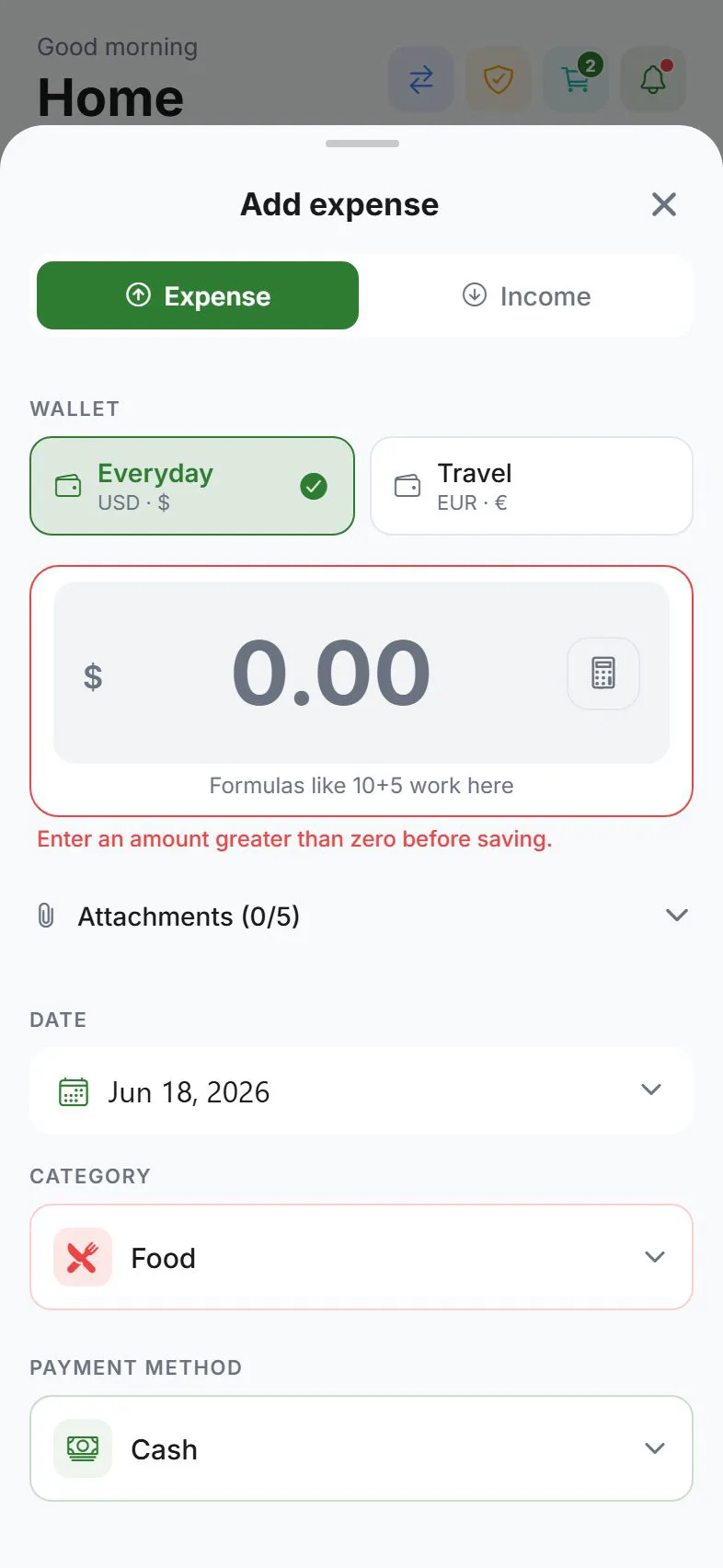
- Tap + to add an expense
- Enter amount, category, and wallet when you use wallets (the account you paid from)
- Turn on Split bill
- Tap contacts to include, or Select a group for a saved split group
- Pick a split method and review totals
- Save
The full amount leaves your wallet. Each contact’s share adds to what they owe you.
Split methods
| Method | Use when |
|---|---|
| Equal | Everyone pays the same share (optional: Include me, I paid extra for tips) |
| Exact | You enter each person’s amount |
| Percent | Custom percentages (can include yourself in the math) |
| Shares | Weights such as 2 shares for a couple, 1 for a single |
| Split by items | Add line items (e.g. Pizza, Taxi) and assign each to contacts |
Line items and editing
- Line items (names, assignees, amounts) are saved on this device with the expense so you can edit later.
- After cloud sync, partners still see correct IOU amounts; item labels stay on devices that entered them unless you edit on the same phone.
- Save as default for this group remembers method and item templates (labels + who shares each item, not dollar amounts) for the same contact set next time.
Group defaults vs split groups
| Feature | Split groups | Group defaults |
|---|---|---|
| What it saves | Named list of people (split groups) | Last split method or item template for a contact set |
| Best for | Same people every time | Same split style every time |
When you select the same Buddies & split contacts again, the app can also restore your last saved default for that group once — until you change the split yourself. Turning split off or clearing contacts resets that.
View balances
Settings → Family → Buddies & splits
You will see lines like:
- “Alex owes you $25.00”
- “You owe Sam $10.00”
The app may simplify debts — if Alex owes you and you owe Sam, it might suggest Alex pays Sam directly.
Settle up
When someone repays you (or you repay them):
- Settings → Family → Buddies & splits
- Tap Settle up on the contact
- Confirm the amount and direction
- The app records a transfer between wallets to zero out the IOU
This keeps group fairness without duplicate expense entries.
Split vs household
| Split bill (IOU) | Household shared expense | |
|---|---|---|
| Where | Add expense → Split bill | Add expense → Visibility Shared |
| Cloud needed | No (local splits); buddies need sync | Yes |
| Tracks debt | Yes — who owes whom | No — shared visibility only |
| Best for | Dinners, trips with friends | Partner/family joint spending |
Tips
| Situation | Suggestion |
|---|---|
| Dinner for four | Add expense → split among 3 contacts (your share stays implicit) |
| Same roommates every month | Create a split group — “Roommates” |
| Someone paid you back in cash | Settle up → record transfer from their split contact wallet |
| Unequal split | Use Exact, Percent, Shares, or line items |
| Same friends every time | Save as default for this group after setting method or item templates |
| E2EE / encrypted cloud | Server-side splits are not available — use local split tracking only |
Related guides
Was this guide helpful?