
Organization
Guide section
Organization
Payment methods
Label how you pay — cash, debit, credit, and more — and link methods to budgets.
Payment methods describe how you paid for something. They work together with wallets: the wallet holds the balance; the method describes the card or cash used on that entry.
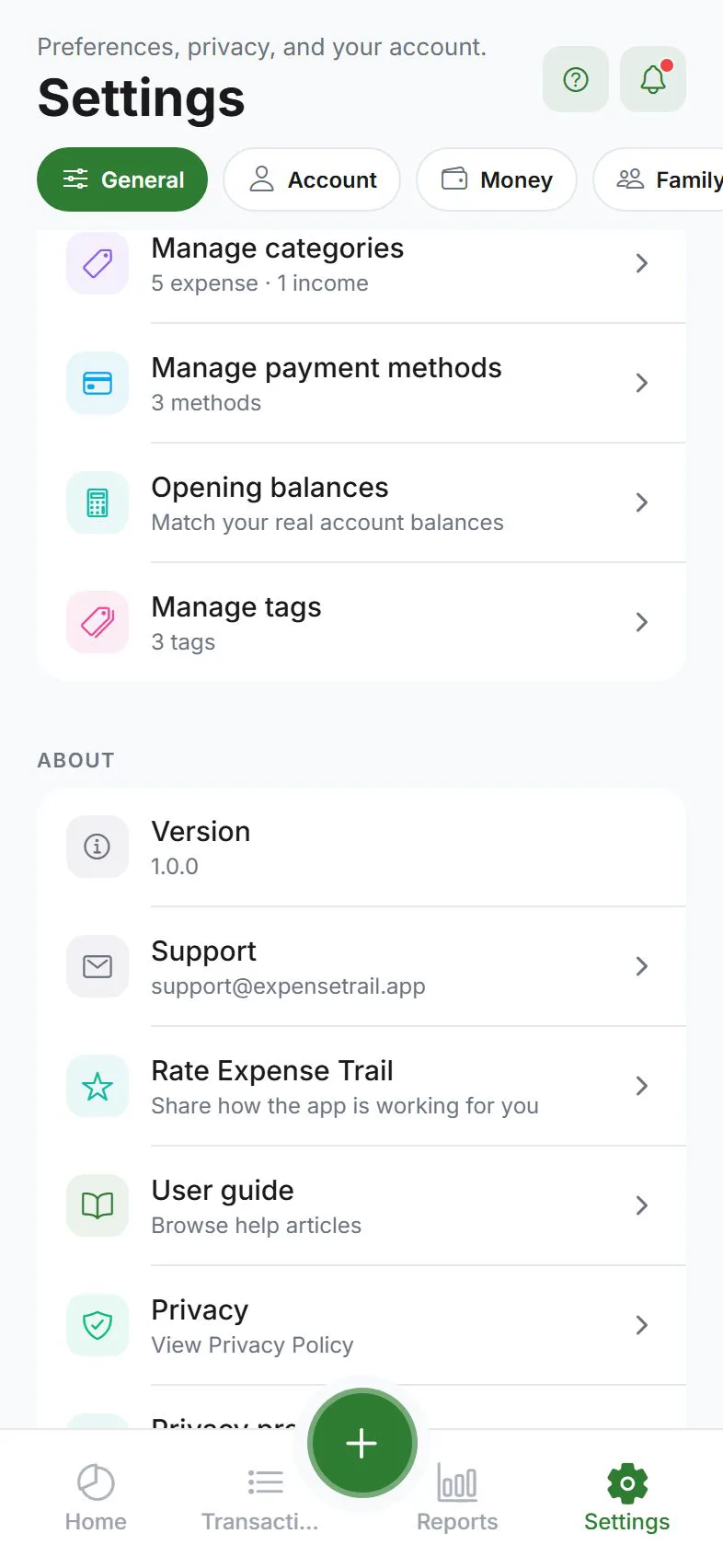
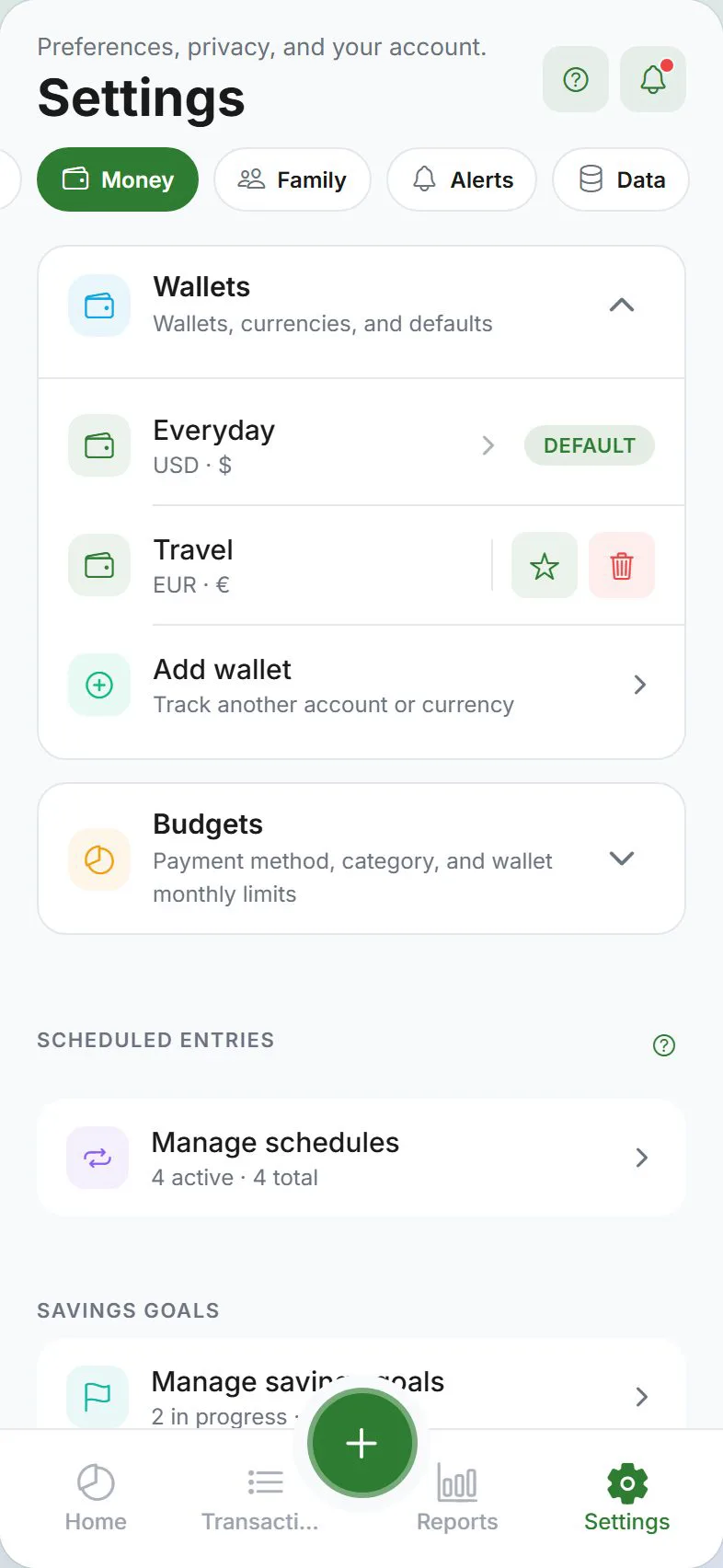
Open payment method manager
- Settings → General → Preferences
- Tap Manage payment methods
Add a payment method
- Tap Add payment method
- Enter a name — “Visa ending 4242”, “Cash”, “PayPal” (labels only — never store full card numbers)
- Pick an icon
- Save
Edit, hide, or delete
| Action | When to use |
|---|---|
| Edit | Rename or change icon |
| Hide | Method you no longer use — hidden from pickers, history preserved |
| Delete | Remove unused methods — at least one method must always remain |
Built-in default methods cannot be deleted — hide them instead.
Reorder methods
Put frequently used methods first:
- Phone: Long-press and drag
- Web: ↑ / ↓ buttons
Budgets by payment method
Cap spending on a specific card or cash:
- Settings → Money → Budgets
- Add a payment method budget
- Set a monthly limit
See Budgets.
Wallets vs methods — quick reference
| Question | Answer |
|---|---|
| “How much is in my checking account?” | Look at the wallet balance |
| “How much did I put on my credit card this month?” | Filter by payment method or use a method budget |
| “I paid cash from my pocket” | Wallet: Cash, Method: Cash |
Opening balances
Adjust starting totals per wallet and method in Preferences → Opening balances. See Balance adjustments.
Cloud sync
Custom payment methods sync when cloud sync is enabled.
Safety note
Use friendly labels only — “Chase debit”, not full card numbers, CVV, or PINs. Expense Trail is for tracking, not storing card credentials.
Related guides
Was this guide helpful?