
How to turn on end-to-end encrypted sync
Enable E2EE, save your recovery phrase, and upload key escrow for multi-device decrypt.
End-to-end encrypted sync keeps amounts and notes as ciphertext on Expense Trail’s servers. You hold the keys via a recovery phrase and optional key escrow so another phone can unlock after sign-in.
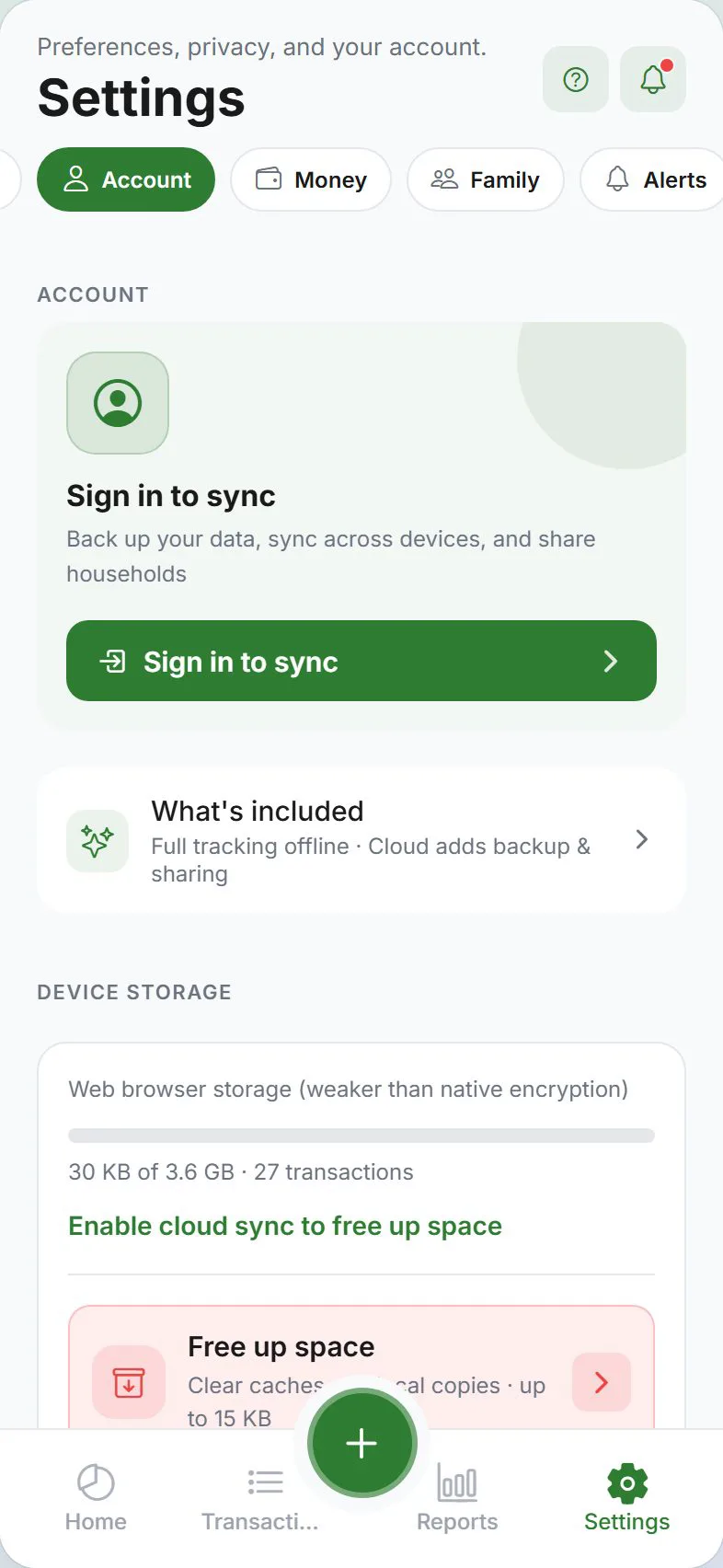
Before you start
- Sign in with Google or Apple
- Turn Cloud sync on
- Read privacy tiers—E2EE is optional and irreversible without your phrase
Steps
Open Settings → Account → Privacy and review the privacy tier card.
You should see: Encryption and recovery phrase rows when signed in.
Turn on End-to-end encryption and follow the recovery phrase flow—write down all 12 words offline.
You should see: Confirmation that the phrase is saved; escrow uploads to your account.
Use the app on this device—status should be unlocked. New expenses encrypt before upload.
You should see: Normal amounts on Dashboard and Transactions.
On another device: sign in, enable sync, enter the same phrase when the unlock banner appears.
You should see: E2EE unlock & key escrow flow complete and lists decrypt.
Common mistakes
- Skipping phrase backup — Without the phrase (and without any unlocked device), cloud ciphertext is unrecoverable.
- Expecting support to reset E2EE — We cannot read or reset your master key.
- Confusing stealth with E2EE — Stealth hides on-screen amounts; E2EE protects server-side copies.
Frequently asked questions
Do I need escrow on every device?
Escrow is per account, uploaded once when you save the phrase. Each device still needs the phrase (or an existing local key) to unlock.
What if I see “no escrow”?
Complete Recovery phrase under Privacy on a device that can still use the app, or re-save the phrase after enabling E2EE.
Can I use splits in the cloud with E2EE?
Server IOU sync is off under E2EE; use local splits or standard sync if you need cloud IOU records.