
Guide section
Reports
Goals report
Track savings contributions and goal progress over a selected period.
The Goals report tab summarizes how much you added to savings goals during a chosen time range — separate from everyday spending charts.
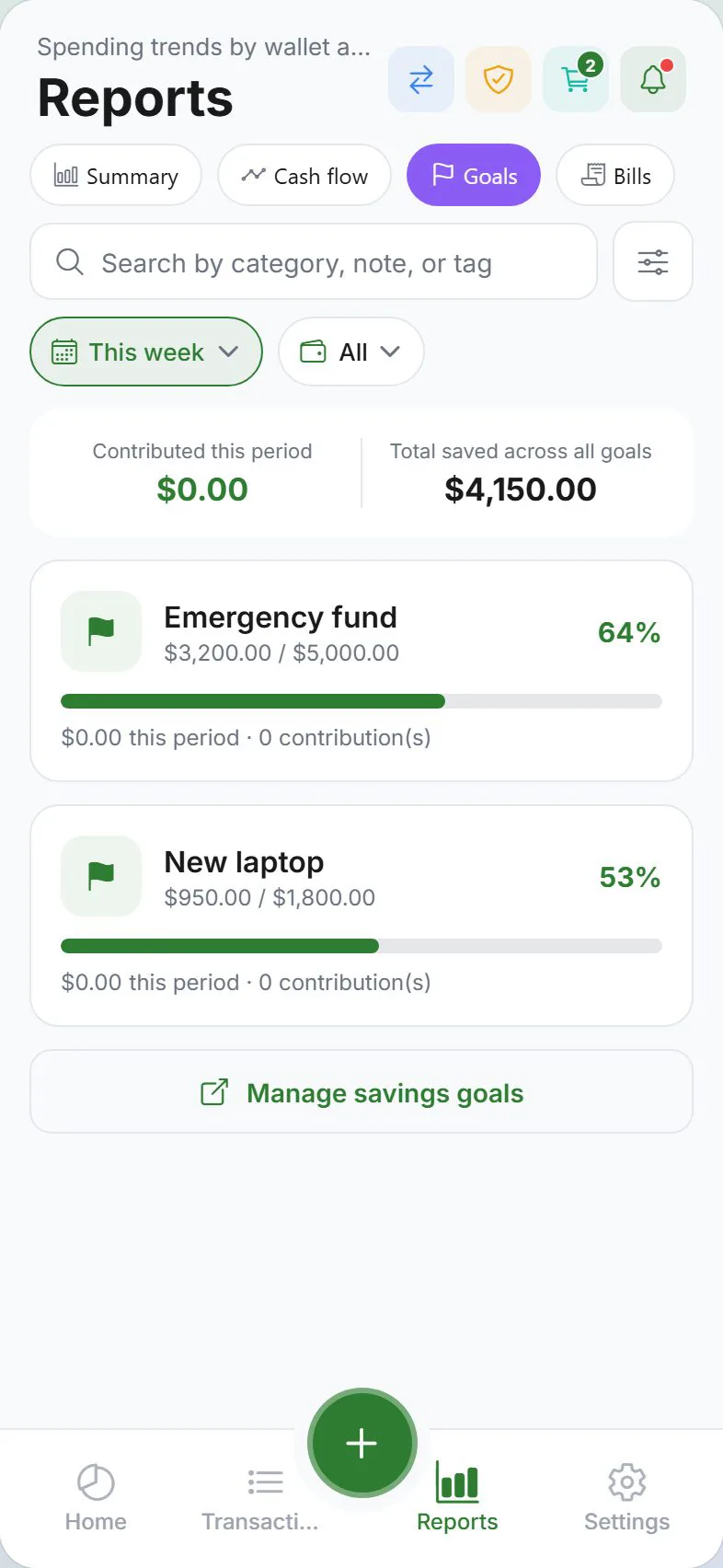
Open goals report
- Tap Reports
- Select the Goals tab
Requirements
- Sign in and enable cloud sync
- At least one active savings goal
Without goals, the tab may be empty — create goals under Settings → Money → Goals.
Period filter
Use the same period control as other reports — This month, Last month, Custom range, etc. Totals update for contributions and withdrawals in that window.
What you will see
Depending on your data, the Goals tab may show:
- Total contributions in the period
- Per-goal breakdown — how much went to each target
- Progress context — ties to goal targets set on the Goals screen
Withdrawals (money taken out of a goal) may appear as negative or separate lines in history — check Transactions → Goals for detail.
Add contributions from here
Most users contribute via:
- + button → Savings type
- Goals screen → Add contribution
- Scheduled goal contributions
Notifications
Enable Goal milestones under Settings → Alerts for push notifications at 50%, 75%, and 100% progress.
Related guides
Was this guide helpful?