
Getting started
Guide section
Getting started
App setup wizard
A friendly checklist for wallets, balances, budgets, and split contacts after your privacy checkup.
After the privacy checkup, Expense Trail may show a short Set up your trail wizard. It helps you configure the basics in a few minutes — without forcing you through every step.
When it appears
The wizard shows once after you finish (or skip) the privacy checkup on a fresh install. You can also return to any step later from Settings.
If you tap Skip setup, the app remembers your choice and will not nag you again.
What each step covers
| Step | What you do | Opens in Settings |
|---|---|---|
| Welcome | Overview of the checklist | — |
| Wallets & currency | Create wallets for each account or currency you track | Money → Wallets |
| Opening balances | Enter starting balances so totals match real life | General → Preferences (opening balances) |
| Budgets & limits | Set monthly or category limits | Money → Budgets |
| Split contacts & groups | Add local split contacts, buddies, or split groups | Family → Buddies & splits |
| You're all set | Summary and a button to start tracking | — |
Each step has Continue, Skip this step, and a link to open the relevant Settings section if you want to configure things in full.
Skip or finish early
| Button | Effect |
|---|---|
| Skip this step | Moves to the next step without changing anything |
| Skip setup | Closes the wizard entirely — you can configure everything later |
| Start using Expense Trail | Closes the wizard on the final screen |
Nothing is lost if you skip. Your entries and settings stay as they are.
After the wizard
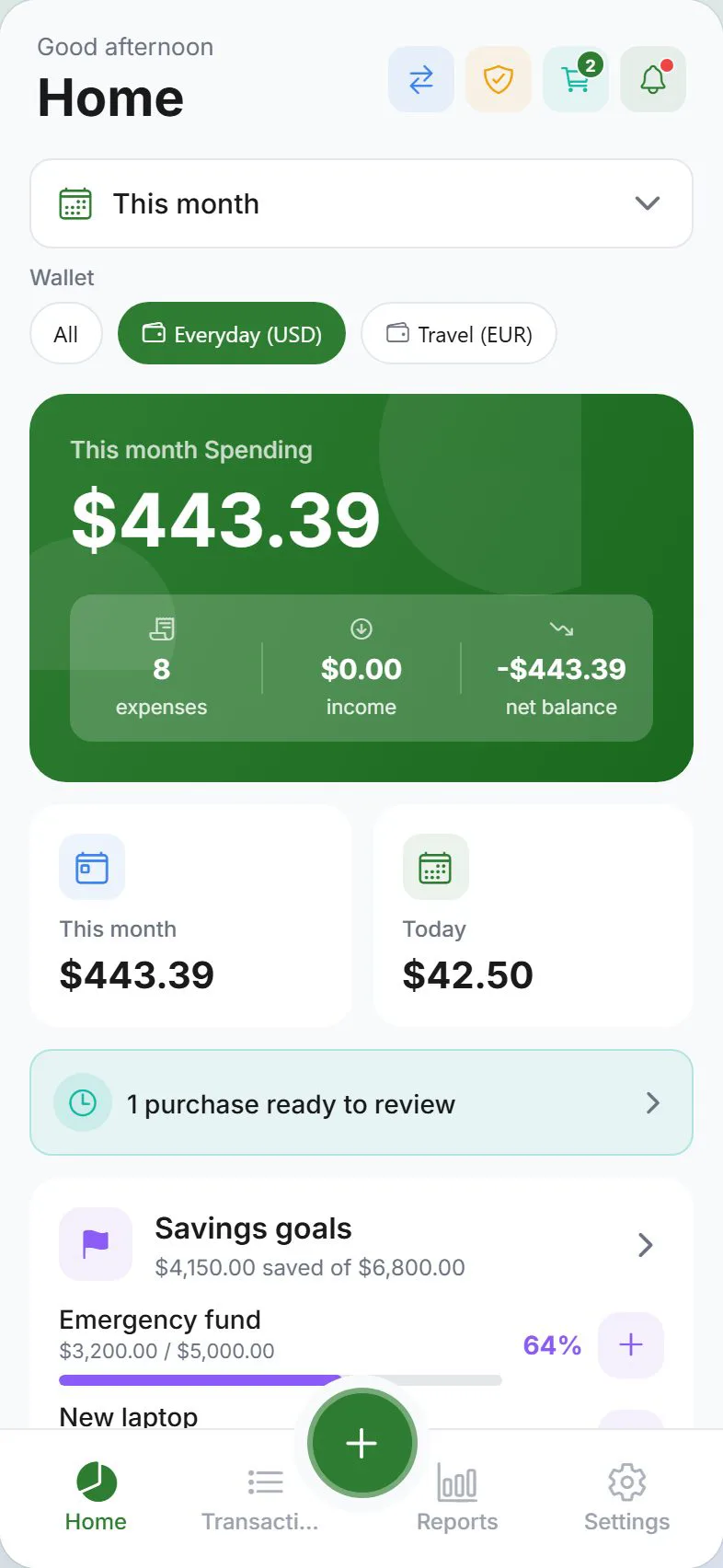
- Log expenses from the Dashboard or + button
- Open Settings → Money for goals and scheduled entries
- Open Settings → Family for households and split bills
Related guides
Was this guide helpful?